Applescript using dialog boxes to fill in Numbers sheet

So...here goes!


I really wanted to create an applescript (but am an absolute novice and was wondering if someone could help).


I want the applescript to do the following in the following order.


  1. Open a Numbers document in my downloads folder called "Absences"
  2. In a dialog box ask me for the name (or names) of people absent that day.
  3. Put the responses from this dialog box in a new sheet in the "Absences" numbers with the tab title being today's date.


This is something that would be used daily and so a new tab would be opened each day.


I would also like on the first tab called "Total absences" for the numbers to do some kind of search through the other tabs to see how many days total each person was absent in the whole numbers and give me a total.


Can anyone help?!?!?!?!


THANKS!


DM

MacBook Air 13″, macOS 12.0

Posted on Dec 10, 2021 12:18 AM

Reply
Question marked as Top-ranking reply

Posted on Dec 15, 2021 8:37 AM

Here is what I hope is a working version.


And here are some instructions:


Setting up

Create a new single-sheet Numbers document from the Blank template. Change the sheet name from the default Sheet 1 to Total Absences. Change the name of the table on this sheet to Names.


Modify the table so that it has no header rows or columns and no footer rows. The table must have two columns, and as many rows as there are students. (It can actually have more than two columns, but only the first two will be used by the script.)

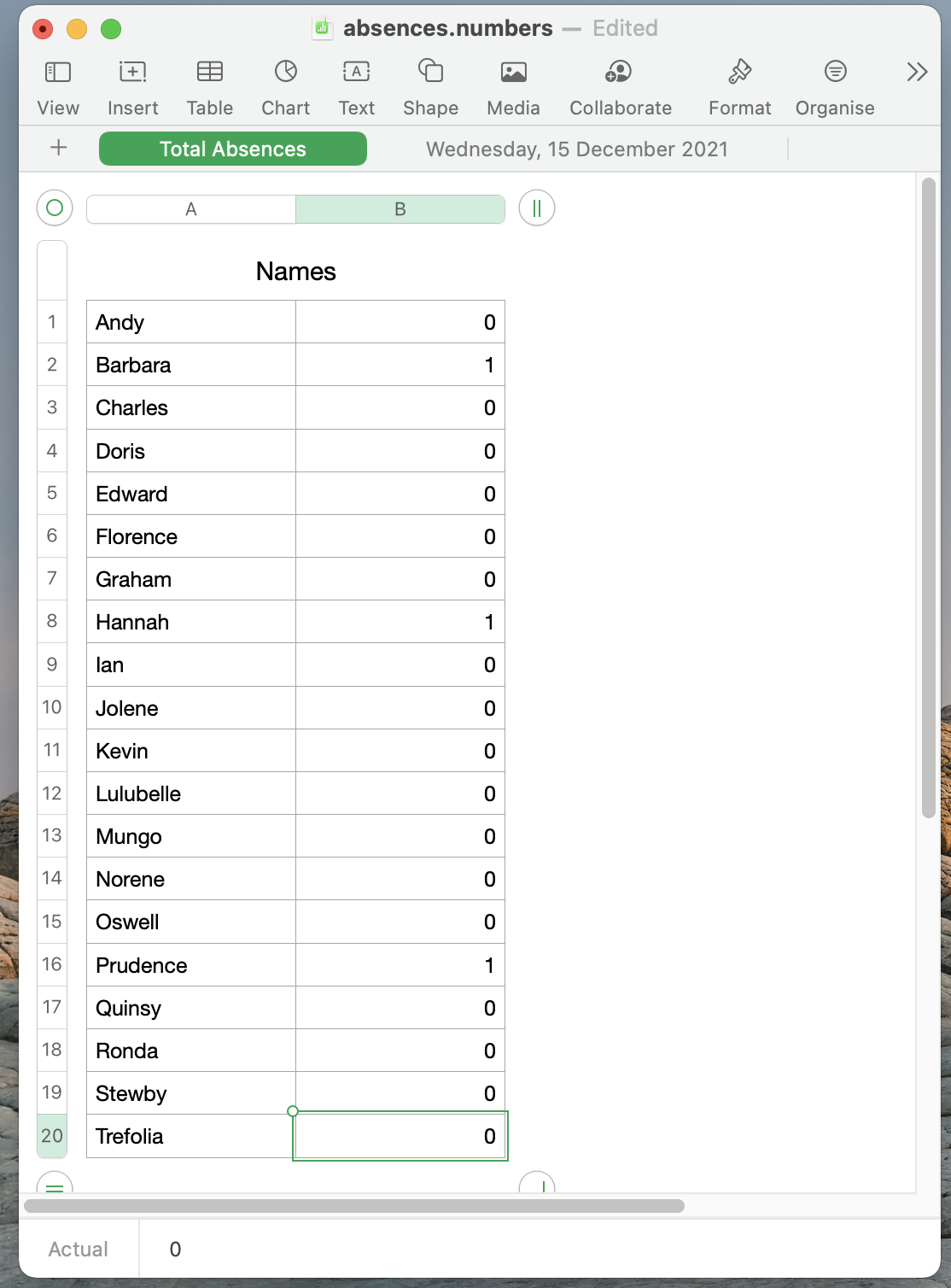
Type the names of the students in the first column, one per row. There is no need to fill the second column: this will be done automatically. Like this:


Save this document as Absences.numbers in your Downloads folder. You can close it if you like.


Open the script in Script Editor. If you like, you can save it as a Script Application anywhere convenient. You can then run it by double-clicking rather than from Script Editor, but I don't recommend setting it as a Calendar Alert: it will time out if left unattended.


Running the script

When you run the script, Numbers will launch and the Numbers document will be opened if it isn't already open.

You will see a dialog that lets you select the names of all the students in the Names table. If there is more than one, hold down the Cmd key and click on the individual names to make a multiple selection:


Once you're happy, click OK. If there are no absences, click Cancel.

The script will create a new sheet, with today's date as its name, and a two-column table with the names of all the students in the first column and a checkbox in the second. The checkbox will be ticked if the student has been marked as absent.



The script counts the number of absences for that day and adds them to the Names table on the Total absences sheet.

The next day, when you run the script, the dialog will run again and a new sheet will be created. The total absences will be cleared and the absences across all dated sheets will be added up and used to update the Total absences sheet.


Unfortunately, the sheets will be displayed in reverse date order. There's nothing I can do about this in the script, but the order can be changed manually by dragging the sheet headers from left to right.


What happens if...

No-one is absent? Run the script and click the Cancel button in the dialog. The dated sheet will be created with no absences recorded.

A new student joins the class? Before running the script, create a new row in the Names table of the Total Absences sheet. Their absences will now be recorded as and when they occur.

An existing student leaves? Two options: delete the row containing their name from the Names table of the Total Absences sheet. Their absences will no long be recorded, but there will be no record of past absences. The alternative is to leave their name on the Names table and possibly change the cell fill colour to indicate that they have left the class. No more absences will be added to their record.

You make a mistake in the absences dialog? Run the script again and complete the dialog. That day's original dated sheet will be deleted, a new one will be created and the totals will be tallied again.

You forget to run the script on one day? The script will not help with this. You will need to manually duplicate an existing dated sheet, change its name to the day on which you forgot and click the checkboxes manually to record the absences. Remember, a tick means absent. The next time you run the script, these absences will be added to the totals.

You need to correct a previous day's record? Tick or untick the checkboxes for that particular day. The next time you run the script, the total absences will be updated with the corrected record.

You leave the dialog open for too long? After a minute, if you don't confirm the dialog, it will give an "Apple event timed out" error. The data won't be recorded, so once you've cleared the error you'll need to run the script (or script app) again.

You want to test it? Use a copy of the original spreadsheet. You can do a multi-day run by changing the runNumber property in the first line of the script to a number more than 1. Setting it to 5, for example, will create five days of absence records starting with today's date and a tally for all five on the Total absences sheet. When testing, if you click Cancel in the dialog box the script will stop the script without creating further daily sheets. Delete the extra sheets if you don't need them, and set the runNumber property back to 1 before running the script for real.


Hope this makes sense,


H

12 replies
Question marked as Top-ranking reply

Dec 15, 2021 8:37 AM in response to DMLaMiranda1990

Here is what I hope is a working version.


And here are some instructions:


Setting up

Create a new single-sheet Numbers document from the Blank template. Change the sheet name from the default Sheet 1 to Total Absences. Change the name of the table on this sheet to Names.


Modify the table so that it has no header rows or columns and no footer rows. The table must have two columns, and as many rows as there are students. (It can actually have more than two columns, but only the first two will be used by the script.)

Type the names of the students in the first column, one per row. There is no need to fill the second column: this will be done automatically. Like this:


Save this document as Absences.numbers in your Downloads folder. You can close it if you like.


Open the script in Script Editor. If you like, you can save it as a Script Application anywhere convenient. You can then run it by double-clicking rather than from Script Editor, but I don't recommend setting it as a Calendar Alert: it will time out if left unattended.


Running the script

When you run the script, Numbers will launch and the Numbers document will be opened if it isn't already open.

You will see a dialog that lets you select the names of all the students in the Names table. If there is more than one, hold down the Cmd key and click on the individual names to make a multiple selection:


Once you're happy, click OK. If there are no absences, click Cancel.

The script will create a new sheet, with today's date as its name, and a two-column table with the names of all the students in the first column and a checkbox in the second. The checkbox will be ticked if the student has been marked as absent.


The script counts the number of absences for that day and adds them to the Names table on the Total absences sheet.

The next day, when you run the script, the dialog will run again and a new sheet will be created. The total absences will be cleared and the absences across all dated sheets will be added up and used to update the Total absences sheet.


Unfortunately, the sheets will be displayed in reverse date order. There's nothing I can do about this in the script, but the order can be changed manually by dragging the sheet headers from left to right.


What happens if...

No-one is absent? Run the script and click the Cancel button in the dialog. The dated sheet will be created with no absences recorded.

A new student joins the class? Before running the script, create a new row in the Names table of the Total Absences sheet. Their absences will now be recorded as and when they occur.

An existing student leaves? Two options: delete the row containing their name from the Names table of the Total Absences sheet. Their absences will no long be recorded, but there will be no record of past absences. The alternative is to leave their name on the Names table and possibly change the cell fill colour to indicate that they have left the class. No more absences will be added to their record.

You make a mistake in the absences dialog? Run the script again and complete the dialog. That day's original dated sheet will be deleted, a new one will be created and the totals will be tallied again.

You forget to run the script on one day? The script will not help with this. You will need to manually duplicate an existing dated sheet, change its name to the day on which you forgot and click the checkboxes manually to record the absences. Remember, a tick means absent. The next time you run the script, these absences will be added to the totals.

You need to correct a previous day's record? Tick or untick the checkboxes for that particular day. The next time you run the script, the total absences will be updated with the corrected record.

You leave the dialog open for too long? After a minute, if you don't confirm the dialog, it will give an "Apple event timed out" error. The data won't be recorded, so once you've cleared the error you'll need to run the script (or script app) again.

You want to test it? Use a copy of the original spreadsheet. You can do a multi-day run by changing the runNumber property in the first line of the script to a number more than 1. Setting it to 5, for example, will create five days of absence records starting with today's date and a tally for all five on the Total absences sheet. When testing, if you click Cancel in the dialog box the script will stop the script without creating further daily sheets. Delete the extra sheets if you don't need them, and set the runNumber property back to 1 before running the script for real.


Hope this makes sense,


H

Dec 10, 2021 12:10 PM in response to DMLaMiranda1990

I'll throw this into the mix - see what you think.


I'm assuming that by "tab" @DMLaMiranda1990 means a new sheet.


Start with a Numbers file that has just one sheet, "Total Absences", and on that sheet a one two-column table, "Names" with a list of names in the first column and a running count of absences in the second:


As a preamble, it's worth pointing out that (a) Numbers sheets cannot be duplicated by script and (b) Numbers documents cannot have duplicate sheet names. It follows from (a) that the script has to build a new sheet from scratch every time it runs. It follows from (b) that if the new sheet has a date string as its name, the script can only be run successfully once a day. The following script is a test version that loops through four days into the future. A real-world version would need some changes to the flow to either delete "today's" sheet or stop the user from continuing.


The script first determines today's date and builds from it a text string that can be used in dialogs and the spreadsheet itself. It then opens the spreadsheet (as in my first post).


It then takes the list of names on the first sheet and presents the user with a "choose from list" dialog which allows multiple choices of absentee (cmd-click to select more than one).


It then creates a new sheet and sets its name to the date string. By default a new Numbers sheet has a single table with 22 rows and 7 columns with single row and column headers: the script restructures the table to have no headers, two columns (one for names, one for a checkbox) and as many rows as there are names. It places the names in the first column, and using the selections from the dialog, it ticks the checkboxes for the absentees.


It then adds any absences to the running total on the first sheet:


The present proof-of-concept version loops through the next four days to create a sheet per day. The "Total absences" sheet is updated every loop:


Here's the script in its own text file:


As it's a test version, if you run it more than once you would need to manually delete all the dated sheets or the script will throw unhandled errors.


There is lots wrong with this. EG:


• There is no data validation, so it's prone to inputting errors.


• There is no live interaction between the checkboxes in the dated sheets and the "Total Absences" sheet.


• It doesn't really account for those days when no-one is absent.


• It doesn't stop a naughty student coming along when the teacher isn't looking and changing their absence count in the "Total Absences" sheet.


• The four-day test version doesn't allow you to add new names to the first sheet. (My once-a-day version handles this.)


So it sort of works...


@VikingOSX: I wonder if this might be a job for Database Events rather than a text file? I've never used it myself but I might give it a go out of intellectual curiosity...


Have fun,


H


Dec 10, 2021 7:48 AM in response to DMLaMiranda1990

The first bit - opening the file - is relatively easy. Launch Script Editor, copy and paste the script below into an new empty document:


--define file path:
set downloadsFolder to path to downloads folder from user domain
set absenceFile to (downloadsFolder as string) & "absences.numbers"

--check correct file path:
try
absenceFile as alias
on error number errorNumber
	if errorNumber = -1700 then -- file doesn't exist
		display dialog "No absences file in Downloads folder!" buttons {"OK"} default button 1 with title "Missing file" with icon caution
		return --go no further
	end if
end try

tell application "Finder" to open absenceFile


Click the Hammer button at the top right of the Script Editor window to compile the script. If all is well, it should look like this:


Now click the Run button (black triangle). If the file exists, it should open in Numbers. If it doesn't, or if it's called something even slightly different, you'll get an error dialog:


The rest is not impossible, but AppleScript alone isn't great for user interface/dialog boxes etc, so any "vanilla" solution may be a bit clunky.


It would be helpful though to have a bit more information about the existing setup and how you envisage this working.


For example, does the Numbers document contain a list of the students' names? If so, are they in a separate table from the absence data?


Are all the tables (assuming that's what you mean by "Tabs") on the same sheet? If you're creating a new sheet every day, things may get slightly more tricky as there's no way of duplicating Numbers sheets in AppleScript.


Can you post a screenshot of the existing file, without disclosing any personal information? It would help to give any responders a bit more of an idea about how to go ahead.


Cheers,


H


Dec 10, 2021 10:54 AM in response to HD

HD, this is more for the OP's information and assumption that you already know this:


It might be better to place the firstname lastname of the absentees in a date-stamped text file (e.g. absentees_YYYYmmdd.txt), one entry per line, and then read that file with AppleScript into a list of names. This can be done in two lines of code: 1) select the file, and 2) read into the list. From that AppleScript name list, these can be entered into Numbers.


set absenteeFile to (choose file of type {"public.plain-text", "public.text"} default location (path to desktop))
set nameLst to read absenteeFile as text using delimiter linefeed


With more work, it is possible to continue entering names in a display dialog beyond the entry field width. It simply refreshes the dialog panel, shows the last entry, and you can continue entering names. This results in a really long string, but one where you have to carefully choose the separator character between absentee name entries.


set nameStr to text returned of (display dialog "Enter absentee names delimited by '|'" default answser "")


You cannot enter lastname, firstname because when you attempt to split the nameStr into list elements, you will have unwanted commas in the list between the name strings because AppleScript separates list elements with commas.


So let's say you have used the display dialog to capture a nameStr string. You can turn this into a list of names with the following code:


property DELIM : {"|"}

set {TID, AppleScript's text item delimiters} to {AppleScript's text item delimiters, DELIM}
set nameLst to text items of nameStr
set AppleScript's text item delimiters to TID
display dialog (class of nameLst) as text


Dec 13, 2021 7:50 AM in response to DMLaMiranda1990

To count the absences by formula would need a COUNTIF() function or something similar on the main sheet, which would need to be modified every time a new daily sheet was added. But as VikingOSX pointed out, Numbers formulas can't be AppleScripted, so that's a bit of a non-starter.


The way I have it set up, it adds one to each student's total absence count every time they are recorded as absent, which I'm not entirely happy with. I think it might be more robust to have a separate routine to count and update the total absences across the entire document every time the script is run.


It will create a new daily sheet every day it's run, but it does need user interaction to either log the absences or confirm there are none, and if for any reason it doesn't get run, then it won't create a new daily sheet.


I'll do some tweaking (may be a day or two) and come up with what I hope will be a final version.


Cheers,


H

Dec 10, 2021 12:36 PM in response to HD

I am going to be rather useless helping with Numbers scripting as don't use it much and most of my focus has been on Pages scripting over the years. Also, note that the Numbers Scripting dictionary will not allow one to set formulas on cells as this is a r/o property. And by default, when one makes a new sheet with properties {name:"xyz"} it automatically creates a ten row, five-column table too.

Dec 10, 2021 1:18 PM in response to VikingOSX

VikingOSX wrote:

Also, note that the Numbers Scripting dictionary will not allow one to set formulas on cells as this is a r/o property.


Would be good if you could - it would make it much more powerful. (I've avoided formulas in the script above.)


And by default, when one makes a new sheet with properties {name:"xyz"} it automatically creates a ten row, five-column table too.

Ah yes, you're right. When I said "7x22" I was looking at the default table on the first sheet of a new document created from a "Blank" template. But the script would work with any size of original table - those on the added sheets are scrunched down to two columns and as many rows as there are names.


Cheers,


H


Dec 13, 2021 12:16 AM in response to HD

Good morning VikingOSX and HD,


Firstly thank you for your various replies they are amazing!


The one which seems most appropriate for my job would be the one above with the possibility to select multiple students from the dialog box.


There is no issue with students changing it as they usually keep well away from the macbook! :)


It would be amazing if it would be possible to link the total absences to the other sheets (sorry I did mean sheets and put tabs, sorry to confuse).


There is no problem if there is nobody absent that isn't an issue at all.


Is there any way to add in that it would continue each day and add a new sheet for each day until the script is not being run (I would save it as an app and run it from a calendar notification each day).


Dec 14, 2021 4:12 PM in response to HD

> Numbers formulas can't be AppleScripted, so that's a bit of a non-starter


Completely disagree with this statement. Simply not true


tell application "Numbers"
	set theCell to cell "A2" of table 1 of sheet 1 of document 1
	set value of theCell to "=B2*C2"
end tell


you set a cell formula by defining it's value property.


It is odd/non-obvious that you set it's value, and that the formula is a r/o property that reflects the value, but it does allow you you scripomagically set cell formulas.

This thread has been closed by the system or the community team. You may vote for any posts you find helpful, or search the Community for additional answers.

Applescript using dialog boxes to fill in Numbers sheet

Welcome to Apple Support Community
A forum where Apple customers help each other with their products. Get started with your Apple Account.