Here is what I hope is a working version.
And here are some instructions:
Setting up
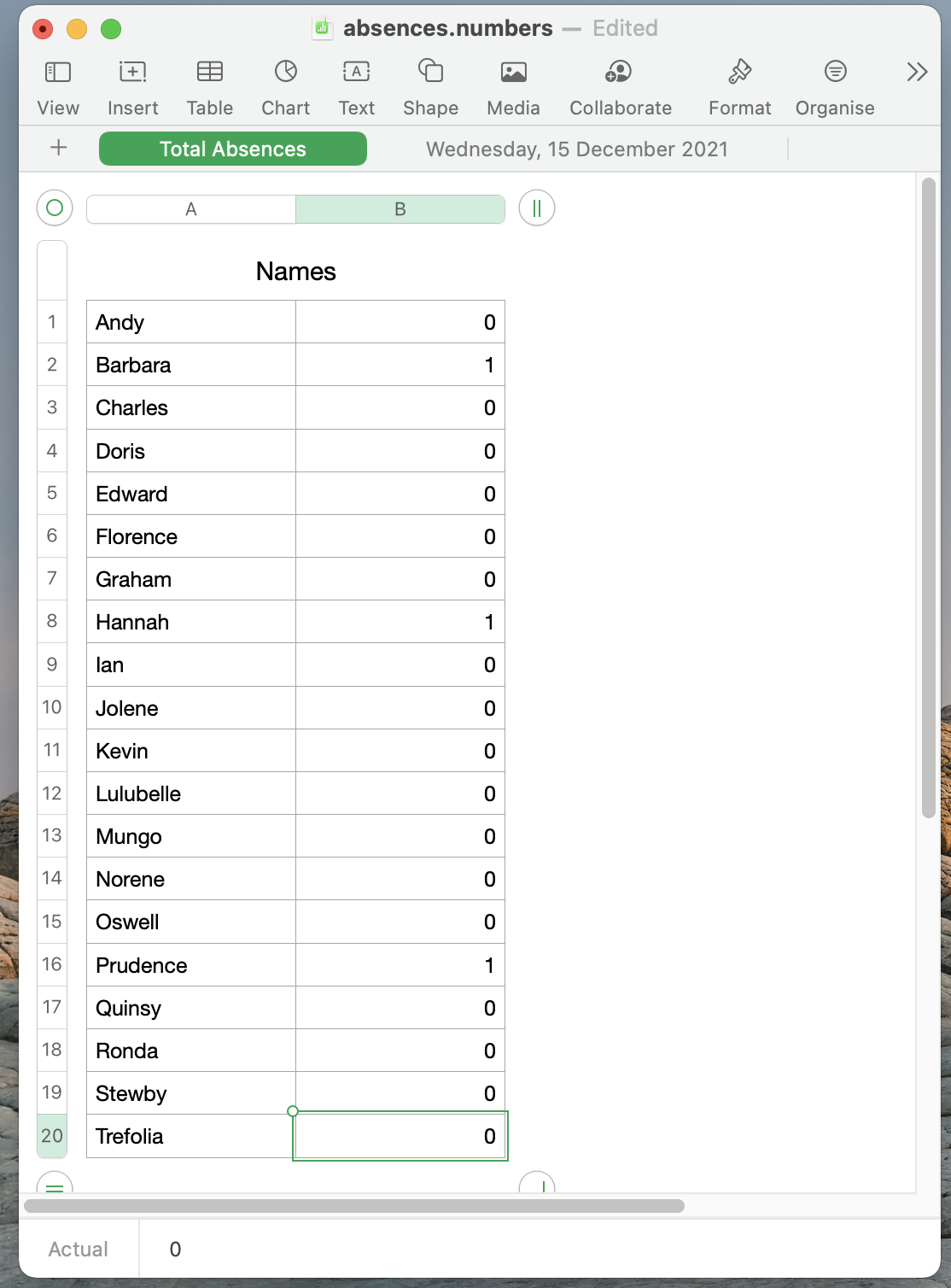
Create a new single-sheet Numbers document from the Blank template. Change the sheet name from the default Sheet 1 to Total Absences. Change the name of the table on this sheet to Names.
Modify the table so that it has no header rows or columns and no footer rows. The table must have two columns, and as many rows as there are students. (It can actually have more than two columns, but only the first two will be used by the script.)
Type the names of the students in the first column, one per row. There is no need to fill the second column: this will be done automatically. Like this:

Save this document as Absences.numbers in your Downloads folder. You can close it if you like.
Open the script in Script Editor. If you like, you can save it as a Script Application anywhere convenient. You can then run it by double-clicking rather than from Script Editor, but I don't recommend setting it as a Calendar Alert: it will time out if left unattended.
Running the script
When you run the script, Numbers will launch and the Numbers document will be opened if it isn't already open.
You will see a dialog that lets you select the names of all the students in the Names table. If there is more than one, hold down the Cmd key and click on the individual names to make a multiple selection:

Once you're happy, click OK. If there are no absences, click Cancel.
The script will create a new sheet, with today's date as its name, and a two-column table with the names of all the students in the first column and a checkbox in the second. The checkbox will be ticked if the student has been marked as absent.

The script counts the number of absences for that day and adds them to the Names table on the Total absences sheet.
The next day, when you run the script, the dialog will run again and a new sheet will be created. The total absences will be cleared and the absences across all dated sheets will be added up and used to update the Total absences sheet.
Unfortunately, the sheets will be displayed in reverse date order. There's nothing I can do about this in the script, but the order can be changed manually by dragging the sheet headers from left to right.
What happens if...
No-one is absent? Run the script and click the Cancel button in the dialog. The dated sheet will be created with no absences recorded.
A new student joins the class? Before running the script, create a new row in the Names table of the Total Absences sheet. Their absences will now be recorded as and when they occur.
An existing student leaves? Two options: delete the row containing their name from the Names table of the Total Absences sheet. Their absences will no long be recorded, but there will be no record of past absences. The alternative is to leave their name on the Names table and possibly change the cell fill colour to indicate that they have left the class. No more absences will be added to their record.
You make a mistake in the absences dialog? Run the script again and complete the dialog. That day's original dated sheet will be deleted, a new one will be created and the totals will be tallied again.
You forget to run the script on one day? The script will not help with this. You will need to manually duplicate an existing dated sheet, change its name to the day on which you forgot and click the checkboxes manually to record the absences. Remember, a tick means absent. The next time you run the script, these absences will be added to the totals.
You need to correct a previous day's record? Tick or untick the checkboxes for that particular day. The next time you run the script, the total absences will be updated with the corrected record.
You leave the dialog open for too long? After a minute, if you don't confirm the dialog, it will give an "Apple event timed out" error. The data won't be recorded, so once you've cleared the error you'll need to run the script (or script app) again.
You want to test it? Use a copy of the original spreadsheet. You can do a multi-day run by changing the runNumber property in the first line of the script to a number more than 1. Setting it to 5, for example, will create five days of absence records starting with today's date and a tally for all five on the Total absences sheet. When testing, if you click Cancel in the dialog box the script will stop the script without creating further daily sheets. Delete the extra sheets if you don't need them, and set the runNumber property back to 1 before running the script for real.
Hope this makes sense,
H



