Shortcuts and Pages

Hi all. I hope someone can help me with this.

I'm trying create a shortcuts for Pages that will open one or multiple files and search for word a specific word and then changed it to another one. All automated.

What i've done so far doesn't work but I'm not sure if it is because I'm doing something wrong or if Pages is not supposed to work with Shortcuts.


Is there anyone that can help?


M


Posted on Jan 6, 2022 5:18 AM

Reply
Question marked as Top-ranking reply

Posted on Jan 6, 2022 10:43 AM

Here is a Shortcuts Quick Action that allows you to select multiple Pages documents in the Finder, and then run the Shortcut. It will prompt you twice: 1) word to find, and 2) replacement word. It will then run Pages once, cycling through each of the selected documents and performing the text replacement. This would not be practical for large documents owing to AppleScript's penchant for timing out dealing with huge word counts. I have set a timeout of 1 hour (3600 seconds) in my example. Here is the Shortcut content for the Pages Word Replace.
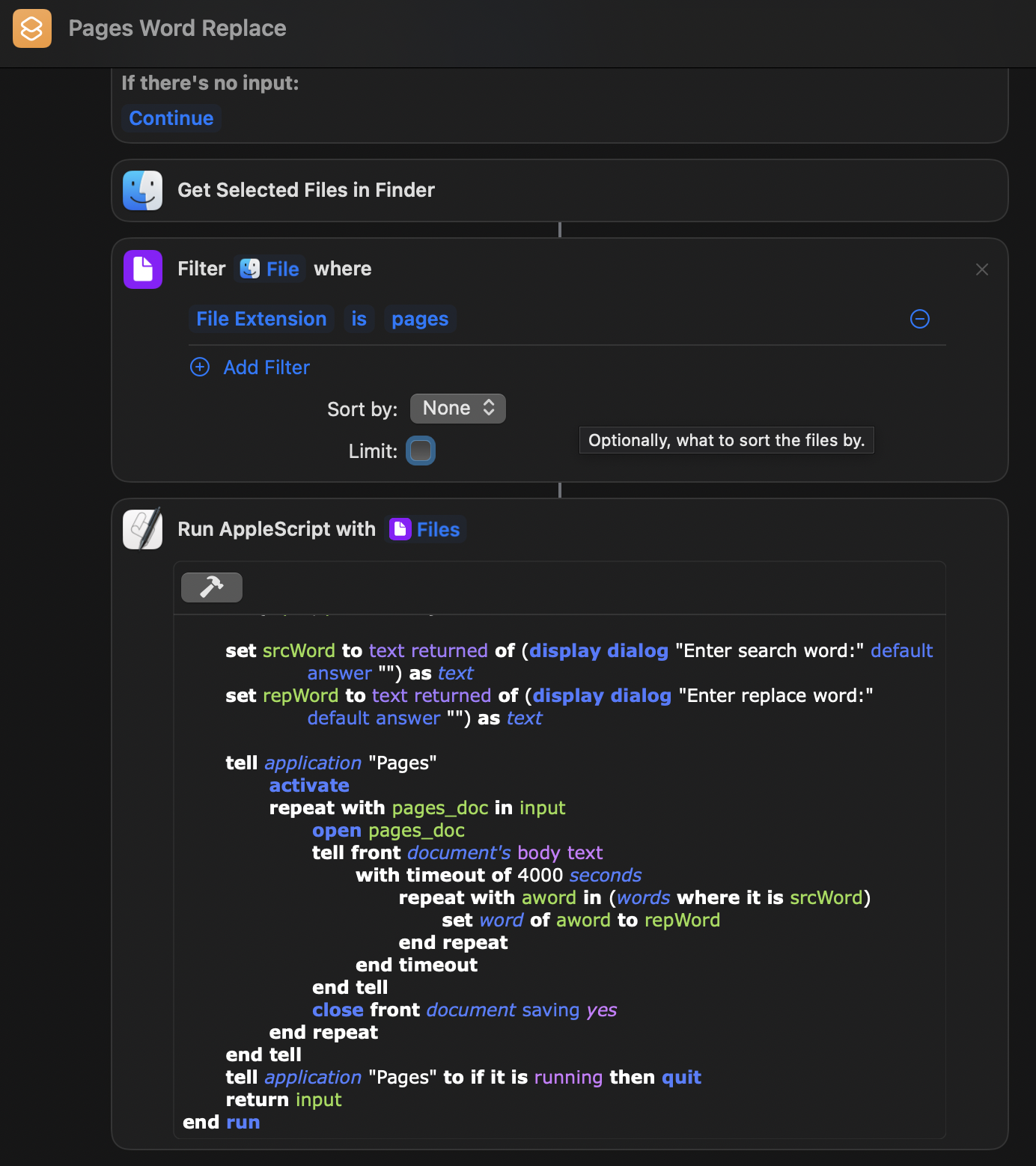


If you plan to code AppleScript directly into the Shortcuts Run AppleScript window, do it in light appearance mode. Otherwise, get the AppleScript working correctly in Script Editor before pasting it into the Dark mode window above. Like Automator, this uses a waterfall approach where you first select the .pages documents in the Finder, and then run the Shortcut. It verifies that these are Pages documents, and then goes about processing them sequentially. The documents will flash briefly in Pages as the replacements are completed.


Steps:

  1. From /Applications, launch the Shortcuts app. It will autosave everything you enter so need need to save.
  2. In Shortcuts, File menu > New Shortcut, then click Categories and Documents
    1. Drag and drop the Get Selected Files in Finder action into the Shortcut window
    2. Drag and drop below the previous action, the Filter Files action, and set as shown.
    3. And lastly, select the Scripting category and scroll down and drag and drop Run AppleScript.
      1. Clear the content of the Run AppleScript action, and replace it with the code below. Then click the hammer icon.
  3. Click to the right of the orange Shortcut icon at the top and enter the name as you see it in the above screenshot to rename it.


Code:

use scripting additions

on run {input, parameters}
	
	set srcWord to text returned of (display dialog "Enter search word:" default answer "") as text
	set repWord to text returned of (display dialog "Enter replace word:" default answer "") as text
	
	tell application "Pages"
		activate
		repeat with pages_doc in input
			open pages_doc
			tell front document's body text
				with timeout of 3600 seconds
					repeat with aword in (words where it is srcWord)
						set word of aword to repWord
					end repeat
				end timeout
			end tell
			close front document saving yes
		end repeat
	end tell
	tell application "Pages" to if it is running then quit
	return input
end run


Your Pages Word Replace Shortcut will appear among the other Shortcuts. Here it is next to the Shortcut I created earlier that duplicates only the folder hierarchy between two designated folders.
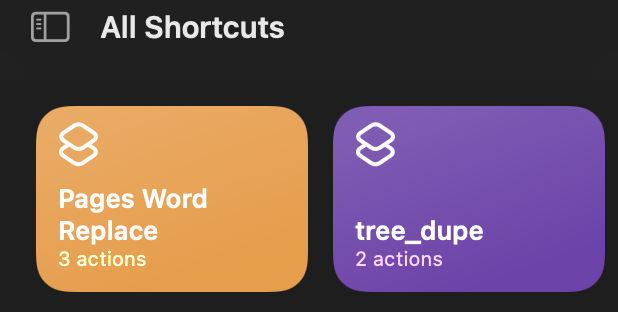


On the left panel of the Shortcuts window, you will see an entry for Quick Actions. Drag and drop the Pages Word Replace Shortcut icon from All Shortcuts onto that Quick Actions category and you now have a new Shortcuts-based Quick Action.


Select a couple of Pages documents in the Finder, and right-click on them, choosing the Quick Actions sub-menu, and then Customize… That will take you to the System Preferences > Extensions panel where you select FInder, and then scroll down to enable Pages Word Replace. Now, it will show up in your Quick Actions menu in the Finder.



5 replies
Question marked as Top-ranking reply

Jan 6, 2022 10:43 AM in response to borghesimarco

Here is a Shortcuts Quick Action that allows you to select multiple Pages documents in the Finder, and then run the Shortcut. It will prompt you twice: 1) word to find, and 2) replacement word. It will then run Pages once, cycling through each of the selected documents and performing the text replacement. This would not be practical for large documents owing to AppleScript's penchant for timing out dealing with huge word counts. I have set a timeout of 1 hour (3600 seconds) in my example. Here is the Shortcut content for the Pages Word Replace.


If you plan to code AppleScript directly into the Shortcuts Run AppleScript window, do it in light appearance mode. Otherwise, get the AppleScript working correctly in Script Editor before pasting it into the Dark mode window above. Like Automator, this uses a waterfall approach where you first select the .pages documents in the Finder, and then run the Shortcut. It verifies that these are Pages documents, and then goes about processing them sequentially. The documents will flash briefly in Pages as the replacements are completed.


Steps:

  1. From /Applications, launch the Shortcuts app. It will autosave everything you enter so need need to save.
  2. In Shortcuts, File menu > New Shortcut, then click Categories and Documents
    1. Drag and drop the Get Selected Files in Finder action into the Shortcut window
    2. Drag and drop below the previous action, the Filter Files action, and set as shown.
    3. And lastly, select the Scripting category and scroll down and drag and drop Run AppleScript.
      1. Clear the content of the Run AppleScript action, and replace it with the code below. Then click the hammer icon.
  3. Click to the right of the orange Shortcut icon at the top and enter the name as you see it in the above screenshot to rename it.


Code:

use scripting additions

on run {input, parameters}
	
	set srcWord to text returned of (display dialog "Enter search word:" default answer "") as text
	set repWord to text returned of (display dialog "Enter replace word:" default answer "") as text
	
	tell application "Pages"
		activate
		repeat with pages_doc in input
			open pages_doc
			tell front document's body text
				with timeout of 3600 seconds
					repeat with aword in (words where it is srcWord)
						set word of aword to repWord
					end repeat
				end timeout
			end tell
			close front document saving yes
		end repeat
	end tell
	tell application "Pages" to if it is running then quit
	return input
end run


Your Pages Word Replace Shortcut will appear among the other Shortcuts. Here it is next to the Shortcut I created earlier that duplicates only the folder hierarchy between two designated folders.


On the left panel of the Shortcuts window, you will see an entry for Quick Actions. Drag and drop the Pages Word Replace Shortcut icon from All Shortcuts onto that Quick Actions category and you now have a new Shortcuts-based Quick Action.


Select a couple of Pages documents in the Finder, and right-click on them, choosing the Quick Actions sub-menu, and then Customize… That will take you to the System Preferences > Extensions panel where you select FInder, and then scroll down to enable Pages Word Replace. Now, it will show up in your Quick Actions menu in the Finder.


Jan 7, 2022 12:55 AM in response to VikingOSX

VikingOSX wrote:

Here is a Shortcuts Quick Action that allows you to select multiple Pages documents in the Finder, and then run the Shortcut. It will prompt you twice: 1) word to find, and 2) replacement word. It will then run Pages once, cycling through each of the selected documents and performing the text replacement. This would not be practical for large documents owing to AppleScript's penchant for timing out dealing with huge word counts. I have set a timeout of 1 hour (3600 seconds) in my example. Here is the Shortcut content for the Pages Word Replace.


https://discussions.apple.com/content/attachment/2ca55d28-fc28-43be-be8d-71cc46e44bfe1.

If you plan to code AppleScript directly into the Shortcuts Run AppleScript window, do it in light appearance mode. Otherwise, get the AppleScript working correctly in Script Editor before pasting it into the Dark mode window above. Like Automator, this uses a waterfall approach where you first select the .pages documents in the Finder, and then run the Shortcut. It verifies that these are Pages documents, and then goes about processing them sequentially. The documents will flash briefly in Pages as the replacements are completed.

Steps:
From /Applications, launch the Shortcuts app. It will autosave everything you enter so need need to save.
2. In Shortcuts, File menu > New Shortcut, then click Categories and Documents
Drag and drop the Get Selected Files in Finder1. action into the Shortcut window
Drag and drop below the previous action, the Filter Files1. action, and set as shown.
And lastly, select the Scripting category and scroll down and drag and drop Run AppleScript1. .
1. Clear the content of the Run AppleScript action, and replace it with the code below. Then click the hammer icon.
1. Click to the right of the orange Shortcut icon at the top and enter the name as you see it in the above screenshot to rename it.

Code:
use scripting additions

on run {input, parameters}
set srcWord to text returned of (display dialog "Enter search word:" default answer "") as text
set repWord to text returned of (display dialog "Enter replace word:" default answer "") as text
tell application "Pages"
activate
repeat with pages_doc in input
open pages_doc
tell front document's body text
with timeout of 3600 seconds
repeat with aword in (words where it is srcWord)
set word of aword to repWord
end repeat
end timeout
end tell
close front document saving yes
end repeat
end tell
tell application "Pages" to if it is running then quit
return input
end run

Your Pages Word Replace Shortcut will appear among the other Shortcuts. Here it is next to the Shortcut I created earlier that duplicates only the folder hierarchy between two designated folders.


https://discussions.apple.com/content/attachment/c9271562-c2ea-48de-a83e-5a6e296700d8

On the left panel of the Shortcuts window, you will see an entry for Quick Actions. Drag and drop the Pages Word Replace Shortcut icon from All Shortcuts onto that Quick Actions category and you now have a new Shortcuts-based Quick Action.

Select a couple of Pages documents in the Finder, and right-click on them, choosing the Quick Actions sub-menu, and then Customize… That will take you to the System Preferences > Extensions panel where you select FInder, and then scroll down to enable Pages Word Replace. Now, it will show up in your Quick Actions menu in the Finder.


Hi VikingOSX this is amazing. Thank you so much for your help.

I've already tried it and it work ok in the sense. I'm getting back an error saying that he can't perform. I believe he's having problem when there are more of the same words?

Impossible to get item 2 ... Invalid Index.


This is what i did without script (i don't know anything about script LOL)

Doesn't work of course

Jan 7, 2022 8:39 AM in response to borghesimarco

Pages and Shortcuts won't cooperate without scripting to access the AppleScript dictionary necessary to access Pages document contents.


If you open that Shortcut that I provided, it can be fixed with a single line:


Change:


	tell front document's body text
		with timeout of 3600 seconds
			repeat with aword in (words where it is srcWord)
				set word of aword to repWord
			end repeat
		end timeout
	end tell


To:


tell application "Pages"
	launch
	tell front document's body text
		with timeout of 3600 seconds
			set word of (words where it is srcWord) to repWord
		end timeout
	end tell
end tell


This now does what it says and the changes are reflected in the selected documents. No error dialog here.

Jan 7, 2022 7:54 AM in response to VikingOSX

Do not worry

VikingOSX wrote:

This worked fine yesterday when tested with multiple selected Pages documents, and now today, with the same documents, it replaces the word, but then gives the English equivalent of your error dialog. This could take a while to track down the issue considering it is inside a Shortcut.

You've already done a lot.

Do you have any clue why it wouldn't work with the simple shortcuts drag and drop? is it due to Pages not integrated with Shortcuts yet?

This thread has been closed by the system or the community team. You may vote for any posts you find helpful, or search the Community for additional answers.

Shortcuts and Pages

Welcome to Apple Support Community
A forum where Apple customers help each other with their products. Get started with your Apple Account.