Is WiFi/Internet connectivity entirely absent, or intermittent? More information about the symptoms that you observe may be helpful in identifying the root cause.
If you have a VPN App or profiles installed, or a security App such as Norton, these may be interfering with DHCP and preventing your device from obtaining a valid IP Address for your iPhone hotspot - or the WiFi network to which you are attempting to connect. The resolution is usually simple; if installed, you may only need to temporarily disable or remove the Security App and/or VPN.
DHCP is frequently used to automatically obtain an IP Address. Until your iPad has a valid IP Address to connect to your network, you will not have an internet connection. Disabling or removing VPN and/or the offending security App should allow DHCP to operate normally - allowing connection to your network and the internet.
If this resolves your issue, the VPN and/or security App can be reinstated after the connectivity problem has been resolved.
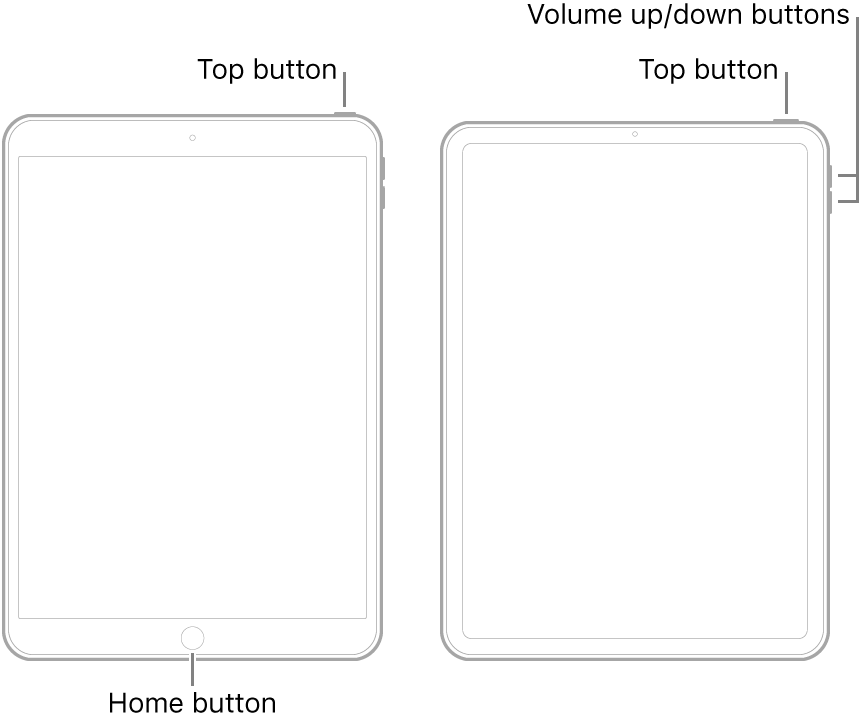
Having updated to iPadOS15 from iPadOS14, if you have not already done so, a forced-restart is recommended - as this will usually clear any post-update issues:
- On an iPad with a Home button: Press and hold the top button and the Home button at the same time. When the Apple logo appears, release both buttons.
- On other iPad models: Press and quickly release the volume up button, press and quickly release the volume down button, then press and hold the top button. When the Apple logo appears, release the button.
Downgrade to an earlier version of iPadOS is not possible. All System Updates are digitally signed by Apple - and can only be installed whilst the digital signatures remain valid. After release of a new iOS/iPadOS version, the immediately preceding version continues to be digitally signed by Apple for a few days, after which Apple will revoke the digital certificate with which the earlier version is signed.
At present, only iPadOS 15.2 is available for re-installation.

