If your post is accurate and your source OS is macOS 10.11 (El Cap), and you are trying to migrate to macOS 12 Monterey, you are likely in a world of hurt.
To start, make a list of all the services you are running on your El Cap server. The list of services in Server.app may look something like the image below. However, there are additional services such as Radius that are not displayed in Server.app. Know what you are running. In your original post you mention mail. That is going to be a real problem.
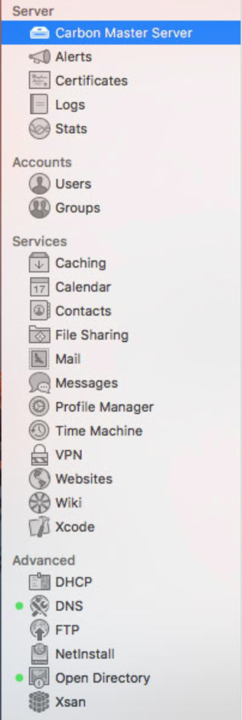
Now, look at Server.app on Monterey. It provides two services: Open Directory and Profile Manager. Apple has even removed the Xsan UI panel from Monterey. The writing is not just on the wall. It has been carved into stone for years. Server is dead. Hosting on Mac is dead. It is time to find other solutions.
Apple released and maintains a Server Migration guide, available here: https://developer.apple.com/support/downloads/macOS-Server-Service-Migration-Guide.pdf
The most recent release is from March 2021 so there is nothing specific yet about Monterey. However, the main difference between Big Sur and Monterey is the removal of the Xsan UI as mentioned above.
For additional information, check out this Base article on the state of services and when they where removed:
https://support.apple.com/en-us/HT208312
And finally, there is the running "what's new" document:
https://support.apple.com/en-us/HT209069
This should be called the "what's been removed" document, but I digress.
If you are looking to migrate your users from Open Directory, that should still be supported. OD data is not stored in the Server Data folder. You should be able to use Server.app on El Cap to export OD to a Disk Image. Move the Disk Image to Monterey and import the users, groups, passwords. Please note, you are spanning a large range between the old and the new so verify that the import worked. After import, make sure you can edit the user accounts (add a comment and save). Make sure that the passwords work.
On El Cap, follow these steps to create an OD archive using Server.app
1: Open Server.app and select Open Directory from the list of services.
2: Press the Gear button and select Archive Open Directory Master... from the list of options.
3: This will expose the Archive Open Directory Master sheet.
4: In the Archive File field, enter the name of your archive. If you just enter a file name, the default location to save the archive is the root of the boot volume. If you want it elsewhere, press the Choose button and find a more logical path (like your Desktop).
5: Enter and confirm a password in the Archive Password and Verify Password fields. This password is used to protect the DMG created by the backup process. After all, there are passwords in this archive.
6: Press the Next button.
7: Confirm your settings and press the Archive button.
You can also go to the Users and Group panels and export flat files if needed. Please note, flat files do not include password. However, if your OD migration does not work, flat files will at least get the users and groups created. All users will need to set passwords however.
But in the end, moving your users and groups may not do you much good. There are really no services on Server any longer, other than File Services (by the way you are now limited to only SMB). Please avoid Profile Manager for anything other than as a reference implementation. If you need MDM, use a real one. Profile Manager will just break your heart.
If you are hosting mail internally, it is time to put it in the cloud. Microsoft's O365 is an exceptional service and if setup well, you no longer have any headaches over mail. If you are doing file sharing and your data set is small, you should consider using Microsoft for cloud storage. The Teams Site/OneDrive Files on Demand/SharePoint solution is really well implemented and native ARM support for OneDrive is just around the corner (beta access now).
Hope this is helpful.
The days of Server are over.
Reid Bundonis