How do I just add up a column of numbers in Numbers 11.2?

I have had no luck finding a simple answer to this question...I have found answers but they contain words and instructions I don't understand (sorry!). Also, the instructions I've seen have options that do not appear in my drop down menus, i.e. Convert to Footer Row. Also if I select = I get the formula box but don't know what to do from there. I'm tracking health issues by the month and for the past several years, I've just added up the 12 columns, but I know there is a simpler way to do this. TIA.

Posted on Jan 19, 2022 1:01 PM

Reply
Question marked as Top-ranking reply

Posted on Jan 20, 2022 6:26 AM

Other easy ways to sum a column:


Click in the cell below the column of numbers you want to sum. From the menu choose Insert > Formula > Sum. Done!


And yet another way:


Click in the cell where you want the sum to appear and click the Insert icon in the Toolbar, then SUM


SG

4 replies

Jan 19, 2022 5:52 PM in response to katierose

It is typical to put a column sum in a footer row but you do not have to.


There are several ways to make a sum. Here are a few:

  • After you type the = all you have to do is click & drag to select the cells to sum. Click and hold on the first cell to sum then drag to select the rest of the cells in the range. The SUM function will appear automatically, no need to type it in. Let go then hit return and you're done. Or,
  • Select all the cells you want to sum. At the bottom of the Numbers window is a row of functions. Sum is one of them. Click and drag it to a cell in your table. It will create the formula for you. Or,
  • After typing the = type SUM and an open parenthesis then the range of cells to sum such as B2:B20 then type the closing parenthesis and hit enter. It should end up as SUM(B2:B20)


If you create a footer row and put the SUM there, the formula can be simpler and will always include all data cells in the column, even if you add new rows. The formula for column B would be SUM(B). To add a footer row to the table, right click on the row number of the last row and choose "add footer row below" from the menu that pops up.


Jan 19, 2022 6:01 PM in response to katierose

HI Katierose,


No need to apologize for not understanding the instructions—we've all been there at least once, and for most of us, far more than once!


Let's start with "Convert to Footer Row".


This is a useful step when summing all cells in a column because it allows you to identify the column using only its letter in the formula you use to calculate the SUM, and it automatically changes the formula to accommodate more rows as you add them to the table.


You can ADD a footer row to the table by selecting the Table, going to the table menu, choosing Footer rows, and setting the number of Footer rows to 1.

OR

You can place the pointer in the space between the left end of the last row of the table and the Row reference tab containing the row number of that row. A small v will appear in the space. Click on the v to open a menu on which you'll find several options, including "Convert to Footer Row" and "Add Footer Row below."

Click the Convert choice to change the last row to a Footer row OR

Click the Add choice to leave the selected row as is, and add a Footer row below it.


With a Footer row in place, Click on the Foot row cell in the column you want to SUM.

Then press = to open the Formula Editor. The editor will open in front of the selected cell, and will contain only the blinking insertion point.


Type sum, then click the grey token with the word SUM.

Click the 'value' token and type C to name the column whose values are to be added.
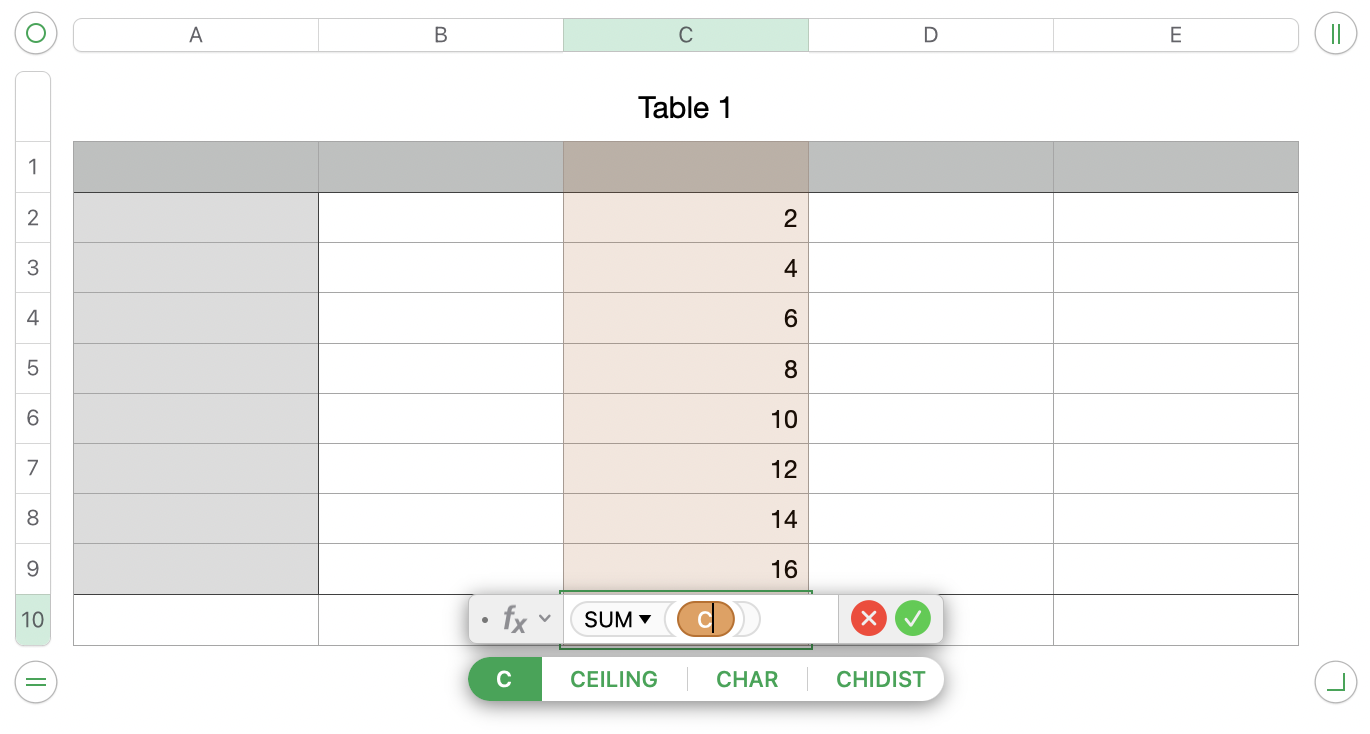
Note that as you do tis, all of the cells in column C are highlighted in the sam colour as the token by which they were named in the formula.

Finally, click the green 'checkmark' button to confirm the formula and close the editor.


The sum (72) will appear in the cell containing the formula.


Regards,

Barry


PS: In another similar discussion, I learned something new today. It applies to summing values in a Numbers table with SUM, but without involving the advantages of a Footer row.

You might want to take a look at Badunit's list of steps in this discussion: https://discussions.apple.com/thread/253581372


Scroll down past the "Solved" post to see the list of steps Badunit posted.


B.


This thread has been closed by the system or the community team. You may vote for any posts you find helpful, or search the Community for additional answers.

How do I just add up a column of numbers in Numbers 11.2?

Welcome to Apple Support Community
A forum where Apple customers help each other with their products. Get started with your Apple Account.

