Top row on iPad
How do I get rid of the top row (containing the clock, calendar, picture memory, & weather icons) that were automatically added after a previous software update?
iPad, iPadOS 15
How do I get rid of the top row (containing the clock, calendar, picture memory, & weather icons) that were automatically added after a previous software update?
iPad, iPadOS 15
Those are widgets on your Home Screen.
Edit your widgets
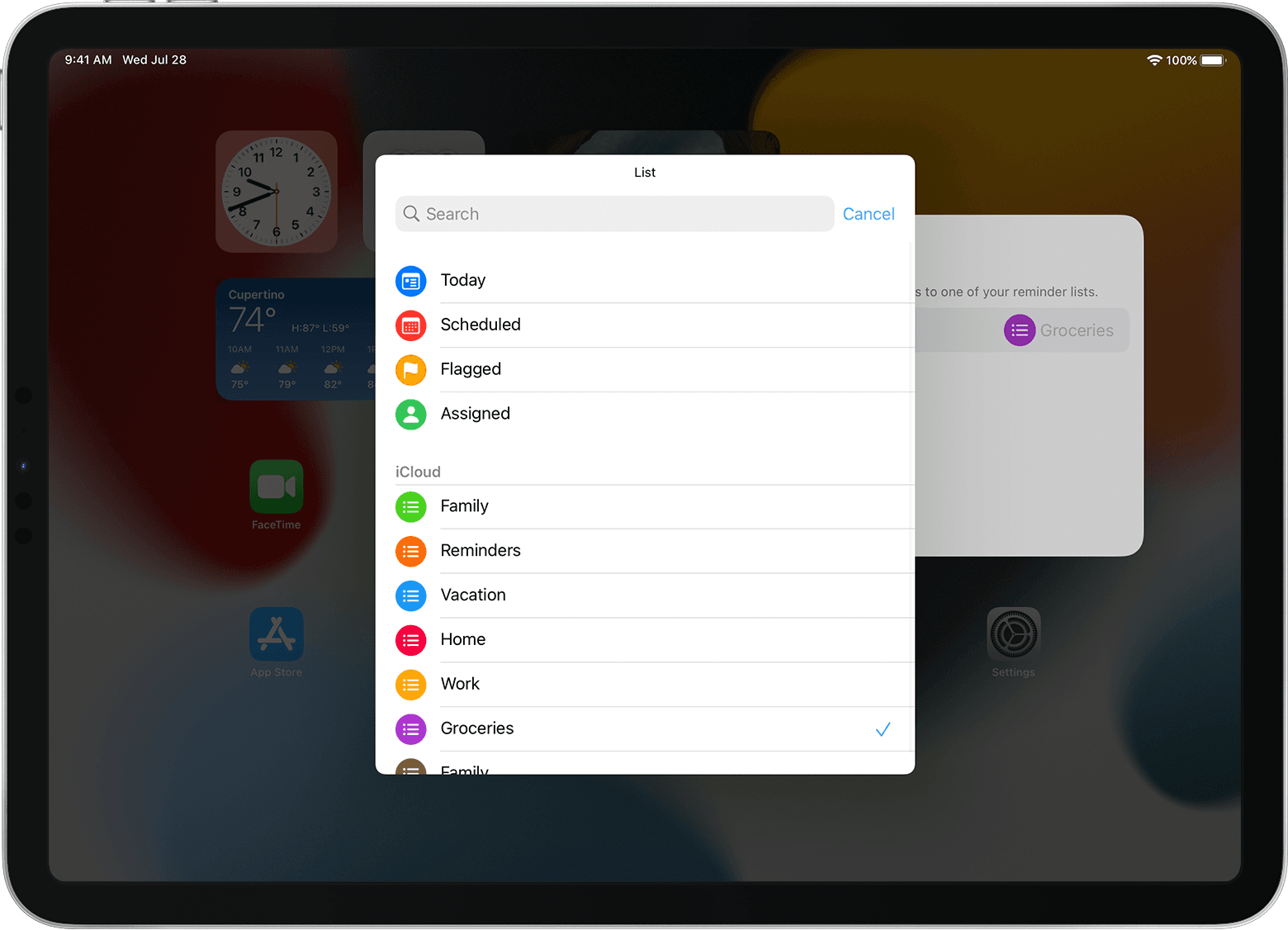
Some widgets allow you to customize their content. Here’s how:
 .
.
You can also rearrange your widgets. Touch and hold a widget until it jiggles, then move the widget to where you want it to go. As you move the widget, apps and other widgets on your Home Screen rearrange to make room for it.
To delete a widget, touch and hold it, then tap Remove Widget. Tap Remove to confirm.
Axel F.
Those are widgets on your Home Screen.
Edit your widgets
Some widgets allow you to customize their content. Here’s how:
.
You can also rearrange your widgets. Touch and hold a widget until it jiggles, then move the widget to where you want it to go. As you move the widget, apps and other widgets on your Home Screen rearrange to make room for it.
To delete a widget, touch and hold it, then tap Remove Widget. Tap Remove to confirm.
Axel F.
Top row on iPad