15.3.1 update screen issues

Hi, has anyone else updated to to 15.3.1 and now has screen issues on an iPhone 12?

The screen used to be fine but since installing the update it keep changing its colour and showing all pictures / videos as negatives. Every site is incorrectly displayed too. If I alter it from dark to light mode it doesn’t seem to do anything and again the same if I go into the screen section under settings.

Is there an issue that apple is aware of that’ll be fixed in The next update. Literally just changed my phone for 11 to 12 a couple of weeks back and now this has happened.

can anyone assist?

Thank you for any reply/ suggestions

Posted on Mar 10, 2022 6:25 AM

Reply
Question marked as Top-ranking reply

Posted on Mar 11, 2022 8:38 AM

Hey there, Ricardo,


Congratulations on your new iPhone 12!


If you're experiencing some unexpected display issues, we would suggest trying a restart of your iPhone, if you have not already, with the steps below from Restart your iPhone - Apple Support. Restarting by itself can sometimes resolve a variety of issues.


How to restart your iPhone X, 11, 12, or 13

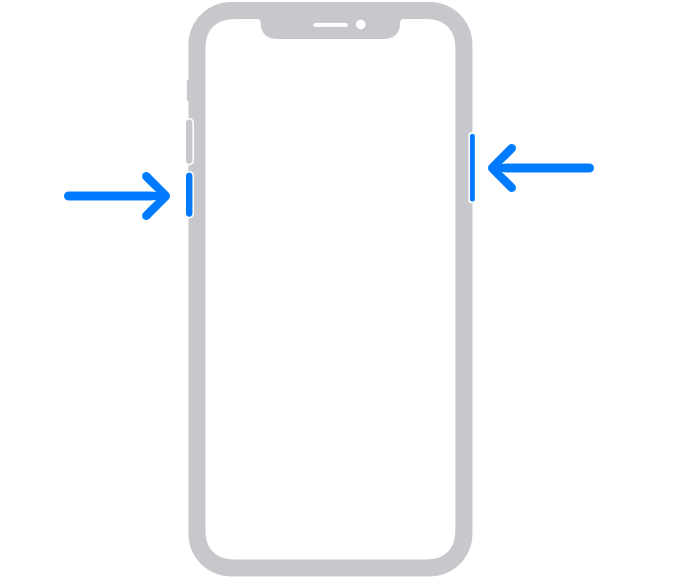
1. Press and hold either volume button and the side button until the power off slider appears.
The volume button is located on the left side of the device, and the side button is located on the right
2. Drag the slider, then wait 30 seconds for your device to turn off. If your device is frozen or unresponsive, force restart your device.
3. To turn your device back on, press and hold the side button (on the right side of your iPhone) until you see the Apple logo.


That said, if the issue continues, we'd also suggest checking your Accessibility settings to ensure nothing is enabled there: About the vision accessibility features on your iPhone, iPad, or iPod touch - Apple Support. Some of the visual Accessibility features may alter the colors of the display.


Have a great weekend!

1 reply
Question marked as Top-ranking reply

Mar 11, 2022 8:38 AM in response to RicardoC

Hey there, Ricardo,


Congratulations on your new iPhone 12!


If you're experiencing some unexpected display issues, we would suggest trying a restart of your iPhone, if you have not already, with the steps below from Restart your iPhone - Apple Support. Restarting by itself can sometimes resolve a variety of issues.


How to restart your iPhone X, 11, 12, or 13

1. Press and hold either volume button and the side button until the power off slider appears.
The volume button is located on the left side of the device, and the side button is located on the right
2. Drag the slider, then wait 30 seconds for your device to turn off. If your device is frozen or unresponsive, force restart your device.
3. To turn your device back on, press and hold the side button (on the right side of your iPhone) until you see the Apple logo.


That said, if the issue continues, we'd also suggest checking your Accessibility settings to ensure nothing is enabled there: About the vision accessibility features on your iPhone, iPad, or iPod touch - Apple Support. Some of the visual Accessibility features may alter the colors of the display.


Have a great weekend!

This thread has been closed by the system or the community team. You may vote for any posts you find helpful, or search the Community for additional answers.

15.3.1 update screen issues

Welcome to Apple Support Community
A forum where Apple customers help each other with their products. Get started with your Apple Account.