Problems with Messenger

Hi - Messenger wasn't working this morning on my MacBook Pro, however it was on my iPhone and iPad. I powered it off, then back on and no change. I assumed if I reinstalled it on the laptop, it would fix the problem. Not so, obviously. It was in the Cloud in my apps, but when I tried to open it I get a screen that says Getting Started. Please give permissions to accede stored credentials. It has nothing else - not a button to choose, exit or give permission.


What can I do?

Posted on Mar 15, 2022 9:58 AM

Reply
4 replies

Mar 16, 2022 8:45 AM in response to Nitro541

Hello Nitro541,


We assume you're referring to the Facebook Messenger app on your Mac. Is this correct?


If so, we'd recommend taking a look at the steps in this article for help with the app: If an app on your Mac stops responding, closes unexpectedly, or won’t open


On the other hand, if you're referring to the Messages app that is preinstalled on your Mac, we'd recommend going through this guide for help: If you can’t send or receive messages on your Mac


Either of those should help to clear that up, but if you're still running into issues, we'd recommend providing a few more details and even screenshots to help the Community to provide further support.


Take care!


Mar 16, 2022 12:25 PM in response to Nitro541

Thanks for your reply. I don't think any of those steps apply right now. I did try to uninstall Messenger and reinstall it but wasn't successful.


I get this screen with no option to go further when I try to reinstall. I don't think it uninstalled properly because of this and because it always asks me to sign in before I use it. How can I do a complete uninstall/install if this is needed to bring it back to normal?


Mar 16, 2022 12:47 PM in response to Nitro541

Hello Nitro541,


The screenshot was a great way to help us understand the issue. Follow the steps below to uninstall and reinstall the app on your MacBook Pro: How to uninstall apps on your Mac


Use the Finder to delete an app
1. Locate the app in the Finder. Most apps are in your Applications folder, which you can open by clicking Applications in the sidebar of any Finder window. Or use Spotlight to find the app, then press and hold the Command (⌘) key while double-clicking the app in Spotlight.


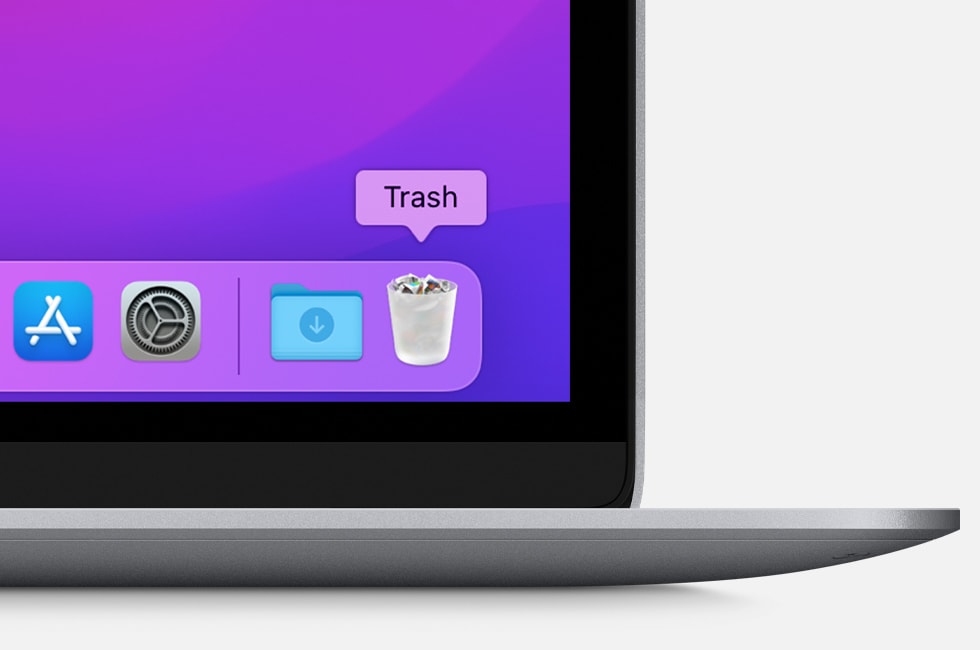
2. Drag the app to the Trash, or select the app and choose File > Move to Trash.


macOS Dock with Trash shown


3. If you're asked for a user name and password, enter the name and password of an administrator account on your Mac. This is probably the name and password you use to log in to your Mac.


4. To delete the app, choose Finder > Empty Trash.


Redownload apps and games from Apple:


How to redownload apps on Mac
1. Open the App Store on your Mac.


2. Click your name in the sidebar, then find the app that you want to download. If you don't see your name in the sidebar, click Sign In, sign in with your Apple ID, then click your photo in the sidebar.


3. If you use Family Sharing, you can choose a family member's name next to "Purchased by" to see their purchases.


4. Click the download button  for the app.


Best Regards.

This thread has been closed by the system or the community team. You may vote for any posts you find helpful, or search the Community for additional answers.

Problems with Messenger

Welcome to Apple Support Community
A forum where Apple customers help each other with their products. Get started with your Apple Account.