The contents of the iPhone could not be read. Click Restore to restore this iPhone to factory settings.

The finder tells me this and I can't access my phone. I do not want to restore my phone, but even if I click on restore it doesn't do anything. I've rebooted both devices and tried multiple cables and neither work. Is there any way to fix this?

MacBook Pro 15″, macOS 10.15

Posted on Mar 18, 2022 6:53 AM

Reply
Question marked as Top-ranking reply

Posted on Mar 18, 2022 1:25 PM

If your computer doesn't recognize your iPhone, iPad, or iPod

If you connect your device to your computer with a USB cable and your computer doesn't recognize your iPhone, iPad, or iPod, learn what to do.


If your computer doesn't recognize your connected device, you might see an unknown error or a "0xE" error. Follow these steps and try to connect your device again after each step.

  1. Make sure that your iOS or iPadOS device is turned on, unlocked, and on the Home screen.
  2. Check that you have the latest software on your Mac or Windows PC. If you're using iTunes, make sure you have the latest version.
  3. If you see a Trust this Computer alert, unlock your device and tap Trust. If you can't unlock your device because you forgot your passcode, find out what to do.
  4. Unplug all USB accessories from your computer except for your device. Try each USB port to see if one works. Then try a different Apple USB cable.*
  5. Restart your computer. 
  6. Restart your iPhoneiPad, or iPod touch.
  7. Follow these additional steps for your Mac or Windows PC
  8. Try connecting your device to another computer. If you have the same issue on another computer, contact Apple Support.

* Learn how to connect iPad Pro (11-inch) or iPad Pro 12.9-inch (3rd generation) to your computer.

Additional steps for Mac

  1. Connect your iOS or iPadOS device and make sure that it's unlocked and on the Home screen.
  2. On your Mac, choose Finder > Preferences from the Finder menu bar, then click Sidebar at the top of the preferences window. Make sure that "CDs, DVDs and iOS Devices" is checked. 
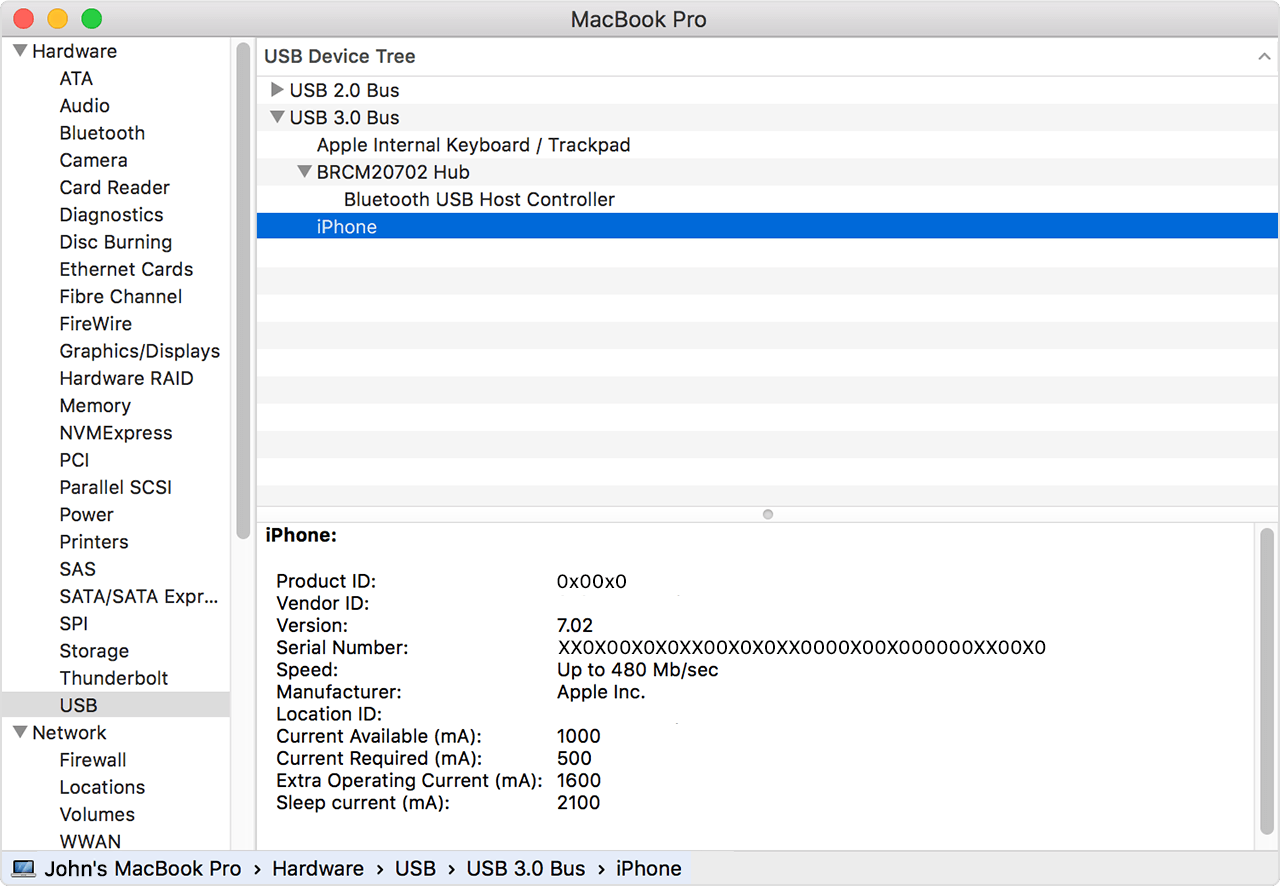
  3. Press and hold the Option key, then choose System Information from the Apple menu . From the list on the left, select USB.
  4. If you see your iPhone, iPad, or iPod under USB Device Tree, get the latest macOS or install the latest updates. If you don't see your device or still need help, contact Apple Support.


9 replies
Question marked as Top-ranking reply

Mar 18, 2022 1:25 PM in response to slangdog

If your computer doesn't recognize your iPhone, iPad, or iPod

If you connect your device to your computer with a USB cable and your computer doesn't recognize your iPhone, iPad, or iPod, learn what to do.


If your computer doesn't recognize your connected device, you might see an unknown error or a "0xE" error. Follow these steps and try to connect your device again after each step.

  1. Make sure that your iOS or iPadOS device is turned on, unlocked, and on the Home screen.
  2. Check that you have the latest software on your Mac or Windows PC. If you're using iTunes, make sure you have the latest version.
  3. If you see a Trust this Computer alert, unlock your device and tap Trust. If you can't unlock your device because you forgot your passcode, find out what to do.
  4. Unplug all USB accessories from your computer except for your device. Try each USB port to see if one works. Then try a different Apple USB cable.*
  5. Restart your computer. 
  6. Restart your iPhoneiPad, or iPod touch.
  7. Follow these additional steps for your Mac or Windows PC
  8. Try connecting your device to another computer. If you have the same issue on another computer, contact Apple Support.

* Learn how to connect iPad Pro (11-inch) or iPad Pro 12.9-inch (3rd generation) to your computer.

Additional steps for Mac

  1. Connect your iOS or iPadOS device and make sure that it's unlocked and on the Home screen.
  2. On your Mac, choose Finder > Preferences from the Finder menu bar, then click Sidebar at the top of the preferences window. Make sure that "CDs, DVDs and iOS Devices" is checked. 
  3. Press and hold the Option key, then choose System Information from the Apple menu . From the list on the left, select USB.
  4. If you see your iPhone, iPad, or iPod under USB Device Tree, get the latest macOS or install the latest updates. If you don't see your device or still need help, contact Apple Support.


Jun 5, 2022 1:17 AM in response to slangdog

The finder tells me this and I can't access my phone. I do not want to

restore my phone, but even if I click on restore it doesn't do anything.

I've rebooted both devices and tried multiple cables and neither work.

Is there any way to fix this?


DID ANYONE FIND A SOLUTION TO THIS... I TRIED CONTACTING APPLE SUPPORT BUT NO LUCK... YOUR SUPPORT WOULD BE APPRECIATED... TIA

This thread has been closed by the system or the community team. You may vote for any posts you find helpful, or search the Community for additional answers.

The contents of the iPhone could not be read. Click Restore to restore this iPhone to factory settings.

Welcome to Apple Support Community
A forum where Apple customers help each other with their products. Get started with your Apple Account.