Hello danireich
In IOS 15, you can change your "Do Not Disturb" in your "Focus" settings to only allow calls from selected people. You will need to tap on Settings > Focus > Do Not Disturb > People
You can see how to do this by following the steps from Use Do Not Disturb on your iPhone, iPad, and iPod touch. When your iPhone is silenced, others will get the option to notify you anyway when they send you a message.
Change your Do Not Disturb settings
If you don't want to be disturbed at a certain time, you can set a schedule and change other Do Not Disturb features to help you concentrate. Here's how with iOS 15 and iPadOS 15:
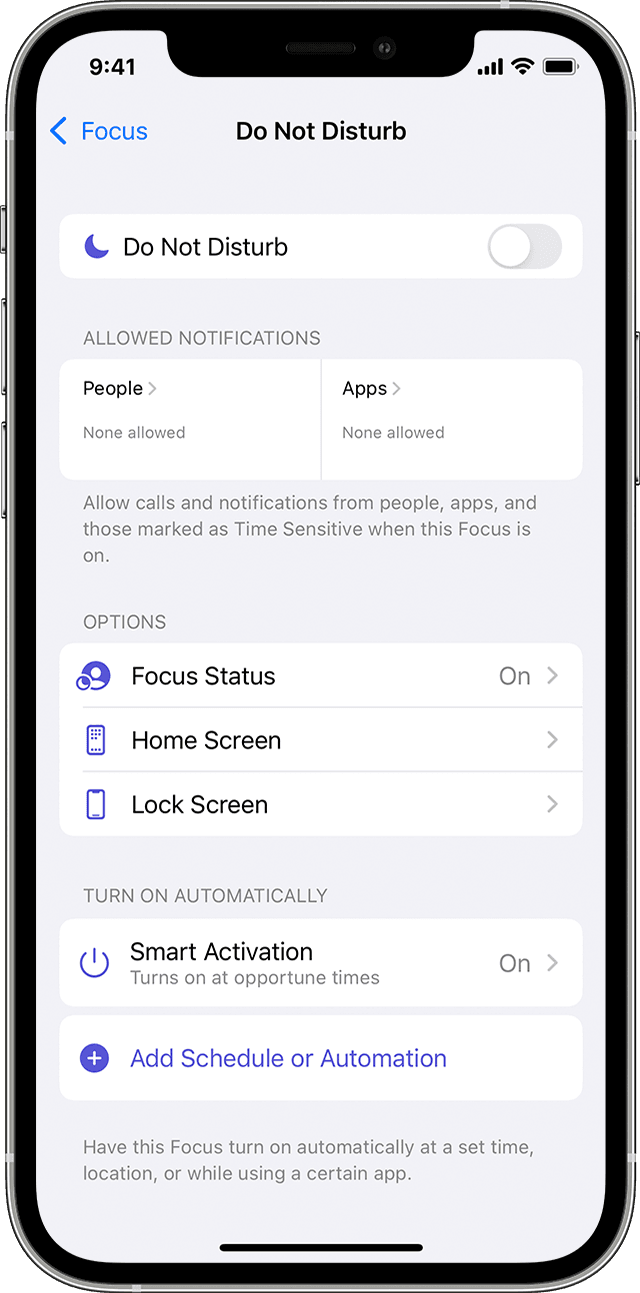
1. Go to Settings > Focus.
2. Tap Do Not Disturb.
3. Select settings for Allowed Notifications, Focus Status, Smart Activation, and more.
Turn on Scheduled and set a schedule.
Choose when you want to receive alerts, calls, and notifications:
Silence: Choose to silence calls and notifications always or only when the device is locked.
Allow Calls From: Allow calls from everyone, no one, your favorites, or specific contact groups stored on your device or iCloud.
Repeated Calls: If someone calls you twice within three minutes, the second call isn't silenced.
Best Regards.
