Calendar
Someone please help me. Why does my calendar look like this now???
iPhone 7, iOS 15
Someone please help me. Why does my calendar look like this now???
iPhone 7, iOS 15
Hello Bubbles0_0,
Try the following steps and use your try your calendar after each step to see if the issue has been resolved.
Force quit the calendar application, if it's open:
1. Double-click the Home button to show your most recently used apps.
2. Swipe right or left to find the app that you want to close.
3. Swipe up on the app's preview to close the app.
You can find these steps in this article: Close an app on your iPhone or iPod touch
Restart your iPhone to see if this helps:
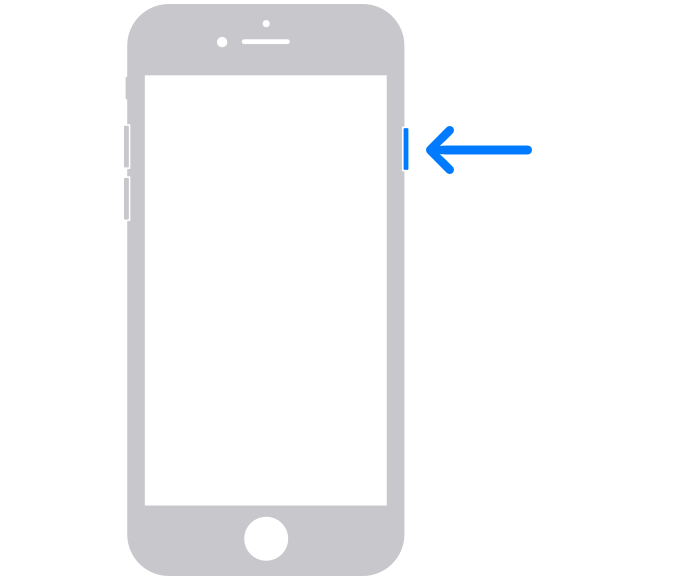
1. Press and hold the side button until the power-off slider appears.
2. Drag the slider, then wait 30 seconds for your device to turn off. If your device is frozen or unresponsive, force restart your device.
3. To turn your device back on, press and hold the side button until you see the Apple logo.
You can find these steps in this article: Restart your iPhone
Finally, Make sure your iPhone is up to date:
1. Back up your device using iCloud or your computer.
2. Plug your device into power and connect to the internet with Wi-Fi.
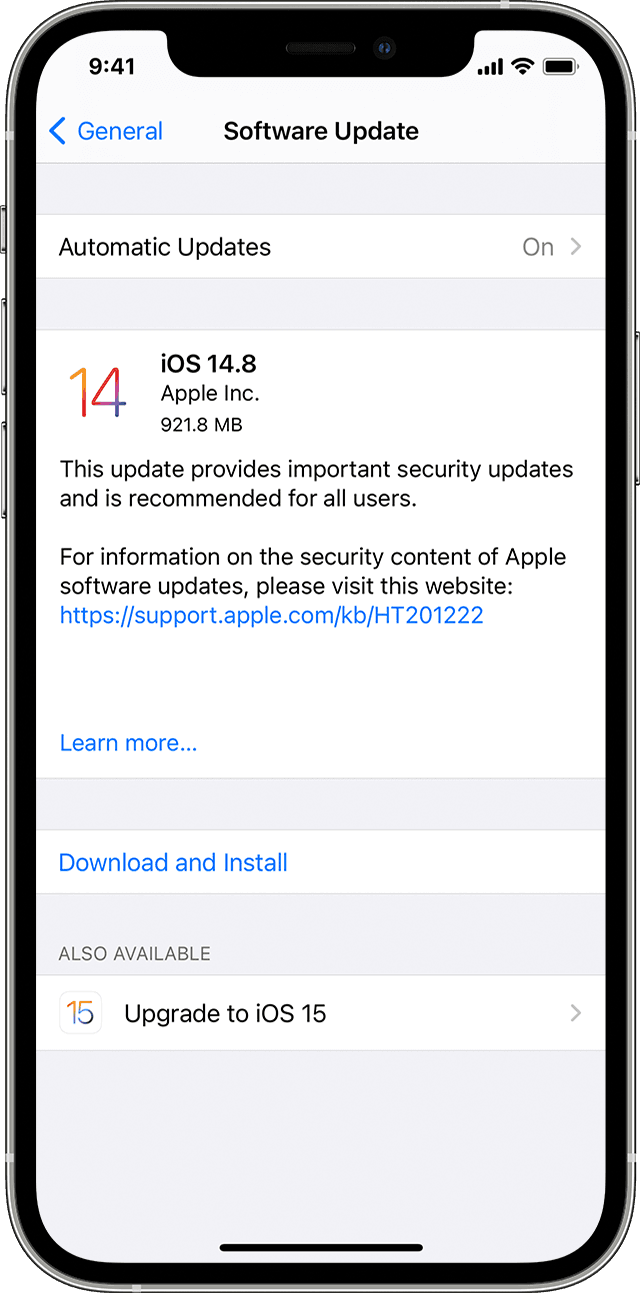
3. Go to Settings > General, then tap Software Update.
4. If you see two software update options available, choose the one that you want to install.
5. Tap Install Now. If you see Download and Install instead, tap it to download the update, enter your passcode, then tap Install Now. If you don't know your passcode, learn what to do.
You can find these steps in this article: Update your iPhone, iPad, or iPod touch
Best Regards.
Hello Bubbles0_0,
Try the following steps and use your try your calendar after each step to see if the issue has been resolved.
Force quit the calendar application, if it's open:
1. Double-click the Home button to show your most recently used apps.
2. Swipe right or left to find the app that you want to close.
3. Swipe up on the app's preview to close the app.
You can find these steps in this article: Close an app on your iPhone or iPod touch
Restart your iPhone to see if this helps:
1. Press and hold the side button until the power-off slider appears.
2. Drag the slider, then wait 30 seconds for your device to turn off. If your device is frozen or unresponsive, force restart your device.
3. To turn your device back on, press and hold the side button until you see the Apple logo.
You can find these steps in this article: Restart your iPhone
Finally, Make sure your iPhone is up to date:
1. Back up your device using iCloud or your computer.
2. Plug your device into power and connect to the internet with Wi-Fi.
3. Go to Settings > General, then tap Software Update.
4. If you see two software update options available, choose the one that you want to install.
5. Tap Install Now. If you see Download and Install instead, tap it to download the update, enter your passcode, then tap Install Now. If you don't know your passcode, learn what to do.
You can find these steps in this article: Update your iPhone, iPad, or iPod touch
Best Regards.
Calendar