
Deauthorize Apple Music app on Android
Hi,
I have installed Apple Music app on some Android devices and I would like to deauthorize some of them.
Cannot seem to find out how to do it from the Android app.
Any suggestion on how to do it?
Hi,
I have installed Apple Music app on some Android devices and I would like to deauthorize some of them.
Cannot seem to find out how to do it from the Android app.
Any suggestion on how to do it?
Hello ,
Thanks for choosing the Apple Support Communities. For help to deauthorize devices, please follow the steps here to resolve the issue.
View and remove your devices that are associated with Apple ID purchases - Apple Support
"Use a Mac or PC to find or remove your associated devices
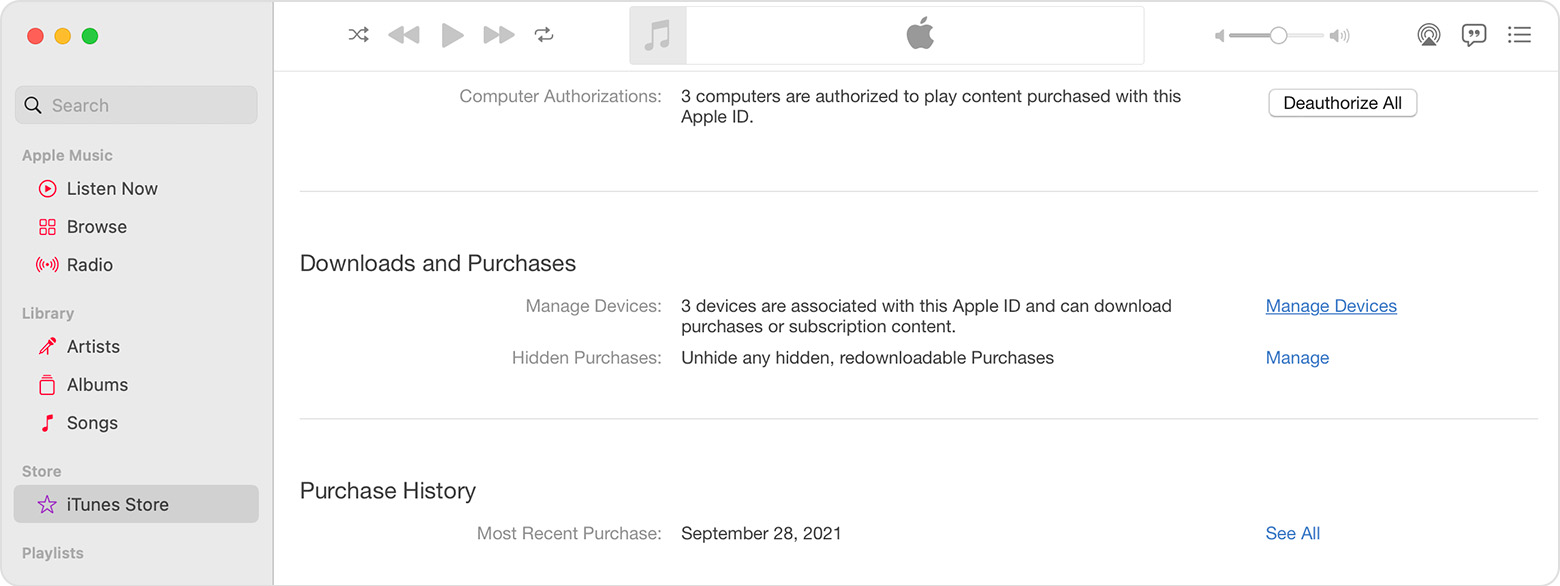
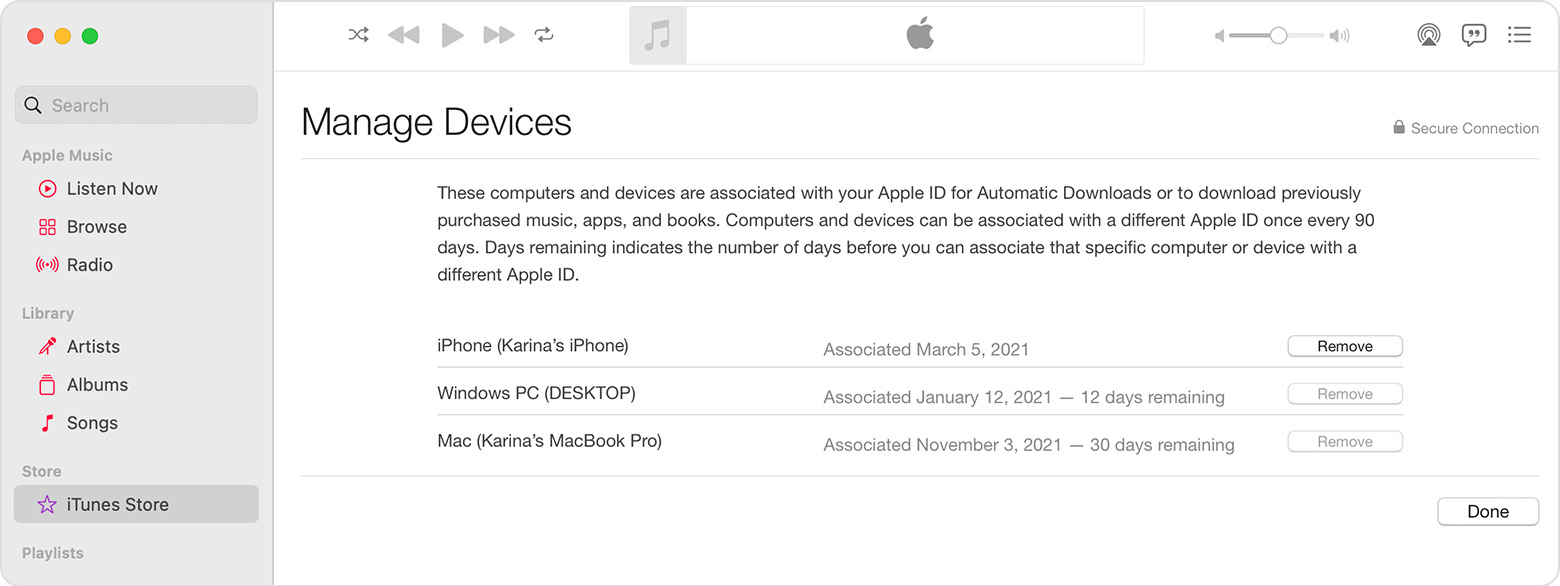
Remove your associated iPhone, iPad, or iPod touch
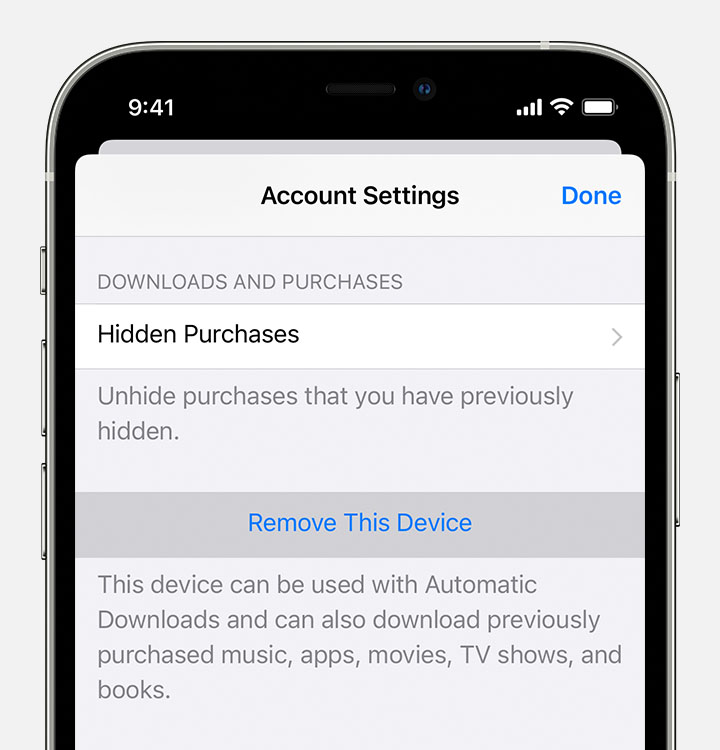
More about associated devices
You can have ten devices (no more than five computers) associated with your Apple ID for purchases at one time.
When you try to associate a device that was previously associated, you might notice a message that says, "This device is associated with another Apple ID. You cannot associate this device with another Apple ID for [number] days." You might need to wait up to 90 days to associate the device with a different Apple ID.
This list of associated devices is not the same as the list of devices that you're currently signed in to with your Apple ID. You can find out where you're signed in on your Apple ID account page."
Cheers!
Hello ,
Thanks for choosing the Apple Support Communities. For help to deauthorize devices, please follow the steps here to resolve the issue.
View and remove your devices that are associated with Apple ID purchases - Apple Support
"Use a Mac or PC to find or remove your associated devices
Remove your associated iPhone, iPad, or iPod touch
More about associated devices
You can have ten devices (no more than five computers) associated with your Apple ID for purchases at one time.
When you try to associate a device that was previously associated, you might notice a message that says, "This device is associated with another Apple ID. You cannot associate this device with another Apple ID for [number] days." You might need to wait up to 90 days to associate the device with a different Apple ID.
This list of associated devices is not the same as the list of devices that you're currently signed in to with your Apple ID. You can find out where you're signed in on your Apple ID account page."
Cheers!
Deauthorize Apple Music app on Android

