
Having trouble setting up new iPad
I’m setting up my husband with a new iPad we are trying to connect to his iPhone and it won’t connect. The iPad says on the box it’s 9th generation Wi-fi
I’m setting up my husband with a new iPad we are trying to connect to his iPhone and it won’t connect. The iPad says on the box it’s 9th generation Wi-fi
If you are experiencing difficulties with activation of your iPad, you may have more success if you connect your iPad to a PC (with iTunes installed) or a Mac (with iTunes or Finder - as appropriate for the installed version of macOS). Once connected to your computer, your iPad will be detected - and you should be able to activate using iTunes.
A restart of your WiFi Router and/or a change of DNS settings may also be helpful.
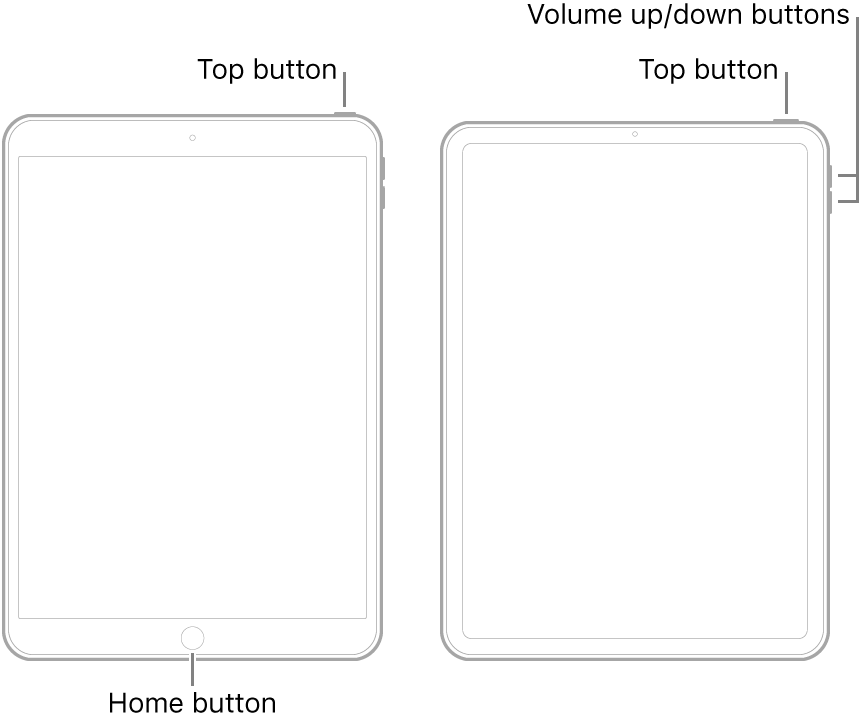
To restart you home router, disconnect power - then wait at least 30 seconds before restarting. When you router has rebooted (which may take several minutes), force-restart your iPad:
For recommended DNS servers (configured at your home router and/or your iPad), you might choose one of the following Recursive DNS Providers (IPv4 and IPv6 addresses included below):
Quad9
9.9.9.9
149.112.112.112
2620:fe::fe
2620:fe::9
OpenDNS
208.67.222.222
208.67.220.220
2620:0:ccc::2
2620:0:ccd::2
Cloudflare+APNIC
1.1.1.1
1.0.0.1
2606:4700:4700::1111
2606:4700:4700::1001
Should it be necessary to escalate your issue to Apple Support, the quickest route to engaging with Apple Support will be via the Get Support link at top-right of this page.
You might also visit the Genius Bar at your local Apple Store or Apple Authorised Service Provider (AASP) - where the technicians will be able to assist:
Genius Bar Reservation and Apple Support Options - Apple
If you are experiencing difficulties with activation of your iPad, you may have more success if you connect your iPad to a PC (with iTunes installed) or a Mac (with iTunes or Finder - as appropriate for the installed version of macOS). Once connected to your computer, your iPad will be detected - and you should be able to activate using iTunes.
A restart of your WiFi Router and/or a change of DNS settings may also be helpful.
To restart you home router, disconnect power - then wait at least 30 seconds before restarting. When you router has rebooted (which may take several minutes), force-restart your iPad:
For recommended DNS servers (configured at your home router and/or your iPad), you might choose one of the following Recursive DNS Providers (IPv4 and IPv6 addresses included below):
Quad9
9.9.9.9
149.112.112.112
2620:fe::fe
2620:fe::9
OpenDNS
208.67.222.222
208.67.220.220
2620:0:ccc::2
2620:0:ccd::2
Cloudflare+APNIC
1.1.1.1
1.0.0.1
2606:4700:4700::1111
2606:4700:4700::1001
Should it be necessary to escalate your issue to Apple Support, the quickest route to engaging with Apple Support will be via the Get Support link at top-right of this page.
You might also visit the Genius Bar at your local Apple Store or Apple Authorised Service Provider (AASP) - where the technicians will be able to assist:
Genius Bar Reservation and Apple Support Options - Apple
What might “trying to connect” mean exactly?
Does it mean he had backed up his iPhone and you’re trying to restore that backup to his new iPad? If so, what iPadOS version is the iPad using? It needs to be no less than the iPhone’s iOS version.
His iPhone is an iPhone XR the iPad is 9th generation Wi-fi
Having trouble setting up new iPad

