If your email has seeming “disappeared” from your iPad, have you checked to see if they can be accessed from your Mail Provider’s web portal using a web-browser?
If your email is still accessible using a web browser, the easiest method of restoring access to email via the Mail App is to first delete the email account from your iPad, then force-restart the iPad before re-adding the mail account.
To delete a mail account from your iPad:
Settings > Mail > Accounts > [Your email account] > Delete Account
Next, restart your iPad:
- On an iPad with a Home button: Press and hold the top button and the Home button at the same time. When the Apple logo appears, release both buttons.
- On other iPad models: Press and quickly release the volume up button, press and quickly release the volume down button, then press and hold the top button. When the Apple logo appears, release the button.
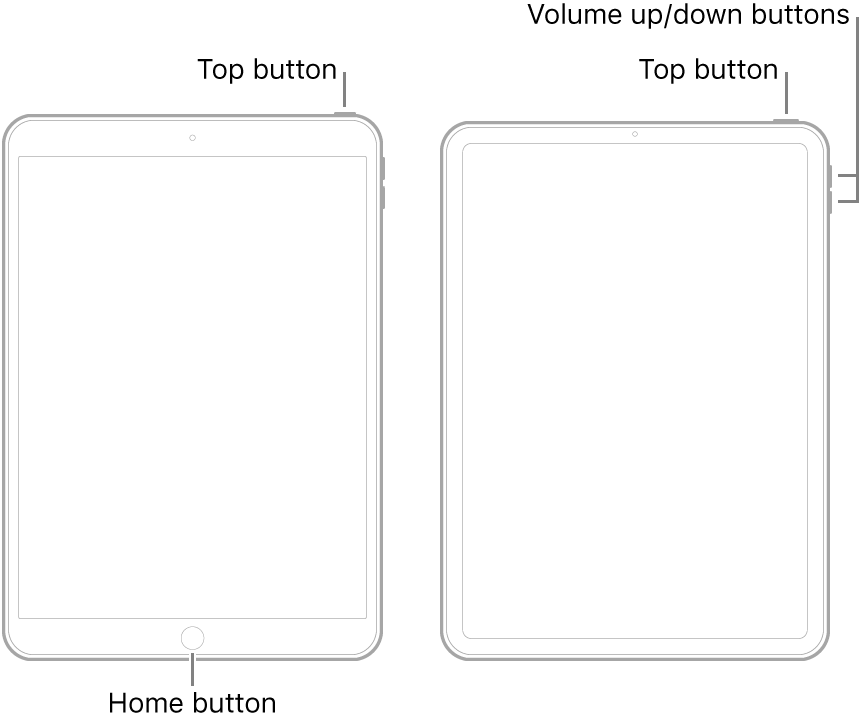
After restarting your iPad, re-add your email account to your iPad:
Add an email account to your iPhone, iPad, or iPod touch - Apple Support

