Can I restart my iPad mini if the screen does not respond to touch?

My iPad mini has stopped responding to touch. Help says to restart the iPad, but since it doesn't respond to touch, I can't use the slide button to close it. Is there another way to close my Ipad without using the touch screen?

iPad mini 6, iPadOS 15

Posted on Jul 27, 2022 7:09 AM

Reply
Question marked as Top-ranking reply

Posted on Jul 27, 2022 7:23 AM

Connect your iPad to its Power Adapter and allow the iPad to charge. While still connected to external power, try a forced-restart:


  • On an iPad with a Home button: Press and hold the top button and the Home button at the same time. When the Apple logo appears, release both buttons.
  • On other iPad models: Press and quickly release the volume up button, press and quickly release the volume down button, then press and hold the top button. When the Apple logo appears, release the button.
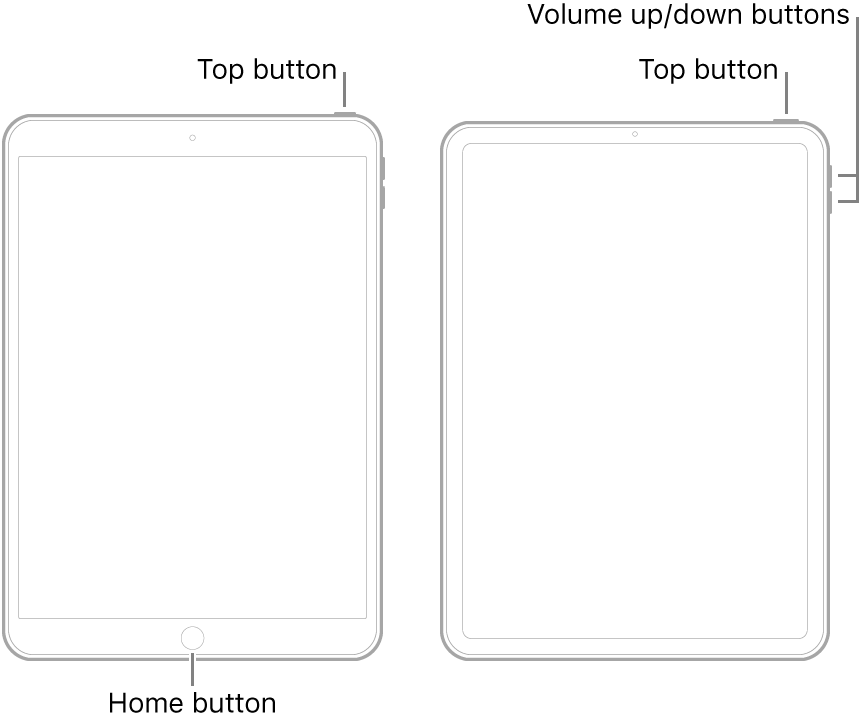


Note:  If iPad still doesn’t turn on, or if it gets stuck during start up, see the Apple Support article If your iPhone, iPad, or iPod touch won’t turn on or is frozen. Or if your iPad isn’t working correctly after you restart it, see the iPad Support website.


If you continue to experience difficulties, you will need to seek assistance directly from from Apple Support. You can contact the Support Team using the Get Support link at top-right of this page. Alternatively, you can initiate and manage your support cases using the excellent Apple Support App. If not already installed on your iPad, the App can be downloaded from the App Store:

https://apps.apple.com/gb/app/apple-support/id1130498044


You might also visit the Genius Bar at your local Apple Store or Apple Authorised Service Provider (AASP) - where the technicians will be able to test and assess your iPad:

Genius Bar Reservation and Apple Support Options - Apple

2 replies
Question marked as Top-ranking reply

Jul 27, 2022 7:23 AM in response to Onewheeler36

Connect your iPad to its Power Adapter and allow the iPad to charge. While still connected to external power, try a forced-restart:


  • On an iPad with a Home button: Press and hold the top button and the Home button at the same time. When the Apple logo appears, release both buttons.
  • On other iPad models: Press and quickly release the volume up button, press and quickly release the volume down button, then press and hold the top button. When the Apple logo appears, release the button.


Note:  If iPad still doesn’t turn on, or if it gets stuck during start up, see the Apple Support article If your iPhone, iPad, or iPod touch won’t turn on or is frozen. Or if your iPad isn’t working correctly after you restart it, see the iPad Support website.


If you continue to experience difficulties, you will need to seek assistance directly from from Apple Support. You can contact the Support Team using the Get Support link at top-right of this page. Alternatively, you can initiate and manage your support cases using the excellent Apple Support App. If not already installed on your iPad, the App can be downloaded from the App Store:

https://apps.apple.com/gb/app/apple-support/id1130498044


You might also visit the Genius Bar at your local Apple Store or Apple Authorised Service Provider (AASP) - where the technicians will be able to test and assess your iPad:

Genius Bar Reservation and Apple Support Options - Apple

Jul 27, 2022 7:13 AM in response to Onewheeler36

Hello,


Try these steps: Force restart iPad


Force restart iPad

If iPad isn’t responding, and you can’t restart it by turning if off then on, try forcing it to restart.

Note: If iPad doesn’t restart after you try these steps, see the Apple Support article If your iPad won’t turn on or is frozen. Or if your iPad isn’t working as expected after you restart it, see the iPad Support website.


Force restart iPad (models with Face ID or with Touch ID in the top button)

If your iPad doesn’t have the Home button, do the following:

  1. Press and quickly release the volume button nearest to the top button.
  2. Press and quickly release the volume button farthest from the top button.
  3. Press and hold the top button.
  4. When the Apple logo appears, release the top button.

Force restart iPad (models with the Home button)

Press and hold the top button and the Home button at the same time. When the Apple logo appears, release both buttons.

This thread has been closed by the system or the community team. You may vote for any posts you find helpful, or search the Community for additional answers.

Can I restart my iPad mini if the screen does not respond to touch?

Welcome to Apple Support Community
A forum where Apple customers help each other with their products. Get started with your Apple Account.