black screen

Hi

So today my iPhone screen went black

I tried force reset didn't work

And i try iTunes but i had to uplate it to the latest version and i don't want to erese my iPhone becuse i didn't do the icloud backup

So what should i do?

Should have a screen replacement?

Or should i do something else?

I am writing this on my old Galaxy A50 phone

iPhone X, iOS 15

Posted on Aug 9, 2022 5:54 PM

Reply
Question marked as Top-ranking reply

Posted on Aug 11, 2022 12:27 PM

Hello vasilije144,


We understand your iPhone isn't powering on properly and showing a black screen. We'll do our best to help out.


If you've tried a forced restart, did you work through these related steps yet? If not, we'd recommend performing the following steps: If your iPhone won't turn on or is frozen - Apple Support


If your iPhone turns on but gets stuck during start up

If you see the Apple logo or a red or blue screen during startup, try these steps:

1. Connect your iPhone to a computer. On a Mac with macOS Catalina, open the Finder. On a Mac with macOS Mojave or earlier, or on a PC, open iTunes. Find out which macOS your Mac is using.
2. Select your iPhone on your computer.
3. While your iPhone is connected, follow these steps:
- On your iPhone 8 or later, including iPhone SE (2nd and 3rd generation): Press and quickly release the volume up button. Press and quickly release the volume down button. Then press and hold the side button.
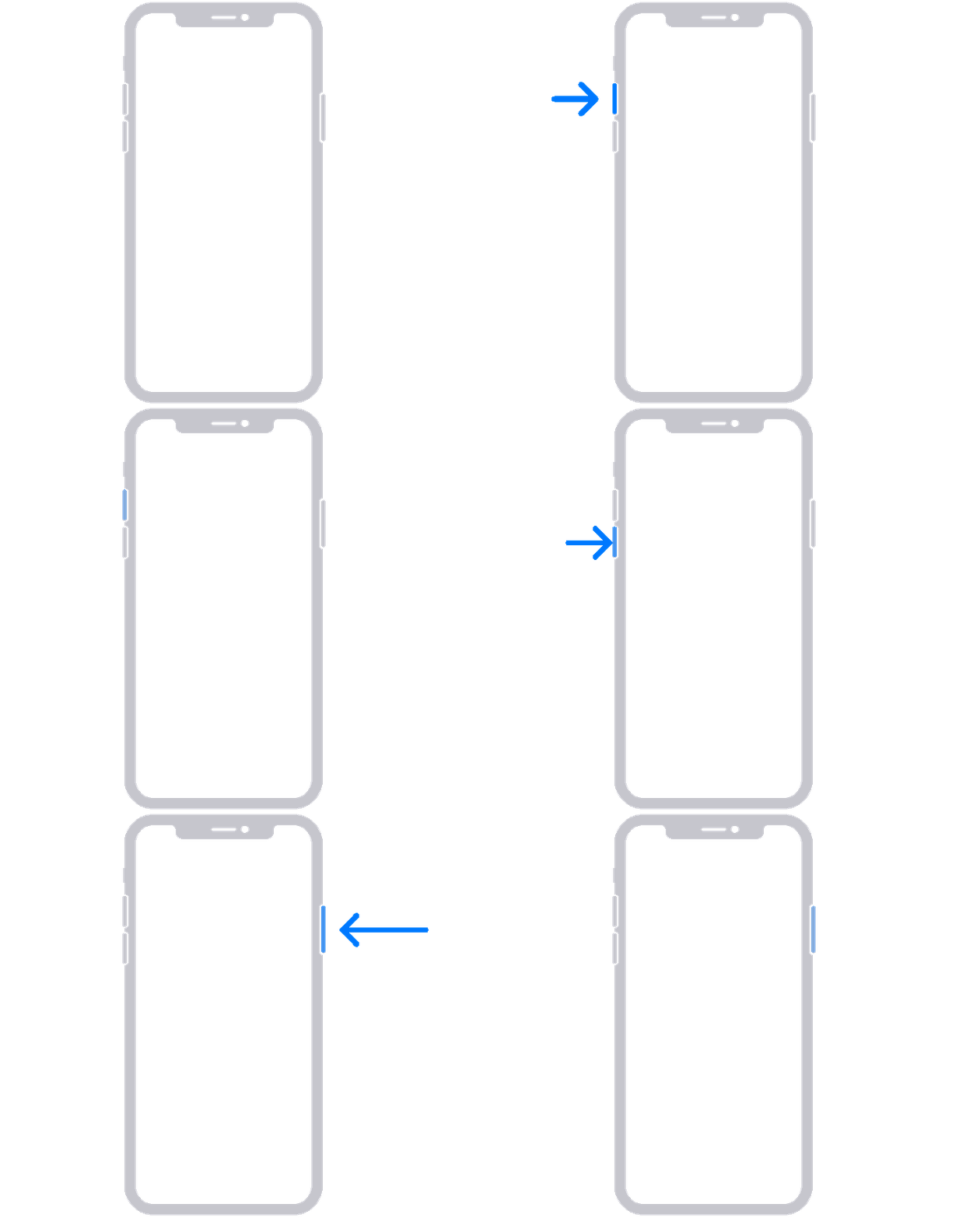
An animation of an iPhone with arrows pointing to the volume up button, then to the volume down button, and then to the side button.
- On your iPhone 7 or iPhone 7 Plus: Press and hold the side button and volume down button at the same time.
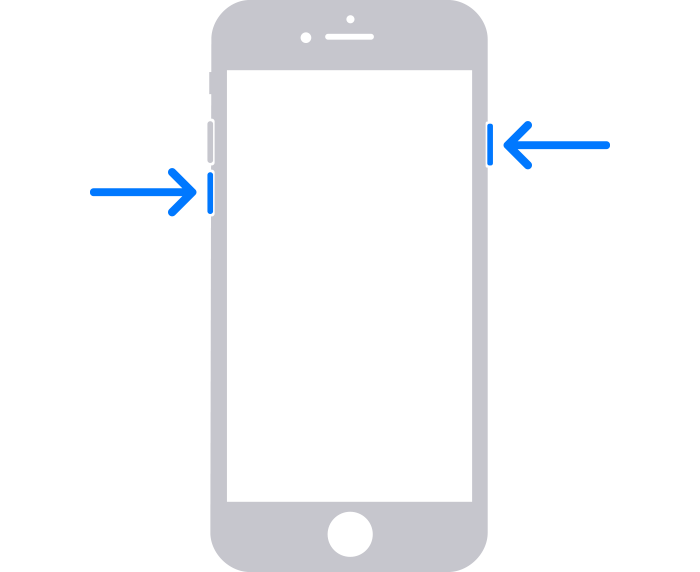
An iPhone with arrows pointing to the volume down button and the side button.

- On your iPhone 6s or earlier, including iPhone SE (1st generation): Press and hold both the Home button and the side button or the top button at the same time.
4. Keep holding the buttons until you see the recovery mode screen.
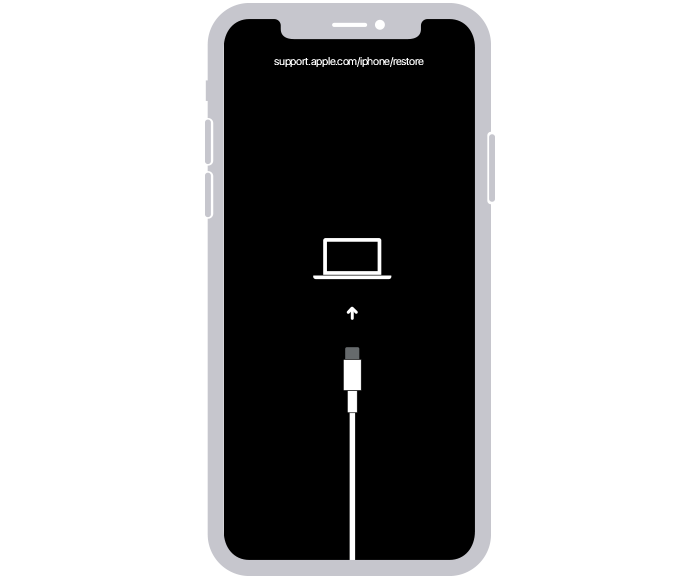
An iPhone showing the recovery mode screen.

5. When you get the option to restore or update, choose Update.
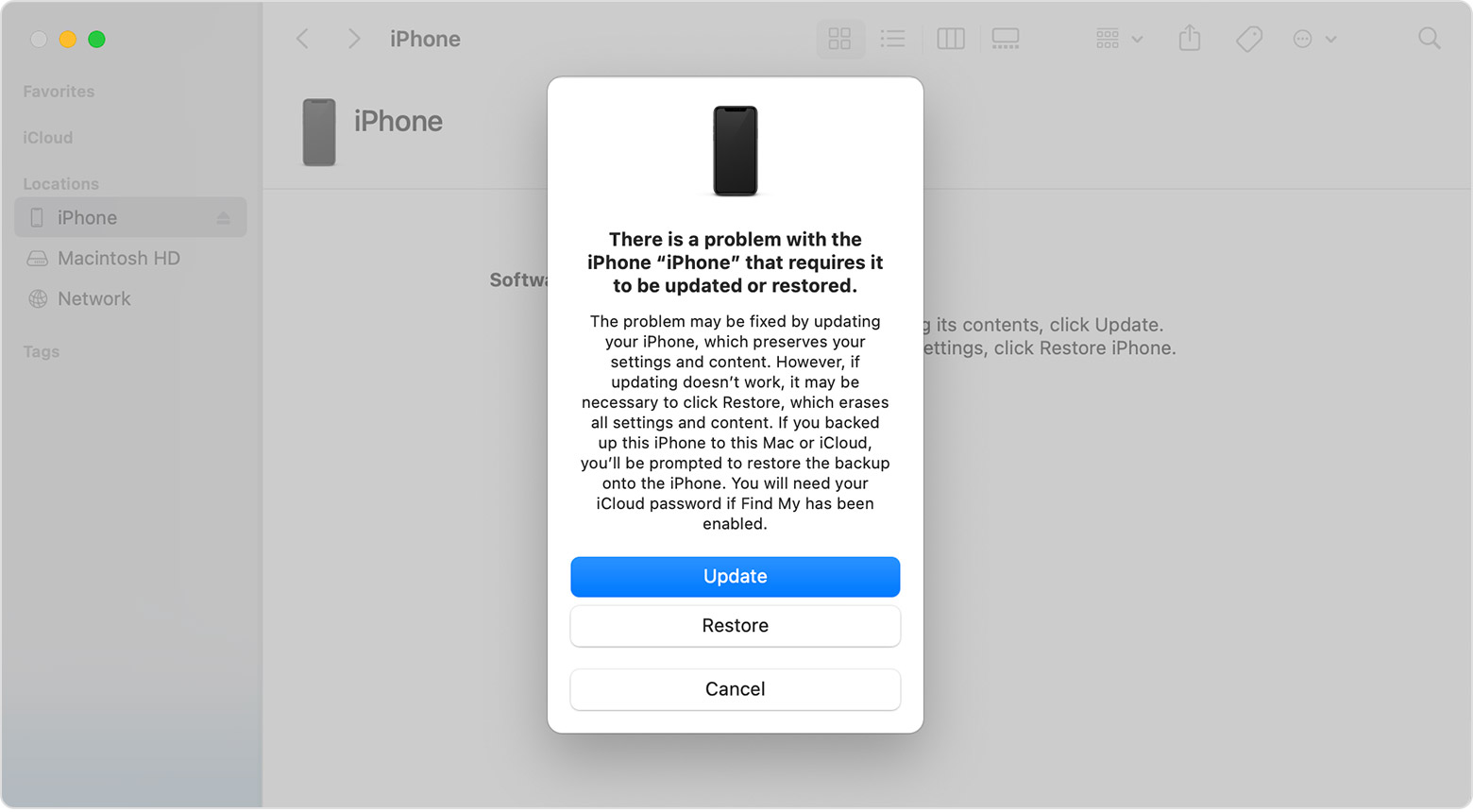
A Finder window showing a prompt with the choice to update or restore your iPhone. Update is selected.

6. Your computer will download the software for your device. If it takes more than 15 minutes, your device will exit recovery mode. Repeat steps 2-4.


When you take these steps and select 'Update' instead of 'Restore' then it should only update the device, it wouldn't restore it to factory settings.


If these steps don't work for you, what happens if you attempt to backup using your computer? Learn how here: How to back up your iPhone, iPad, and iPod touch - Apple Support Does the screen ever turn on or respond?


Let us know if that helps out, take care.

2 replies
Question marked as Top-ranking reply

Aug 11, 2022 12:27 PM in response to vasilije144

Hello vasilije144,


We understand your iPhone isn't powering on properly and showing a black screen. We'll do our best to help out.


If you've tried a forced restart, did you work through these related steps yet? If not, we'd recommend performing the following steps: If your iPhone won't turn on or is frozen - Apple Support


If your iPhone turns on but gets stuck during start up

If you see the Apple logo or a red or blue screen during startup, try these steps:

1. Connect your iPhone to a computer. On a Mac with macOS Catalina, open the Finder. On a Mac with macOS Mojave or earlier, or on a PC, open iTunes. Find out which macOS your Mac is using.
2. Select your iPhone on your computer.
3. While your iPhone is connected, follow these steps:
- On your iPhone 8 or later, including iPhone SE (2nd and 3rd generation): Press and quickly release the volume up button. Press and quickly release the volume down button. Then press and hold the side button.

An animation of an iPhone with arrows pointing to the volume up button, then to the volume down button, and then to the side button.
- On your iPhone 7 or iPhone 7 Plus: Press and hold the side button and volume down button at the same time.
An iPhone with arrows pointing to the volume down button and the side button.

- On your iPhone 6s or earlier, including iPhone SE (1st generation): Press and hold both the Home button and the side button or the top button at the same time.
4. Keep holding the buttons until you see the recovery mode screen.
An iPhone showing the recovery mode screen.

5. When you get the option to restore or update, choose Update.
A Finder window showing a prompt with the choice to update or restore your iPhone. Update is selected.

6. Your computer will download the software for your device. If it takes more than 15 minutes, your device will exit recovery mode. Repeat steps 2-4.


When you take these steps and select 'Update' instead of 'Restore' then it should only update the device, it wouldn't restore it to factory settings.


If these steps don't work for you, what happens if you attempt to backup using your computer? Learn how here: How to back up your iPhone, iPad, and iPod touch - Apple Support Does the screen ever turn on or respond?


Let us know if that helps out, take care.

This thread has been closed by the system or the community team. You may vote for any posts you find helpful, or search the Community for additional answers.

black screen

Welcome to Apple Support Community
A forum where Apple customers help each other with their products. Get started with your Apple Account.
