Hello StefDXB,
Let's start by making sure your iPhone is all up to date using the steps below:
1. Back up your device using iCloud or your computer.
2. Plug your device into power and connect to the internet with Wi-Fi.
3. Go to Settings > General, then tap Software Update.
4. If you see two software update options available, choose the one that you want to install.
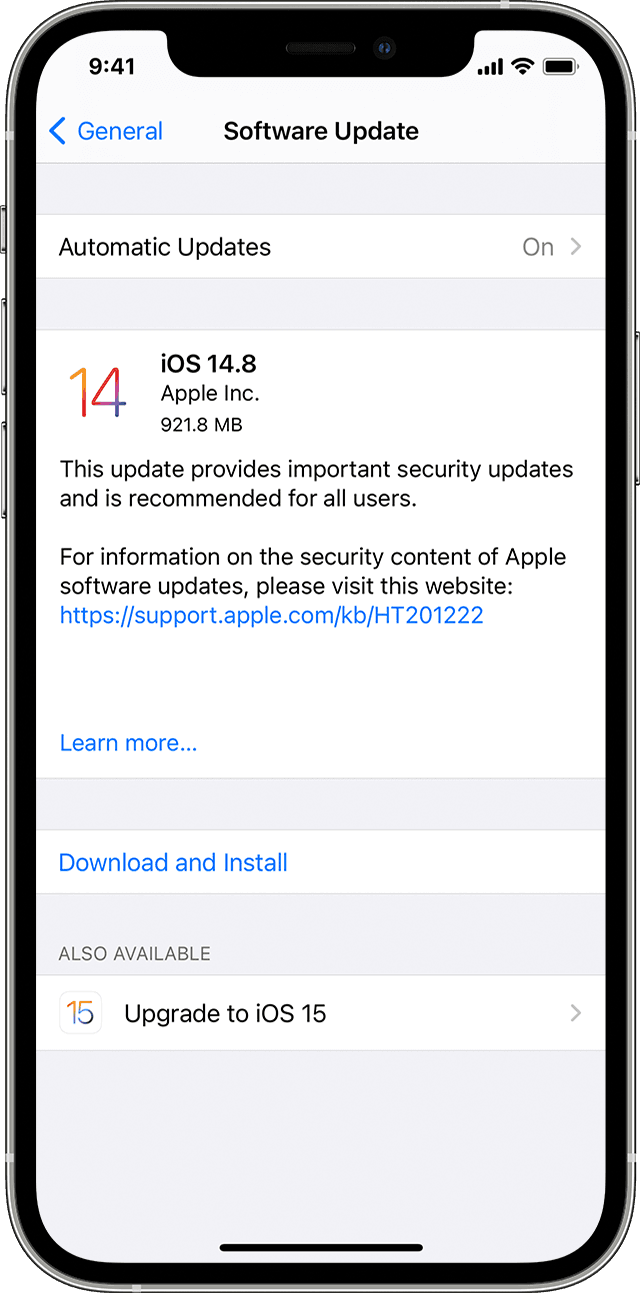
5. Tap Install Now. If you see Download and Install instead, tap it to download the update, enter your passcode, then tap Install Now. If you don't know your passcode, learn what to do.
You can also find those steps in this resource: Update your iPhone, iPad, or iPod touch - Apple Support
Afterwards, make sure your Apple Watch is up to date using these steps:
1. On your iPhone, open the Apple Watch app, then tap the My Watch tab.
2. Tap General > Software Update.
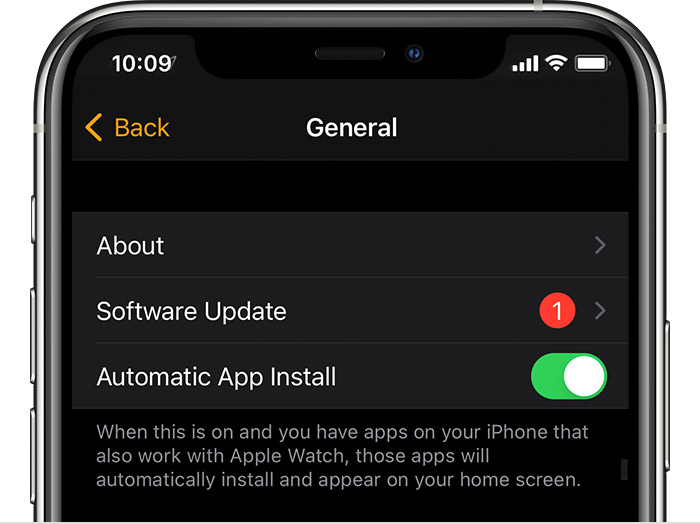
3. Download the update. If asked for your iPhone passcode or Apple Watch passcode, enter it.
4. Wait for the progress wheel to appear on your Apple Watch. It could take from several minutes to an hour for the update to complete.
Those steps are also located here: Update your Apple Watch - Apple Support
Updating should help to further rule out a possible software conflict.
Should that still persist after updating, you'll want to reach out to Apple Support so they can look into this further: Contact - Official Apple Support
Take care.


