iTunes doesn't recognize my iPods anymore

I've got Windows 10 and iTunes version 12124.1.57017.0


When I open iTunes I always get the message that the programs for connection to the iPod are missing and the question if they have to search for it.

I always say yes and then the search starts and stops immediatly without any result.


So I cannot connect my 2 Ipods to iTunes anymore.


It also seems no longer possible to search for an update version of iTunes.


The last year I've tried everything that I found but without result.


Can anybody help me ?


Thank you - Jean


iPod Classic

Posted on Aug 14, 2022 8:06 AM

Reply
Question marked as Top-ranking reply

Posted on Aug 15, 2022 9:08 AM

Hello Jeanvanhier,


To start, check out and follow the steps offered on this page: If your computer doesn't recognize your iPhone, iPad, or iPod - Apple Support. Make sure to follow all the steps in the order which they appear.

1. Make sure that your iOS or iPadOS device is turned on, unlocked, and on the Home screen.
2. Check that you have the latest software on your Mac or Windows PC. If you're using iTunes, make sure you have the latest version.
3. If you see a Trust this Computer alert, unlock your device and tap Trust. If you can't unlock your device because you forgot your passcode, find out what to do.
4. Unplug all USB accessories from your computer except for your device. Try each USB port to see if one works. Then try a different Apple USB cable.*
5. Restart your computer. 
6. Restart your iPhoneiPad, or iPod touch.
7. Follow these additional steps for your Mac or Windows PC
8. Try connecting your device to another computer. If you have the same issue on another computer, contact Apple Support.


When you get to step 7, ensure you click on the link for steps specific to using iTunes on a Windows PC. You can also find those steps here: If your Windows PC doesn't recognize your iPhone, iPad, or iPod touch - Apple Support. There are steps specifically for Windows 10.

If you use Windows 10
1. Disconnect your device from your computer.
2. Unlock your iOS or iPadOS device and go to the Home screen. Then reconnect your device. If iTunes opens, close it.
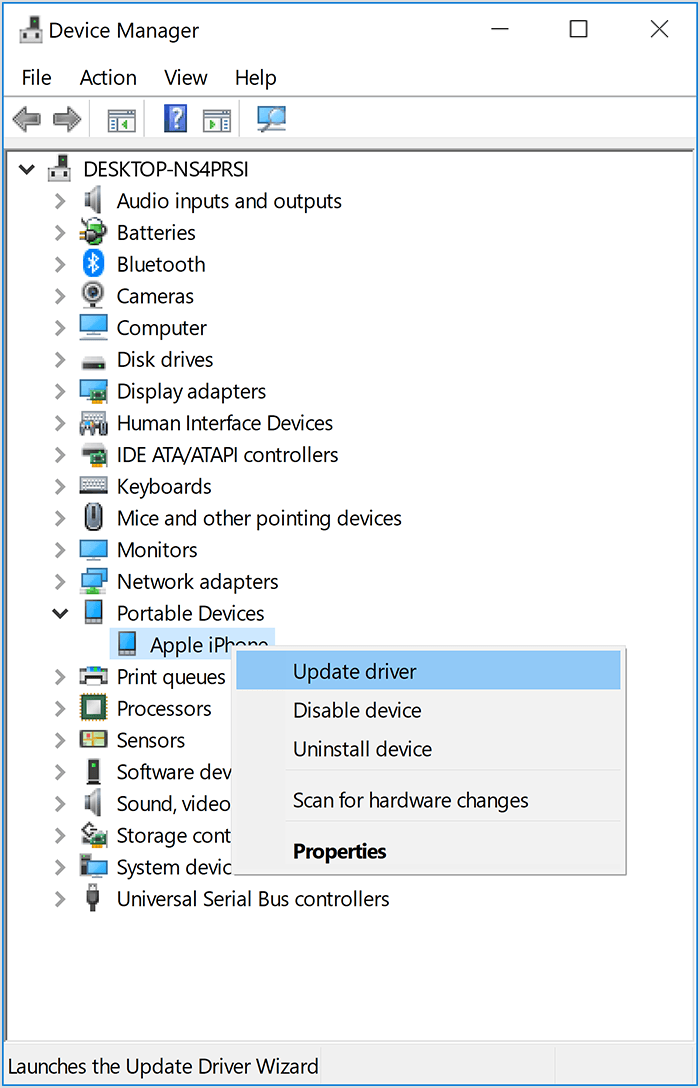
3. Click and hold (or right-click) the Start button, then choose Device Manager.
4. Locate and expand the Portable Devices section.
5. Look for your connected device (such as Apple iPhone), then right-click on the device name and choose Update driver.
6. Select "Search automatically for updated driver software."
7. After the software installs, go to Settings > Update & Security > Windows Update and verify that no other updates are available.
8. Open iTunes.


We hope this information helps you out.


Kind regards!

Similar questions

2 replies
Question marked as Top-ranking reply

Aug 15, 2022 9:08 AM in response to Jeanvanhier

Hello Jeanvanhier,


To start, check out and follow the steps offered on this page: If your computer doesn't recognize your iPhone, iPad, or iPod - Apple Support. Make sure to follow all the steps in the order which they appear.

1. Make sure that your iOS or iPadOS device is turned on, unlocked, and on the Home screen.
2. Check that you have the latest software on your Mac or Windows PC. If you're using iTunes, make sure you have the latest version.
3. If you see a Trust this Computer alert, unlock your device and tap Trust. If you can't unlock your device because you forgot your passcode, find out what to do.
4. Unplug all USB accessories from your computer except for your device. Try each USB port to see if one works. Then try a different Apple USB cable.*
5. Restart your computer. 
6. Restart your iPhoneiPad, or iPod touch.
7. Follow these additional steps for your Mac or Windows PC
8. Try connecting your device to another computer. If you have the same issue on another computer, contact Apple Support.


When you get to step 7, ensure you click on the link for steps specific to using iTunes on a Windows PC. You can also find those steps here: If your Windows PC doesn't recognize your iPhone, iPad, or iPod touch - Apple Support. There are steps specifically for Windows 10.

If you use Windows 10
1. Disconnect your device from your computer.
2. Unlock your iOS or iPadOS device and go to the Home screen. Then reconnect your device. If iTunes opens, close it.
3. Click and hold (or right-click) the Start button, then choose Device Manager.
4. Locate and expand the Portable Devices section.
5. Look for your connected device (such as Apple iPhone), then right-click on the device name and choose Update driver.
6. Select "Search automatically for updated driver software."
7. After the software installs, go to Settings > Update & Security > Windows Update and verify that no other updates are available.
8. Open iTunes.


We hope this information helps you out.


Kind regards!

Aug 15, 2022 12:01 PM in response to Jeanvanhier

For general advice see Troubleshooting issues with iTunes for Windows updates.


The steps in the second box are a guide to removing everything related to iTunes and then rebuilding it which is often a good starting point unless the symptoms indicate a more specific approach. When reinstalling right click on the downloaded setup file and use run as administrator. It may also help to temporarily disable any non-Microsoft anti-virus.


Review the other boxes and the list of support documents further down the page in case one of them applies.


The further information area has direct links to the current and recent builds in case you have problems downloading, or want to revert to an older version if the current one won't work properly for you at the moment. Links to the most recent builds are now at the bottom of the page.


Your library and device backups should be unaffected by these steps but there are links to backup and recovery advice should it be needed.


tt2

This thread has been closed by the system or the community team. You may vote for any posts you find helpful, or search the Community for additional answers.

iTunes doesn't recognize my iPods anymore

Welcome to Apple Support Community
A forum where Apple customers help each other with their products. Get started with your Apple Account.