
New iMac - music playlists have disappeared

I've set up my new iMac from scratch (a lot of dross on old iMac) and only some of my music is showing and NONE of the playlists.


I've done a Time Machine backup to a hard drive of the old iMac (2013) - can I take JUST the music library and playlists from it and put it on the new iMac?


The music library files I believe are identical (both held on Dropbox, same size and updated at the same time), but the Library.itl file is not on the new iMac. I've tried copying and pasting it, but I think I would have to map it to make it work - any ideas?


Thanks all!

iMac

Posted on Sep 6, 2022 3:04 PM

Reply

Similar questions

2 replies

Sep 7, 2022 10:56 AM in response to goldilocksontour

Hi goldilocksontour,


Welcome to Apple Support Communities. We understand that you're having an issue with viewing your Apple Music on your new iMac. We'd like to help.


From what you've shared, it looks like this resource would help you the most to get that data from your Time Machine backup to your new device: Transfer your information to Mac from another computer or device - Apple Support


Transfer information from a Time Machine backup or other storage device

You can transfer information from another disk on your Mac, a disk connected to your Mac, a disk on the same network, or another Mac with OS X 10.8 or earlier connected to your Mac using a Thunderbolt cable.
If you’re using a Thunderbolt cable, connect the cable to the computers, press and hold the T key while restarting the Mac that has the information to transfer, then follow the steps below on the Mac you want to transfer information to.
1. On your Mac, open the Migration Assistant app , located in the Utilities folder in the Applications folder.
2. Click Continue, then follow the onscreen instructions to transfer information from a Time Machine backup or other disk.
3. Select the information to transfer.

* Apps: Select the Applications checkbox. 
Incompatible apps or apps with newer versions already installed may not be transferred or may not be usable.
* User accounts: Select the checkbox next to the name of each user account you want to transfer.
Click the arrow  next to the checkbox to select the specific information to transfer, including the user’s apps, documents, pictures, movies, desktop, Downloads folder, and more.

* Documents and files from apps: Select the Other Files and Folders checkbox.
* Computer settings: Select the System & Network checkbox.
Your desktop picture, network settings, and more will be transferred.
Click the arrow  next to the checkbox to select which system or network settings to transfer.
Follow any additional onscreen instructions, then click Continue to begin the transfer.

5. When the transfer is complete, a migration summary is shown if issues were found—for example, if documents couldn’t be transferred or incompatible software was detected.
6. Click Done to exit Migration Assistant.

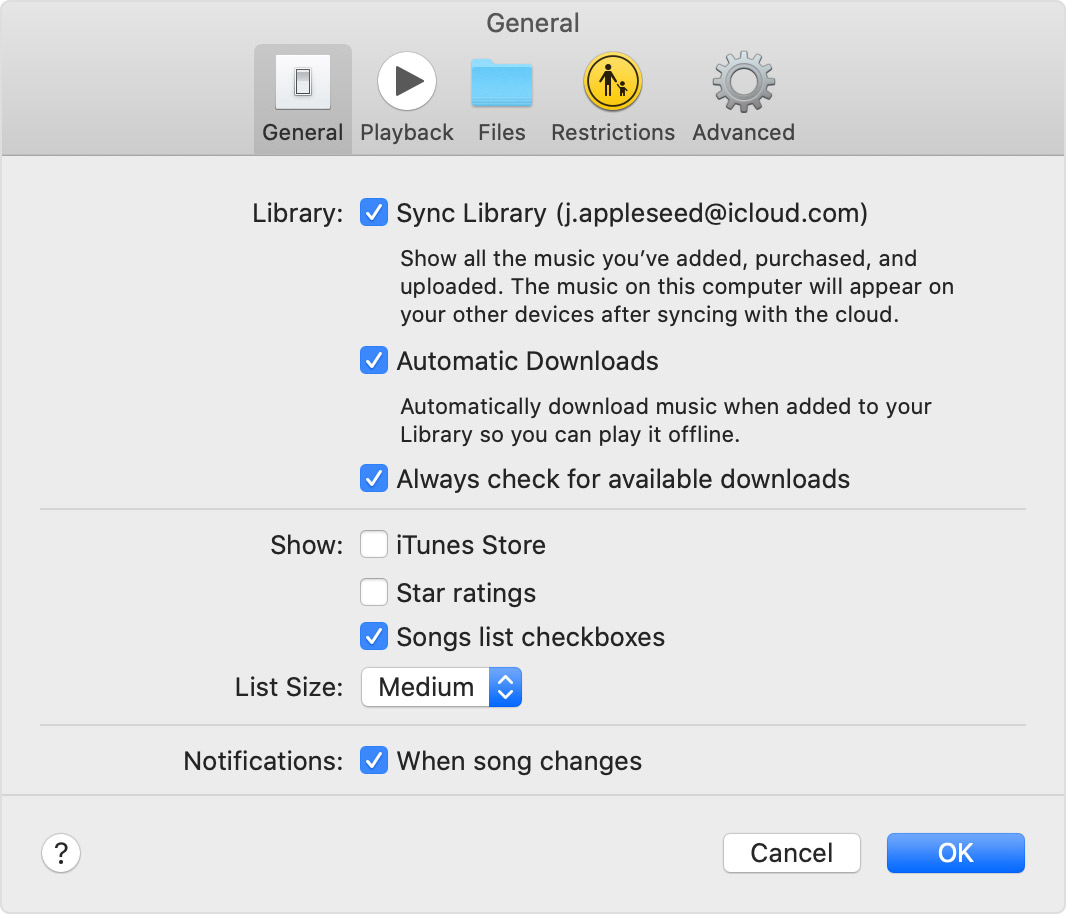
If you're using Apple Music, you could also work to Turn on Sync Library with Apple Music - Apple Support


Turn on Sync Library

With the latest version of iOS, iPadOS, and macOS, Sync Library is turned on by default. If you turned off Sync Library, you can turn it back on. Just follow the steps below for your device.

On your Mac

1. Open the Apple Music app.
2. From the menu bar at the top of your screen, choose Music > Preferences.
3. Go to the General tab and select Sync Library to turn it on. If you don't subscribe to Apple Music or iTunes Match, you won’t see an option to turn on Sync Library.
4. Click OK.
If you have a large music library, it might take some time to upload and sync your music library across all of your devices.

Hope that helps.

Take care!

Sep 7, 2022 1:50 PM in response to goldilocksontour

Playlists would be held in the iTunes Library.itl file. You should be able to press and hold down option as you launch Music to get a dialog box that lets you choose a library. Click this and navigate to the .itl file, then chose a location to save the converted library.


In some cases uses on Monterey are finding this import method stalls. An alternative is to open a new empty library, then use File > Library > Import Playlist and select the iTunes (Music) Library.xml generated by the old copy of iTunes.


tt2

This thread has been closed by the system or the community team. You may vote for any posts you find helpful, or search the Community for additional answers.

New iMac - music playlists have disappeared

Welcome to Apple Support Community
A forum where Apple customers help each other with their products. Get started with your Apple Account.