Hello lebekster,
Thanks for choosing the Apple Support Communities. We have a few articles that can help with this. Though this sounds like it could be a hardware issue, it is a good idea to troubleshoot other possible issues first. Try these out.
If the internal speakers on your Mac aren't working - Apple Support
"Check your sound settings
First, disconnect any cables from the USB, Thunderbolt, or 3.5mm audio ports on your Mac.
- From the Apple menu , choose System Preferences.
- Click Sound.
- Click the Output tab, then select the built-in speakers. If you don’t see built-in speakers as an option in the Output window, contact Apple Support.
- If the Output volume slider is set low, move the slider to the right and test again.
- If the Mute checkbox is selected, deselect it and test again.
- If you still don’t hear any sound, contact Apple Support."
If you can’t hear sound from your Mac speakers - Apple Support
"If you’re trying to listen through your computer’s built-in speakers
- Unplug any headphones or external speakers.
- On your Mac, choose Apple menu
 > System Preferences, click Sound
  , then click Output. Make sure “Internal Speakers” is selected, the “Output volume” slider is not all the way to the left, and the Mute checkbox is not selected.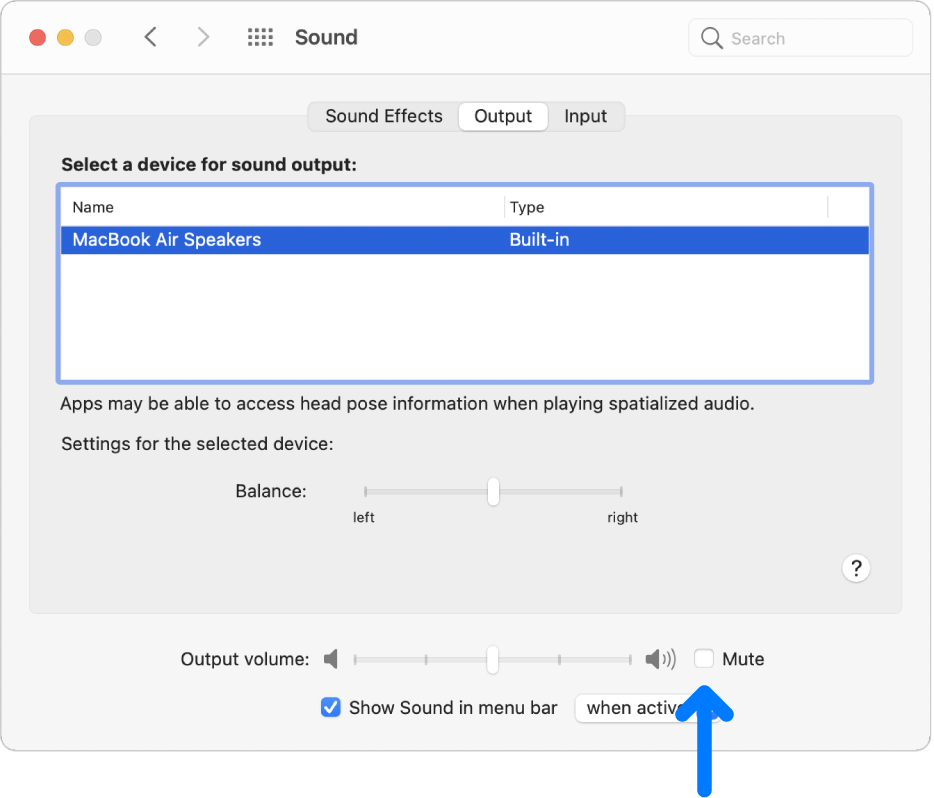
If you’re trying to listen through external speakers
- Make sure the speakers are plugged into the audio output port on your Mac or display, and if necessary, into a power supply. Check for a power switch and volume adjustment on your external speakers. If necessary, turn the speakers on and adjust the speaker volume.
- On your Mac, choose Apple menu > System Preferences, click Sound , then click Output. If your Mac has only one audio port, click the “Use audio port for” pop-up menu, choose Sound Output, then make sure your external speakers are selected.
- If you’re trying to listen through speakers or headphones connected only to the USB port on your Mac or display, choose Apple menu > System Preferences, click Sound, then click Output. Make sure the external USB speakers are selected. Open System Information, click USB in the Hardware section of the sidebar, then make sure your speakers are listed. If they aren’t, try unplugging the speakers and then plugging them in again.
- If your external speakers still aren’t working, check the instructions that came with your speakers.
If you’re trying to listen through your display’s built-in speakers
- Unplug any headphones or external speakers from your Mac.
- Make sure the cables from the display are connected to the ports on your Mac.
- Choose Apple menu > System Preferences, click Sound , then click Output. Make sure Display Audio is selected in the output device list.
- If you’re trying to listen through a digital receiver
- If you’re using your computer’s digital output port (not available on all computers), choose Apple menu > System Preferences, click Sound , then click Output. Make sure Digital Output is selected in the output devices list.
- Make sure your computer is connected to a digital-ready receiver using an optical digital cable, and that your receiver is set up for digital input (see the information that came with your receiver).
- Try adjusting the volume on your receiver. You can’t use the computer’s volume controls to adjust the volume while using digital output.
- If you’re not hearing sound for specific alerts, see Change the alert sounds on Mac. For information about the audio ports on your Mac or display, see About the audio ports on Mac."
If these do not help, try testing this in safe mode to see if any third party apps may be causing the issue.
How to use safe mode on your Mac - Apple Support
We hope this helps.
Cheers!


