There’s very little information here with which to make a definitive judgement as to what may be going on.
First - a “gotcha” that is encountered by many when complaining of grey “ghost” icons…
The file browser within Numbers, Pages and Keynote Apps will intentionally only allow access to files created by - or compatible with - the corresponding App. Files that are not compatible with the App are intentionally shown as a grey “ghost” icon. The App-integral file browser is often mistaken for the full Files App.
If instead you use the full Files App, you’ll be able to browse and access all files and file types.
When using the file browser of each of the core Apple Apps, you may have missed that they are colour coded. This colour keying is intended to provide a visual cue as to which file browser you are using...
- Pages App: White background with Light Grey sidebar, title text and functional icons in orange
- Numbers App: White background with Light Grey sidebar, title text and functional icons in green
- Keynote App: Black background with Dark Grey sidebar, title text and functional icons are blue
- Files App: White background with Light Grey sidebar, title text and functional icons in blue
Once this distinction is recognised, it should become immediately obvious which of the core Apps (and associated file browser) is being used.
If the above explanation doesn’t apply to your situation, you might try a forced-restart of your iPad - as this will often resolve an isolated software issue:
Connect your iPad to its Power Adapter and allow the iPad to charge. While still connected to external power, try a forced-restart:
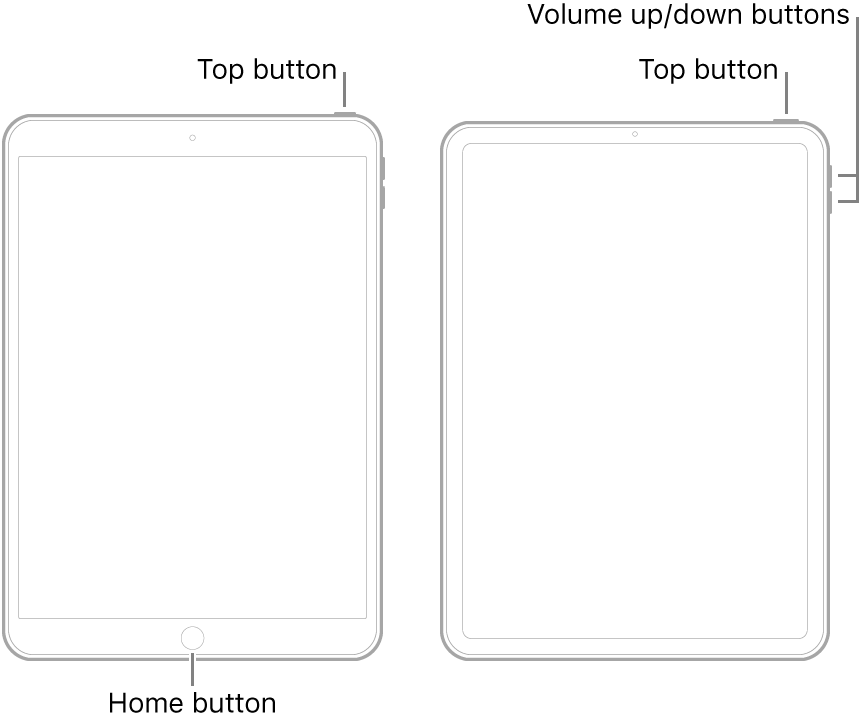
- On an iPad with a Home button: Press and hold the top button and the Home button at the same time. When the Apple logo appears, release both buttons.
- On other iPad models: Press and quickly release the volume up button, press and quickly release the volume down button, then press and hold the top button. When the Apple logo appears, release the button.
If you problem remains unresolved, consider posting a screenshot of what you see - as this may help to clarify the issue. Before uploading the screenshot, ensure that you redact any personal/sensitive information using the markup function.
Take a screenshot on your iPad - Apple Support
Upload using the image attachment button at the bottom of the editing window:


