Hello RandomId,
Thanks for choosing the Apple Support Communities. let's try some other methods to change your password and see if we can help you get it changed successfully.
First, have you tried another browser to see if the same thing occurs? If so, and it does, let's try these steps next.
Change your Apple ID password - Apple Support
"Change your Apple ID password on your iPhone, iPad, iPod touch, or Apple Watch
- Tap Settings > your name > Password & Security.
- Tap Change Password.
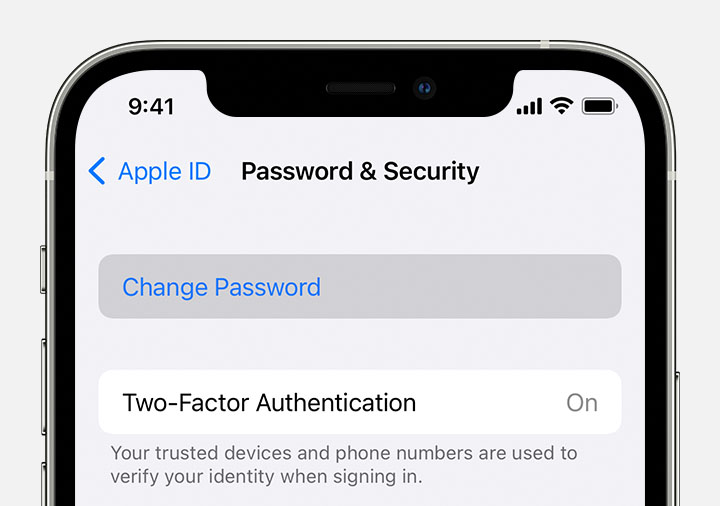
- Enter your current password or device passcode, then enter a new password and confirm the new password. Forgot your password?
- Tap Change or Change Password.

Change your child's Apple ID password on your iPhone
If you have an iPhone with iOS 16 or later and two-factor authentication turned on for your Apple ID, you can change the Apple ID password for a child account in your Family Sharing group.
- Tap Settings > Family > your child's account.
- Tap Apple ID & Password.
- Tap Change [Child's Name] Password.
- Enter your device passcode and follow the onscreen instructions.
Learn more about an Apple ID account for your child under 13 (age varies by region)
Change your Apple ID password on your Mac
- Choose Apple menu > System Preferences, then click Apple ID.
- Click Password & Security.
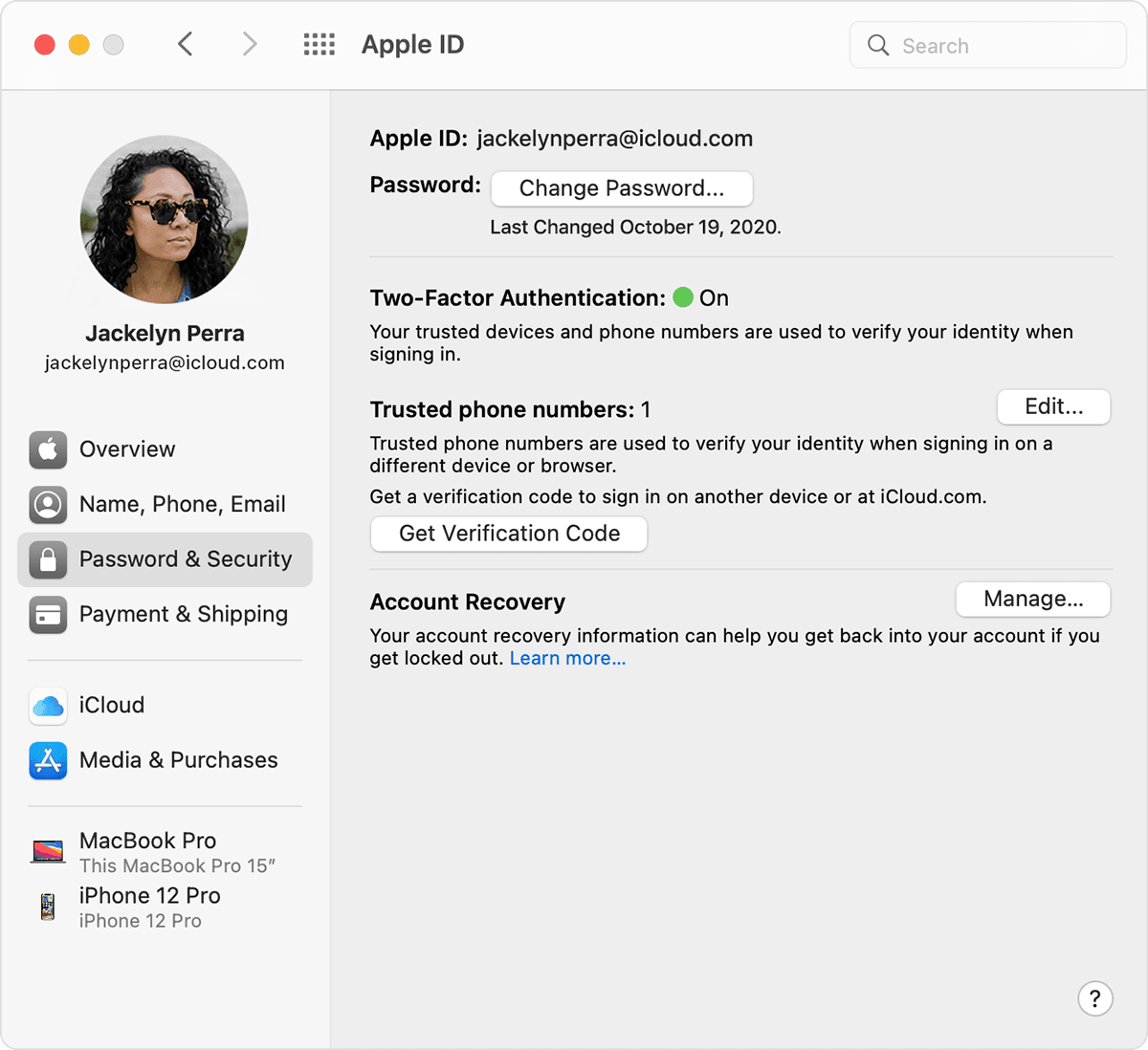
- Click Change Password. Before you can reset your Apple ID password, you'll be required to enter the password used to unlock your Mac.
Change your Apple ID password on the web
- Sign in to appleid.apple.com.
- In the Sign-In and Security section, click Password.
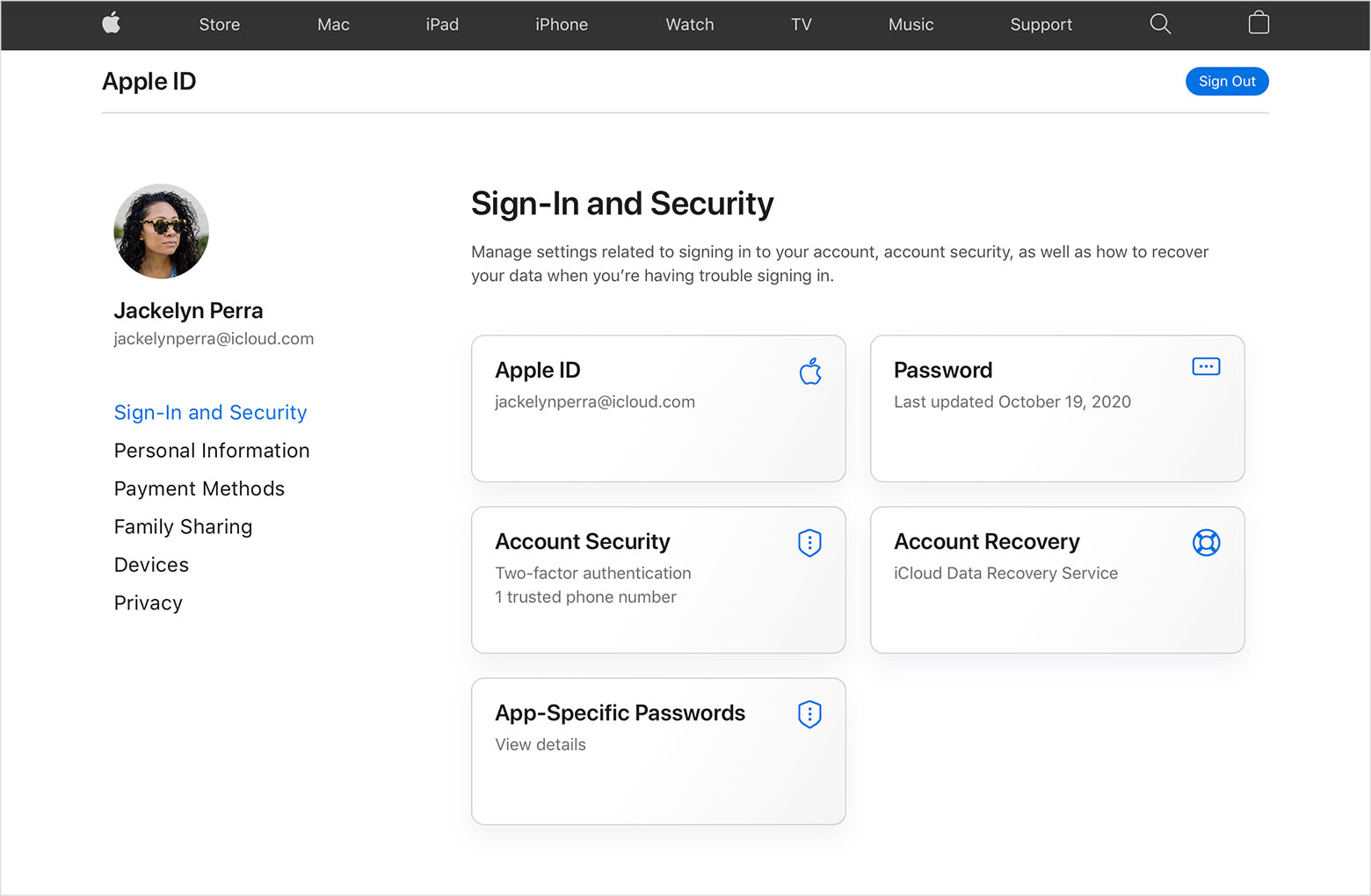
- Enter your current password, then enter a new password and confirm the new password. Forgot your password?
- Click Change Password."
We hope this helps.
Cheers!


