after installing iOS 15.7 to my iPhone 6s, it didn't charge properly, and cannot switch on the next day after the update, it keeps showing the battery icon whenever i press the power button, but no charge whatsoever.

after installing iOS 15.7 to my iPhone 6s, it didn't charge properly, and cannot switch on the next day after the update, it keeps showing the battery icon whenever i press the power button, but no charge whatsoever.


i plugged it to different chargers for days, all cables and chargers are authentic apple products.

iPhone 6s

Posted on Oct 5, 2022 5:38 AM

Reply
Question marked as Top-ranking reply

Posted on Oct 6, 2022 2:21 PM

Hello Tommy Fung,


Thank you for reaching out to Apple Support Communities, and we'll be happy to help in any way we can. We understand you're having issues with charging your iPhone. Try the steps listed here to see if they resolve the issue: If your iPhone or iPod touch won't charge - Apple Support


"Plug into power

To charge your device, follow these steps:

  1. Connect your device to the USB cable that comes with it.
  2. Plug into one of these three power sources:

Wall power outlet

Plug your USB charging cable into a USB power adapter, then plug the adapter into the wall.

Computer

Plug your charging cable into a USB 2.0 or 3.0 port on a computer that's on and not in sleep mode. Don’t use the USB ports on your keyboard.

Power accessory

Plug your cable into a powered USB hub, docking station, or other Apple-certified accessory.


If you're trying to charge wirelessly with an iPhone 8 or later, first make sure that you can charge with the USB cable that came with your device. If that works, then get help with wireless charging. For a third-party accessory, check that it's Apple certified.


When your device charges, a lightning bolt appears inside the battery icon in the status bar , or a large battery icon on your Lock Screen .


If your device charges slowly or won’t charge

Follow these steps and try again after each:

  1. Check your charging cable and USB adapter for signs of damage, like breakage or bent prongs. Don't use damaged accessories.
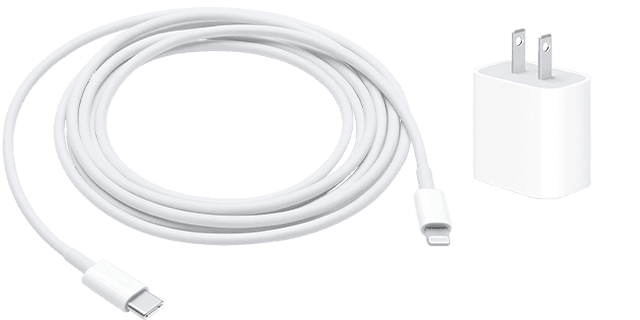
  2. Lightning to USB and a USB-C wall adapter

  3. Use a wall power outlet and check for firm connections between your charging cable, USB wall adapter, and wall outlet or AC power cable, or try a different outlet. 
  4. Remove any debris from the charging port on the bottom of your device, then firmly plug your charging cable into your device. If the charging port is damaged, your device probably needs service.
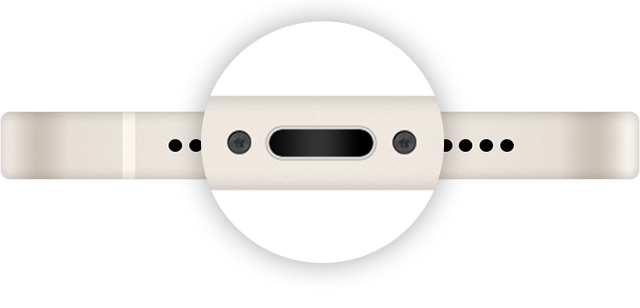
  5. Image of the charging port.
  6. Let your device charge for a half hour.
  7. If your device is still unresponsive, force restart your device: 
    • iPhone 8 or later and iPhone SE (2nd generation): Press and quickly release the volume up button. Press and quickly release the volume down button. Press and hold the side button until the Apple logo appears.
    • iPhone 7, iPhone 7 Plus, and iPod touch (7th generation): Press and hold both the side (or top) button and the volume down button until the Apple logo appears. 
    • iPhone 6s or earlier, iPhone SE (1st generation), and iPod touch (6th generation) or earlier: Press and hold both the side (or top) button and the Home button until the Apple logo appears.
  1. Let your device charge for another half hour.
  2. If your device still won't power on or charge, take your device, charging cable, and charging adapter to an Apple Store or Apple Authorized Service Provider for evaluation. You can also contact Apple Support."


We hope this helps.


Cheers!


Similar questions

1 reply
Question marked as Top-ranking reply

Oct 6, 2022 2:21 PM in response to Tommy Fung

Hello Tommy Fung,


Thank you for reaching out to Apple Support Communities, and we'll be happy to help in any way we can. We understand you're having issues with charging your iPhone. Try the steps listed here to see if they resolve the issue: If your iPhone or iPod touch won't charge - Apple Support


"Plug into power

To charge your device, follow these steps:

  1. Connect your device to the USB cable that comes with it.
  2. Plug into one of these three power sources:

Wall power outlet

Plug your USB charging cable into a USB power adapter, then plug the adapter into the wall.

Computer

Plug your charging cable into a USB 2.0 or 3.0 port on a computer that's on and not in sleep mode. Don’t use the USB ports on your keyboard.

Power accessory

Plug your cable into a powered USB hub, docking station, or other Apple-certified accessory.


If you're trying to charge wirelessly with an iPhone 8 or later, first make sure that you can charge with the USB cable that came with your device. If that works, then get help with wireless charging. For a third-party accessory, check that it's Apple certified.


When your device charges, a lightning bolt appears inside the battery icon in the status bar , or a large battery icon on your Lock Screen .

If your device charges slowly or won’t charge

Follow these steps and try again after each:

  1. Check your charging cable and USB adapter for signs of damage, like breakage or bent prongs. Don't use damaged accessories.
  2. Lightning to USB and a USB-C wall adapter

  3. Use a wall power outlet and check for firm connections between your charging cable, USB wall adapter, and wall outlet or AC power cable, or try a different outlet. 
  4. Remove any debris from the charging port on the bottom of your device, then firmly plug your charging cable into your device. If the charging port is damaged, your device probably needs service.

  5. Image of the charging port.
  6. Let your device charge for a half hour.
  7. If your device is still unresponsive, force restart your device: 
    • iPhone 8 or later and iPhone SE (2nd generation): Press and quickly release the volume up button. Press and quickly release the volume down button. Press and hold the side button until the Apple logo appears.
    • iPhone 7, iPhone 7 Plus, and iPod touch (7th generation): Press and hold both the side (or top) button and the volume down button until the Apple logo appears. 
    • iPhone 6s or earlier, iPhone SE (1st generation), and iPod touch (6th generation) or earlier: Press and hold both the side (or top) button and the Home button until the Apple logo appears.
  1. Let your device charge for another half hour.
  2. If your device still won't power on or charge, take your device, charging cable, and charging adapter to an Apple Store or Apple Authorized Service Provider for evaluation. You can also contact Apple Support."


We hope this helps.


Cheers!


This thread has been closed by the system or the community team. You may vote for any posts you find helpful, or search the Community for additional answers.

after installing iOS 15.7 to my iPhone 6s, it didn't charge properly, and cannot switch on the next day after the update, it keeps showing the battery icon whenever i press the power button, but no charge whatsoever.

Welcome to Apple Support Community
A forum where Apple customers help each other with their products. Get started with your Apple Account.