
Issue with NFL Ticketmaster ticket in Apple Wallet.
Zzz
[Re-Titled by Moderator]
Zzz
[Re-Titled by Moderator]
Hey there, and welcome to Apple Support Communities JimmyJ37,
We can certainly understand your concern and can help provide some insight.
We recommend checking out these steps for more information on how to add, use, and share boarding passes, tickets, and other passes in Apple Wallet.
" How to add a boarding pass, ticket, or other pass to Apple Wallet on your iPhone
3. Follow the instructions on the screen.
4. If necessary, tap Add in the upper right corner.
If you don't see an option to add your boarding pass, ticket, or other pass to the Wallet app, contact the merchant or company that issued it to make sure they support passes in the Wallet app.
When you add a boarding pass, ticket, or other pass to the Wallet app on your iPhone, you automatically add it to the Wallet app on your paired Apple Watch.
Learn how to remove a pass or ticket from the Wallet app.

Use a boarding pass, ticket, or other pass in Apple Wallet
When you add a boarding pass, ticket, or other pass to the Wallet app, you can use it with your iPhone or Apple Watch.
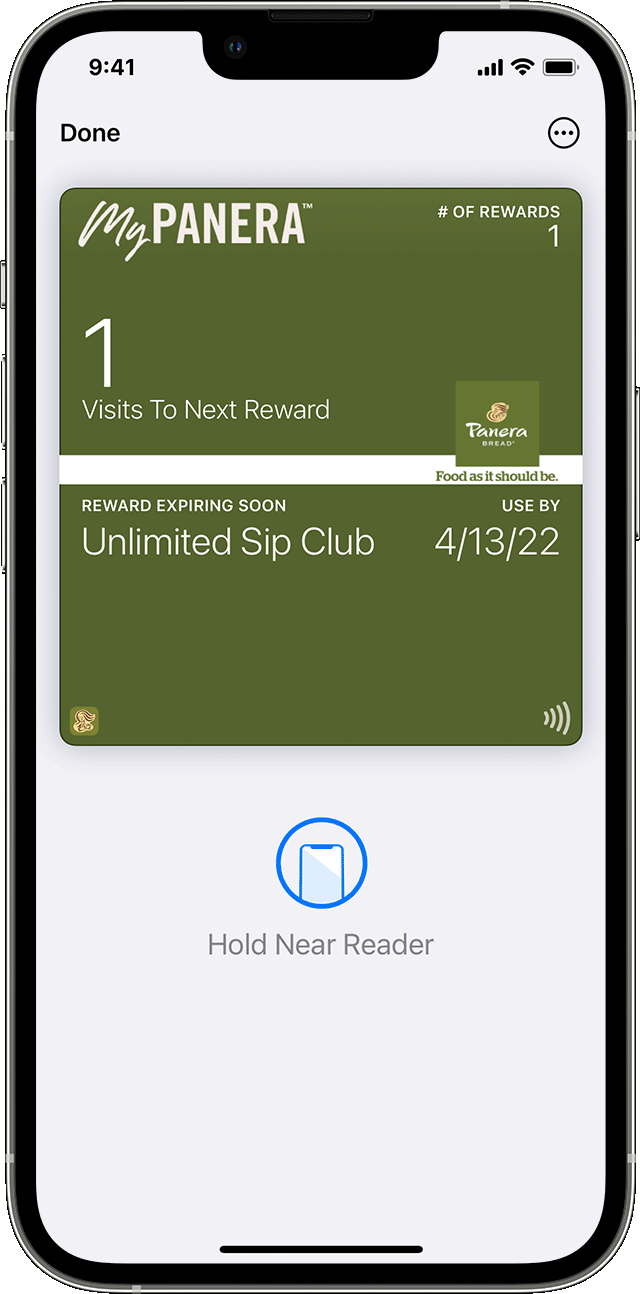
How to use a boarding pass, ticket, or other pass on your iPhone
2. If needed, tap your default payment card to see your other cards. Then tap your boarding pass, ticket, or other pass, and authenticate.
3. Scan or tap your iPhone at the contactless reader, or present it to the attendant.
How to use a boarding pass, ticket, or other pass on your Apple Watch
2. Scan or tap the display of your Apple Watch at the contactless reader, or present it to the attendant.
You might be able to use Express Mode with some passes and tickets in the Wallet app.
You might need to unlock your device to show your pass or ticket before scanning or tapping it. "
For additional information, check out this link: Add, use, and share boarding passes, tickets, and other passes in Apple Wallet - Apple Support
Kindest regards!
Hey there, and welcome to Apple Support Communities JimmyJ37,
We can certainly understand your concern and can help provide some insight.
We recommend checking out these steps for more information on how to add, use, and share boarding passes, tickets, and other passes in Apple Wallet.
" How to add a boarding pass, ticket, or other pass to Apple Wallet on your iPhone
3. Follow the instructions on the screen.
4. If necessary, tap Add in the upper right corner.
If you don't see an option to add your boarding pass, ticket, or other pass to the Wallet app, contact the merchant or company that issued it to make sure they support passes in the Wallet app.
When you add a boarding pass, ticket, or other pass to the Wallet app on your iPhone, you automatically add it to the Wallet app on your paired Apple Watch.
Learn how to remove a pass or ticket from the Wallet app.
Use a boarding pass, ticket, or other pass in Apple Wallet
When you add a boarding pass, ticket, or other pass to the Wallet app, you can use it with your iPhone or Apple Watch.
How to use a boarding pass, ticket, or other pass on your iPhone
2. If needed, tap your default payment card to see your other cards. Then tap your boarding pass, ticket, or other pass, and authenticate.
3. Scan or tap your iPhone at the contactless reader, or present it to the attendant.
How to use a boarding pass, ticket, or other pass on your Apple Watch
2. Scan or tap the display of your Apple Watch at the contactless reader, or present it to the attendant.
You might be able to use Express Mode with some passes and tickets in the Wallet app.
You might need to unlock your device to show your pass or ticket before scanning or tapping it. "
For additional information, check out this link: Add, use, and share boarding passes, tickets, and other passes in Apple Wallet - Apple Support
Kindest regards!
Issue with NFL Ticketmaster ticket in Apple Wallet.

