Hold button too reset iPhone 11 and Recovery Mode screen doesn’t apppear
Trying to reset iPhone 11 after forgot Passcode. I hold button to begin recovery mode and Apple appears but not the recovery mode screeen. Hellp
Trying to reset iPhone 11 after forgot Passcode. I hold button to begin recovery mode and Apple appears but not the recovery mode screeen. Hellp
Hi Doctor Kawete,
Try the steps here: If you can't update or restore your iPhone or iPod touch - Apple Support
Once you click and open the link, please read through and complete the steps in the section titled "Put your device in recovery mode and set it up again."
1) Make sure that your Mac is up to date. If you're using iTunes, make sure you have the latest version of iTunes.
2) On a Mac with macOS Catalina or later, open Finder. On a Mac with macOS Mojave or earlier, or on a PC, open iTunes. If iTunes is already open, close it, then open it again. Find out which macOS your Mac is using.
3) Keep your device connected and wait until the recovery mode screen appears:
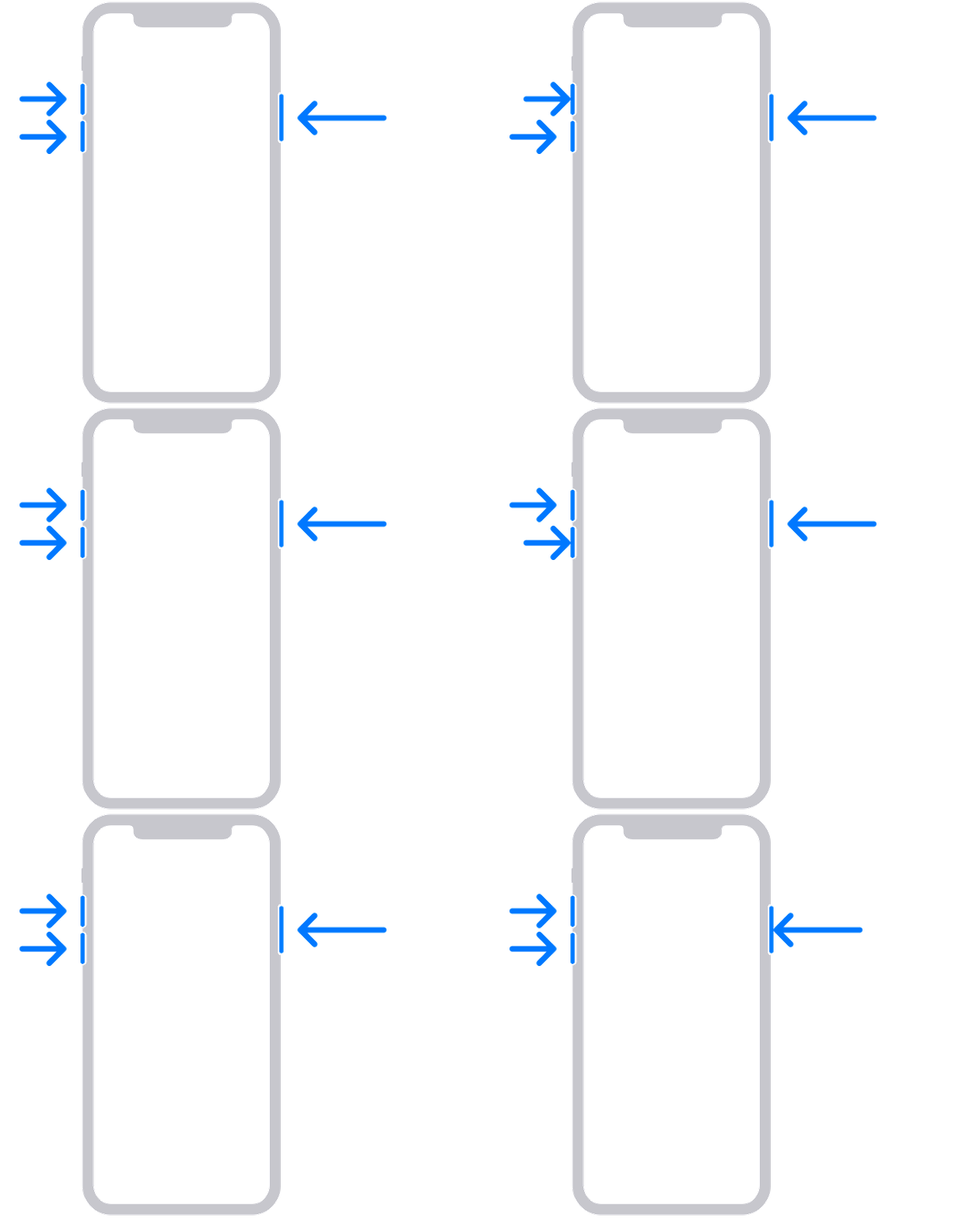
*iPhone 8 or later, including iPhone SE (2nd generation): Press and quickly release the volume up button. Press and quickly release the volume down button. Then, press and hold the side button until you see the recovery mode screen.
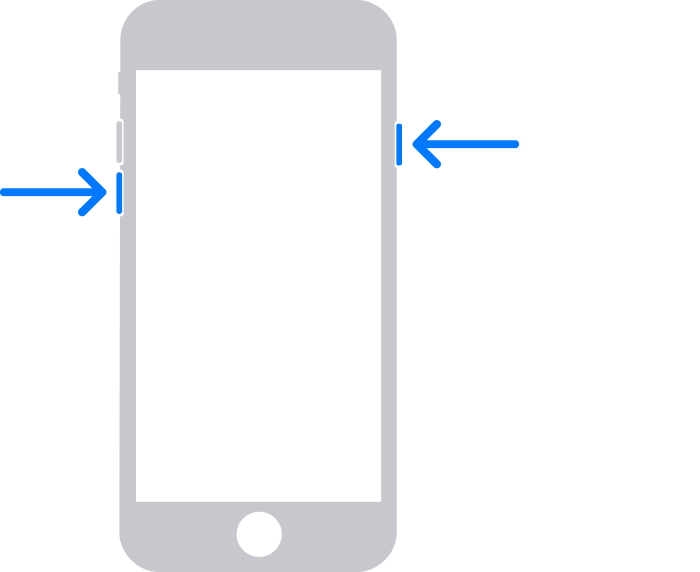
*iPhone 7, iPhone 7 Plus, and iPod touch (7th generation): Press and hold the top (or side) and volume down buttons at the same time. Keep holding them until you see the recovery mode screen.
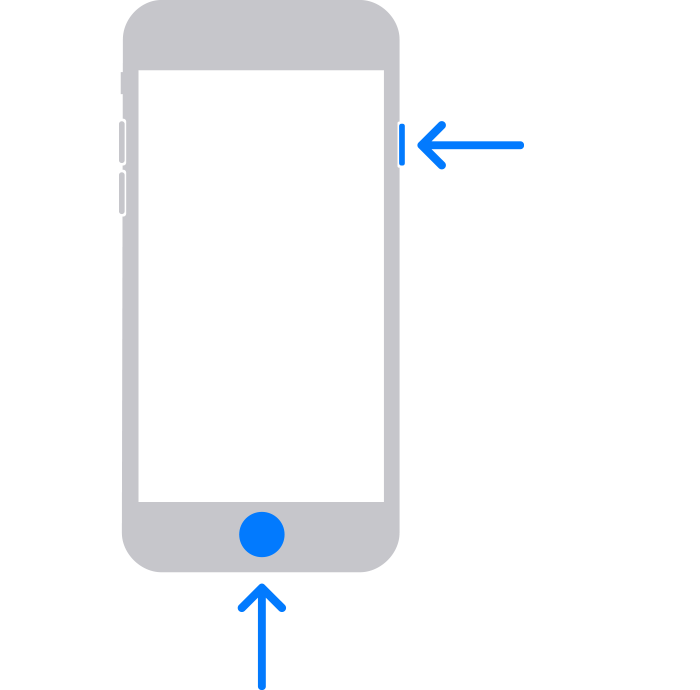
*iPhone 6s or earlier, including iPhone SE (1st generation), and iPod touch (6th generation) or earlier: Press and hold both the Home and the top (or side) buttons at the same time. Keep holding them until you see the recovery mode screen.
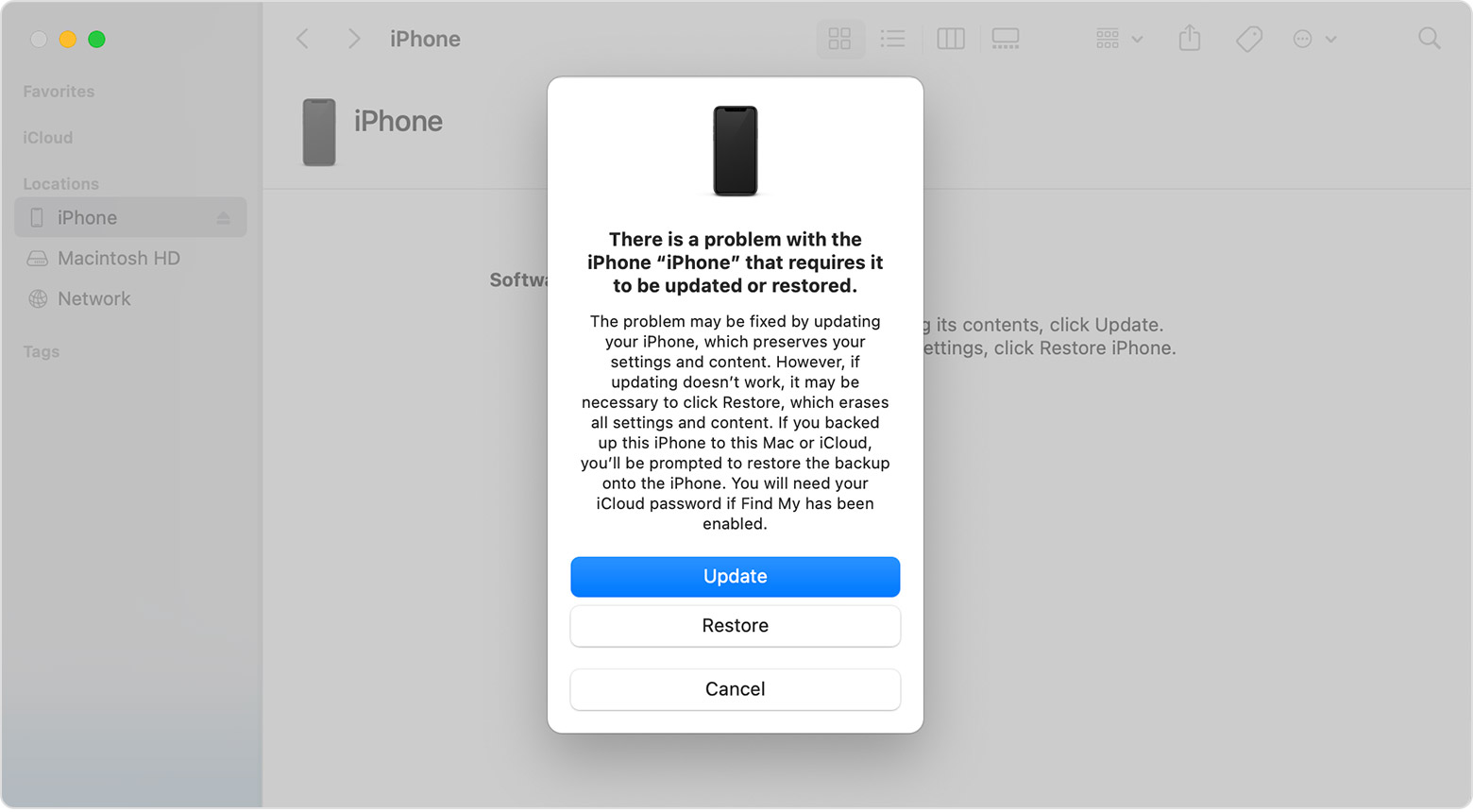
4) Locate your device on your computer. When you see the option to Restore or Update, choose Update. Your computer will try to reinstall the software without erasing your data. Wait while your computer downloads the software for your device. If the download takes more than 15 minutes and your device exits the recovery mode screen, let the download finish, then repeat step 3.
5) After the Update or Restore completes, set up your device.
We recommend the above steps because they will show you how to put your iOS device in recovery mode and restore it using your computer.
If you’re still experiencing the same issue, please provide us with specifics on what you see for more help, and we will continue from there.
Thanks for using the Apple Support Communities.
Cheers!
Hi Doctor Kawete,
Try the steps here: If you can't update or restore your iPhone or iPod touch - Apple Support
Once you click and open the link, please read through and complete the steps in the section titled "Put your device in recovery mode and set it up again."
1) Make sure that your Mac is up to date. If you're using iTunes, make sure you have the latest version of iTunes.
2) On a Mac with macOS Catalina or later, open Finder. On a Mac with macOS Mojave or earlier, or on a PC, open iTunes. If iTunes is already open, close it, then open it again. Find out which macOS your Mac is using.
3) Keep your device connected and wait until the recovery mode screen appears:
*iPhone 8 or later, including iPhone SE (2nd generation): Press and quickly release the volume up button. Press and quickly release the volume down button. Then, press and hold the side button until you see the recovery mode screen.
*iPhone 7, iPhone 7 Plus, and iPod touch (7th generation): Press and hold the top (or side) and volume down buttons at the same time. Keep holding them until you see the recovery mode screen.
*iPhone 6s or earlier, including iPhone SE (1st generation), and iPod touch (6th generation) or earlier: Press and hold both the Home and the top (or side) buttons at the same time. Keep holding them until you see the recovery mode screen.
4) Locate your device on your computer. When you see the option to Restore or Update, choose Update. Your computer will try to reinstall the software without erasing your data. Wait while your computer downloads the software for your device. If the download takes more than 15 minutes and your device exits the recovery mode screen, let the download finish, then repeat step 3.
5) After the Update or Restore completes, set up your device.
We recommend the above steps because they will show you how to put your iOS device in recovery mode and restore it using your computer.
If you’re still experiencing the same issue, please provide us with specifics on what you see for more help, and we will continue from there.
Thanks for using the Apple Support Communities.
Cheers!
Hold button too reset iPhone 11 and Recovery Mode screen doesn’t apppear