Hello Peanutlog,
Thank you for reaching out to Apple Support Communities, and we'll be happy to help in any way we can. We understand you're having issues with notifications going to your watch. This article hass instructions on how to turn off notificaitons for apps on your watch: Change notification settings on Apple Watch - Apple Support
"Choose how apps send notifications
- Open the Apple Watch app on your iPhone.
- Tap My Watch, then tap Notifications.
- Tap the app (for example, Messages), tap Custom, then choose an option. Options may include:
- Allow Notifications: The app displays notifications in Notification Center.
- Send to Notification Center: Notifications are sent directly to Notification Center without your Apple Watch making a sound or displaying the notification.
- Notifications Off: The app sends no notifications.
- Notification grouping: Choose how notifications for the app are grouped. Options include:
- Off: Notifications aren’t grouped.
- Automatically: Your Apple Watch uses information from the app to create separate groups. For example, News notifications are grouped by the channels you follow—CNN, Washington Post, and People.
- By App: All the app’s notifications are grouped.
Tip: Some apps let you choose the specific kind of notifications you receive. For example, for Calendar, you can allow notifications only for certain things, like when you get an invitation or someone changes a shared calendar. For Mail, you can choose which email accounts are allowed to send notifications.
Change notification settings directly on Apple Watch
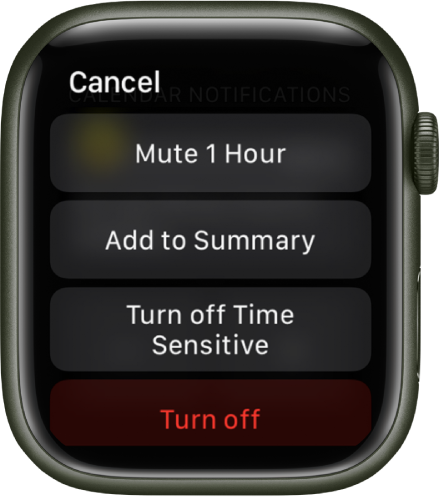
You can manage other notifications preferences directly on your Apple Watch by swiping left on a notification and tapping  . Options may include:
- Mute 1 hour or Mute for Today: For the next hour or for the rest of the day, notifications are sent directly to Notification Center without your Apple Watch making a sound or displaying the notification. To see and hear these notification alerts again, swipe left on a notification, tap , then tap Unmute.
- Add to Summary: Future notifications from the app appear in the Notification Summary on your iPhone.
- To have the app once again notify you immediately, open the Settings app on your iPhone, tap Notifications, tap the app, then tap Immediate Delivery.
- Turn off Time Sensitive: Time-sensitive notifications are always delivered immediately, even if you’re using a Focus that delays most notifications. However, if you want to prevent this app from delivering even time-sensitive notifications immediately, tap this option.
- Turn off: The app sends no notifications. To reenable notifications from the app, open the Apple Watch app on your iPhone, tap My Watch, tap Notifications, tap the app you want to adjust, then tap Allow Notifications.
Show notifications on the lock screen
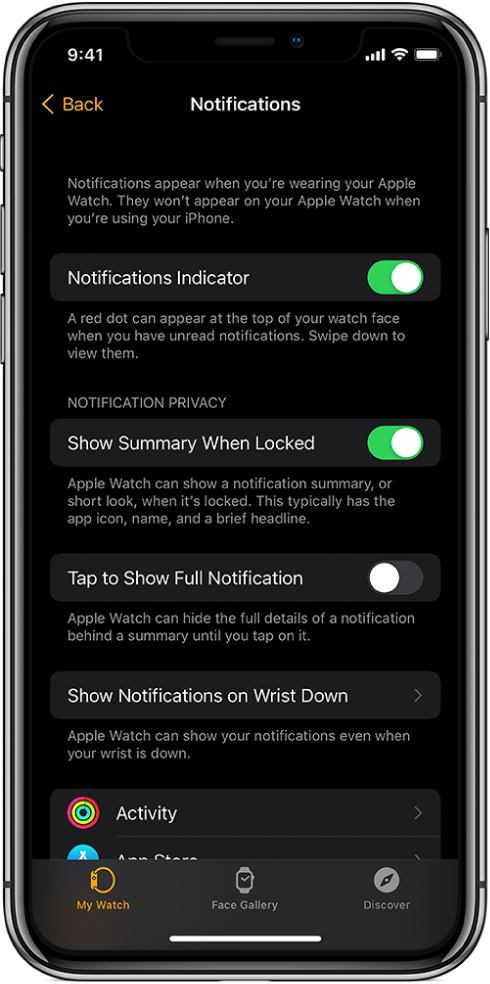
You can choose how notifications appear on the lock screen of your Apple Watch.
- Open the Settings app
 on your Apple Watch.
 - Tap Notifications.
- Choose the following options:
- Show Summary When Locked: With this option on, your Apple Watch shows a notification summary—or short look—when it’s locked. The summary includes the notifying app’s name and icon along with a brief headline.
- Tap to Show Full Notification: When you raise your wrist to see a notification, you see a quick summary, then full details a few seconds later. For example, when a message arrives, you see who it’s from first, then the message appears. Turn on this option to stop the full notification from appearing unless you tap it.
- Show Notifications on Wrist Down: By default, notifications don’t appear on your Apple Watch when your wrist is down. Turn on this option to make notifications appear, even when your Apple Watch is turned away from you."
We hope this helps.
Cheers!


