Iphone disconnects from usb on pc while updating on itunes

Ok so my iphone 11 has that thing again where it turned off and it's now just stuck on showing the Apple logo on loop, turning off and reshowing it on loop. I was updating ios on iTunes on my PC with a USB cable (since forcing restart didn't work), but my iPhone after a while just seems to automatically disconnect from USB (without me or anything touching either the phone or the cable).

Also, is it normal that it takes 4 hours to download the update? when I first started it said 83 minutes, then the internet connection broke a second and now, restarting it, says 4 hours remaining, seem a bit absurd to me.

Please help, if you have different solutions to the Apple logo issue, they're all welcome (also I'd like to keep all my files in my phone thanks)

iPhone 11, iOS 16

Posted on Oct 17, 2022 2:12 PM

Reply
Question marked as Top-ranking reply

Posted on Oct 19, 2022 11:02 AM

Hey Alexopfpz,


The downloading of the update would be dependent on the speed of the internet connect that's used with your PC. It sounds like you're following the steps in the "If your iPhone turns on but gets stuck during start up" section of If your iPhone won't turn on or is frozen listed below. If that is the case, notice in the last step that if the download takes longer than 15 minutes, you may need to repeat previous steps to put the iPhone back into a mode that'll work within iTunes. This may be best viewable by clicking the link and viewing it in your browser.


"If your iPhone turns on but gets stuck during start up


If you see the Apple logo or a red or blue screen during startup, try these steps:


  1. Connect your iPhone to a computer. On a Mac with macOS Catalina, open the Finder. On a Mac with macOS Mojave or earlier, or on a PC, open iTunes. Find out which macOS your Mac is using.
  2. Select your iPhone on your computer.
  3. While your iPhone is connected, follow these steps:
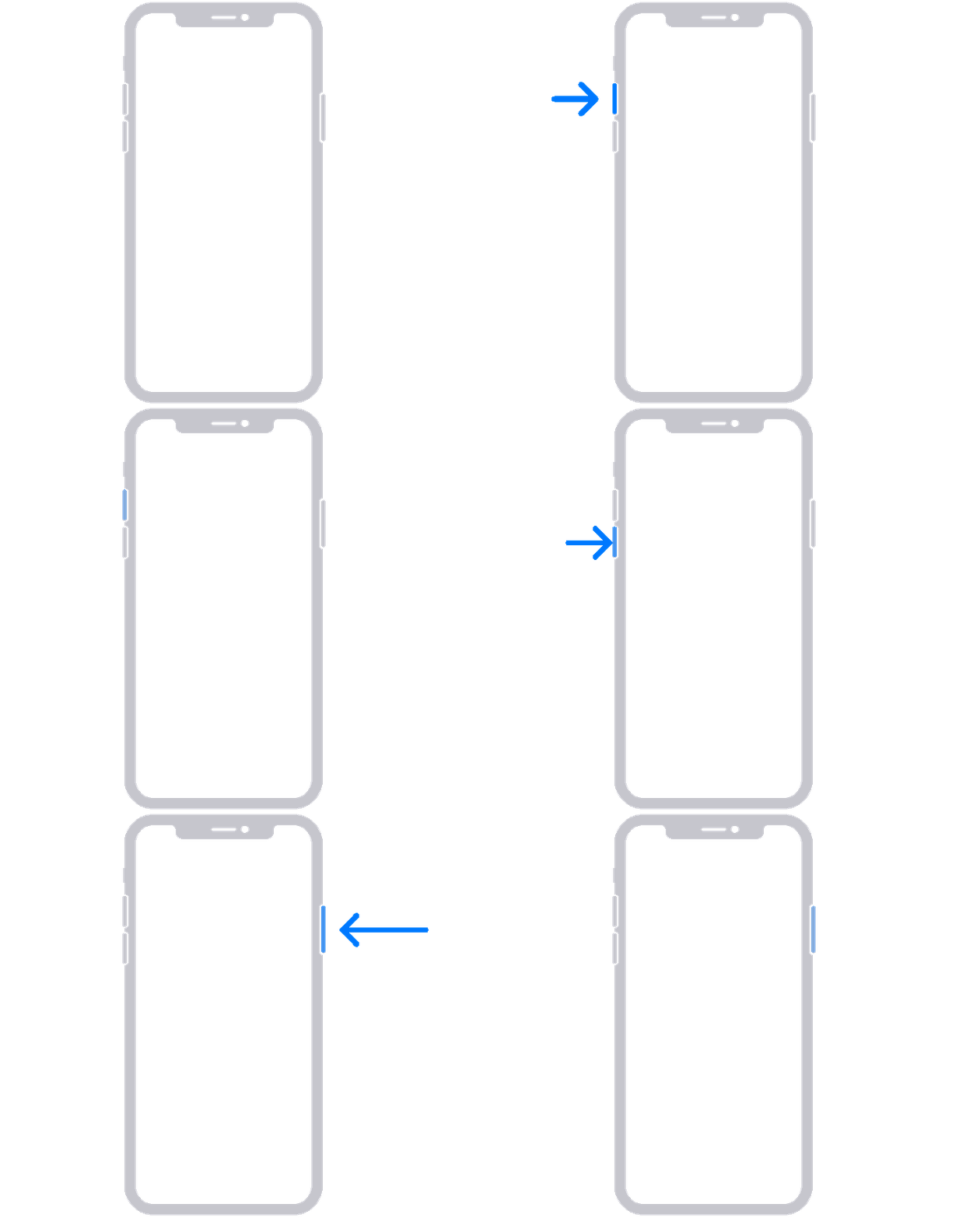
  • On your iPhone 8 or later, including iPhone SE (2nd and 3rd generation): Press and quickly release the volume up button. Press and quickly release the volume down button. Then press and hold the side button.

    • An animation of an iPhone with arrows pointing to the volume up button, then to the volume down button, and then to the side button.
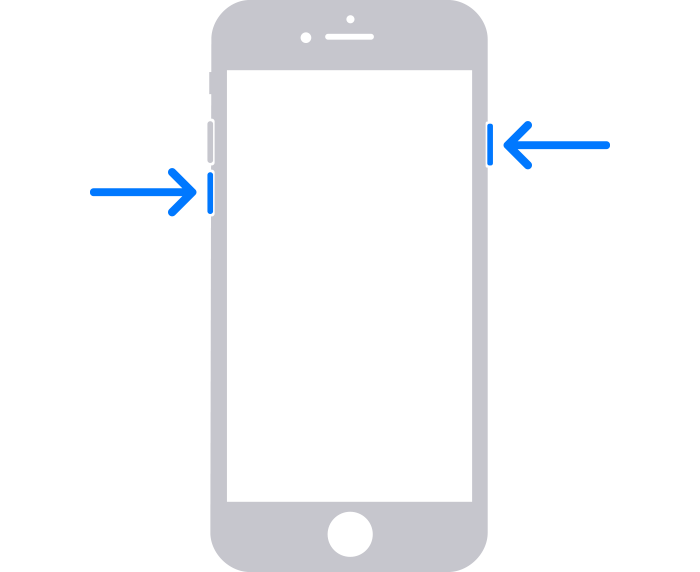
  • On your iPhone 7 or iPhone 7 Plus: Press and hold the side button and volume down button at the same time.
    • An iPhone with arrows pointing to the volume down button and the side button.
    • On your iPhone 6s or earlier, including iPhone SE (1st generation): Press and hold both the Home button and the side button or the top button at the same time.
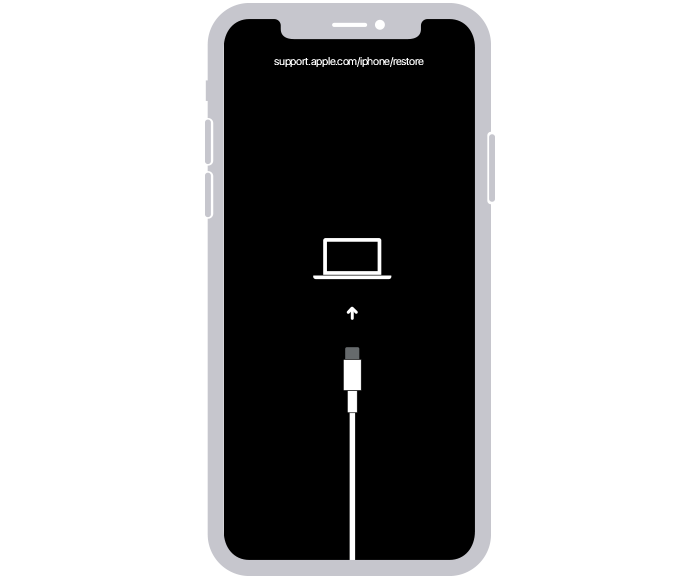
  1. Keep holding the buttons until you see the recovery mode screen.
  2. An iPhone showing the recovery mode screen.
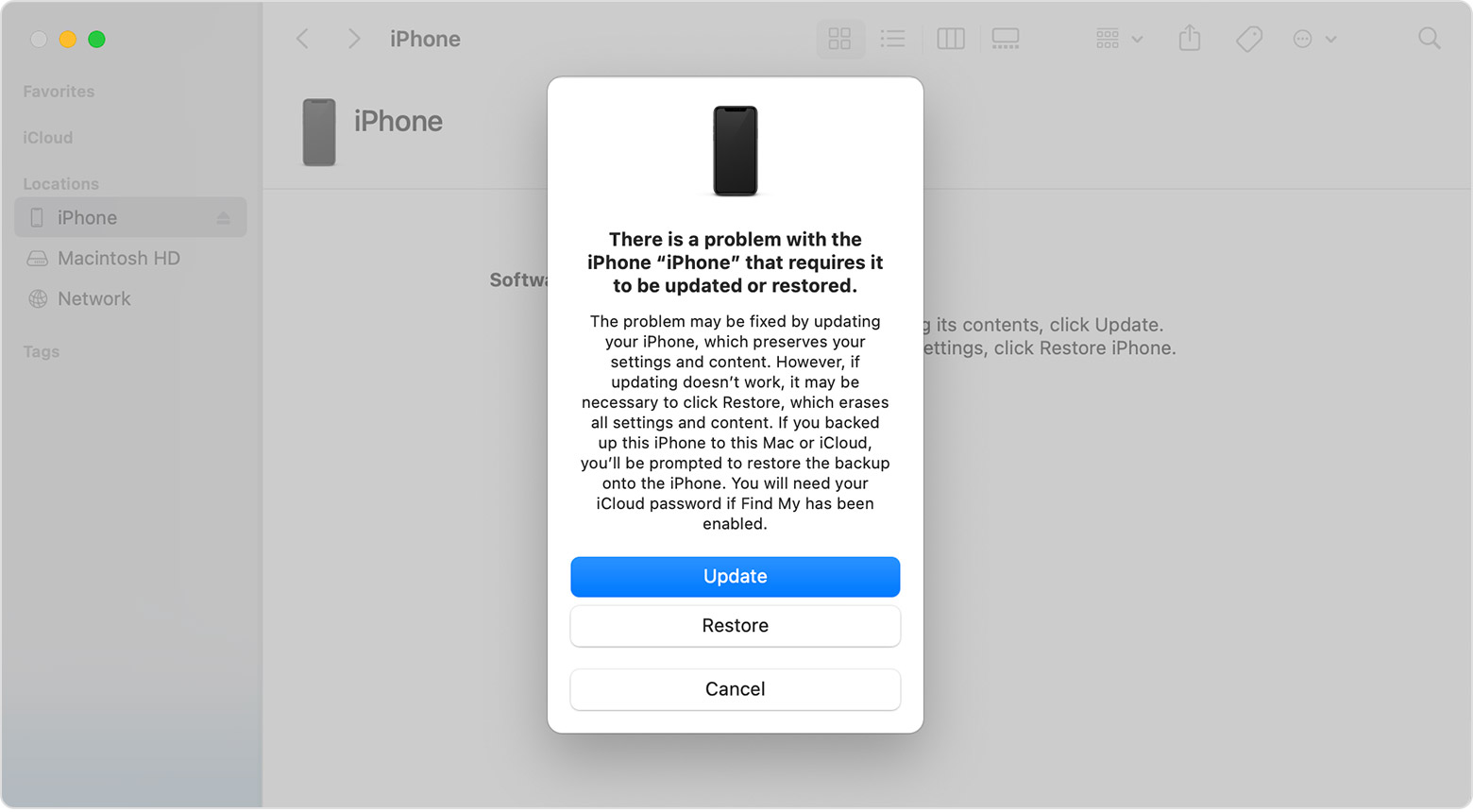
  3. When you get the option to restore or update, choose Update.
  4. A Finder window showing a prompt with the choice to update or restore your iPhone. Update is selected.
  5. Your computer will download the software for your device. If it takes more than 15 minutes, your device will exit recovery mode. Repeat steps 2-4."


Take care.

Similar questions

1 reply
Question marked as Top-ranking reply

Oct 19, 2022 11:02 AM in response to Alexopfpz

Hey Alexopfpz,


The downloading of the update would be dependent on the speed of the internet connect that's used with your PC. It sounds like you're following the steps in the "If your iPhone turns on but gets stuck during start up" section of If your iPhone won't turn on or is frozen listed below. If that is the case, notice in the last step that if the download takes longer than 15 minutes, you may need to repeat previous steps to put the iPhone back into a mode that'll work within iTunes. This may be best viewable by clicking the link and viewing it in your browser.


"If your iPhone turns on but gets stuck during start up


If you see the Apple logo or a red or blue screen during startup, try these steps:


  1. Connect your iPhone to a computer. On a Mac with macOS Catalina, open the Finder. On a Mac with macOS Mojave or earlier, or on a PC, open iTunes. Find out which macOS your Mac is using.
  2. Select your iPhone on your computer.
  3. While your iPhone is connected, follow these steps:
  • On your iPhone 8 or later, including iPhone SE (2nd and 3rd generation): Press and quickly release the volume up button. Press and quickly release the volume down button. Then press and hold the side button.

    • An animation of an iPhone with arrows pointing to the volume up button, then to the volume down button, and then to the side button.
  • On your iPhone 7 or iPhone 7 Plus: Press and hold the side button and volume down button at the same time.
    • An iPhone with arrows pointing to the volume down button and the side button.
    • On your iPhone 6s or earlier, including iPhone SE (1st generation): Press and hold both the Home button and the side button or the top button at the same time.
  1. Keep holding the buttons until you see the recovery mode screen.
  2. An iPhone showing the recovery mode screen.
  3. When you get the option to restore or update, choose Update.
  4. A Finder window showing a prompt with the choice to update or restore your iPhone. Update is selected.
  5. Your computer will download the software for your device. If it takes more than 15 minutes, your device will exit recovery mode. Repeat steps 2-4."


Take care.

This thread has been closed by the system or the community team. You may vote for any posts you find helpful, or search the Community for additional answers.

Iphone disconnects from usb on pc while updating on itunes

Welcome to Apple Support Community
A forum where Apple customers help each other with their products. Get started with your Apple Account.