Colour Printing

Using macOS Monterey.

Recently had a 'crash' which resulted in a new hard drive. All matters were erased [had not used Time Machine - so my bad!] .

My printer is HP Deskjet 3070A.

I can print to my printer using cmd+P, BUT it only comes out in mono. A test run on the printer shows full colour recognition. Note that when cmd+P is actioned the image on-screen only shows the copy in mono.

The printer is printing what the small image tells it to, so the problem seems to be with the Mac itself.

Have deleted the printer from the system and then re-loaded it - there is no change.

So - HELP - how do I get the Mac to tell the printer that the copy should be In colour?

iMac 27″, macOS 10.12

Posted on Oct 29, 2022 7:00 AM

Reply
Question marked as Top-ranking reply

Posted on Oct 31, 2022 4:05 PM

Hi Taxiguru584,


Thanks for posting in Apple Support Communities! You might see different options in the Print dialog depending on your printer and the app you’re using for it. Find the steps to adjust printer settings below from the article Print documents from your Mac:


  1. "With a document open on your Mac, choose File > Print, or press Command-P.

The Print dialog opens, with a preview of your printed document.

Note: You might see different options in the Print dialog depending on your printer and the app you’re using. If the following steps differ from what you’re seeing, check the documentation for the app you’re using by clicking Help in the menu bar.
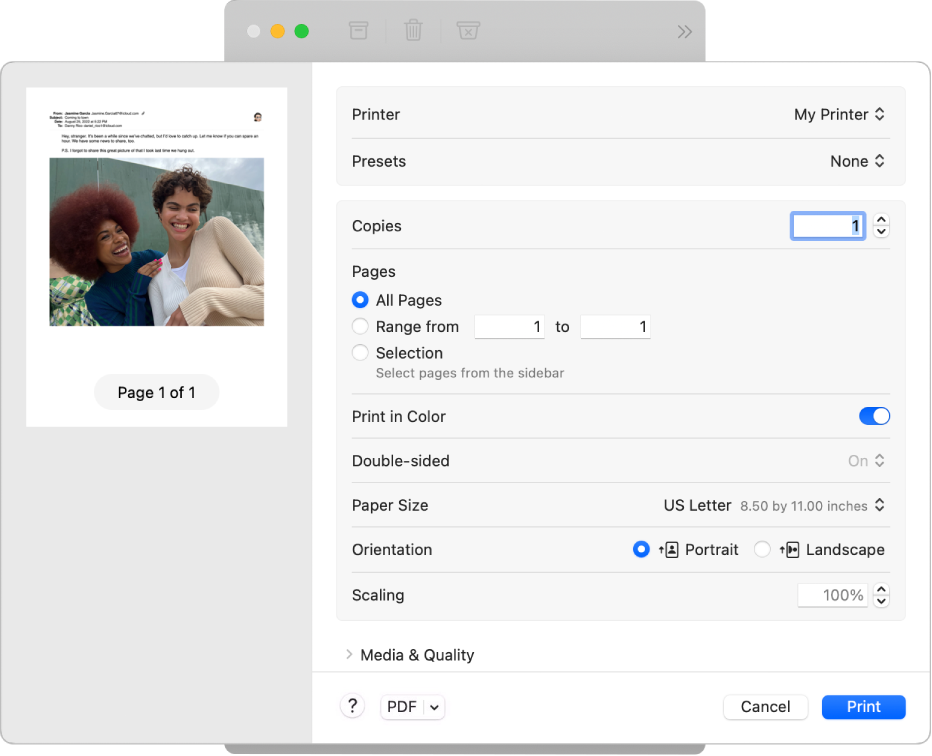
The Print dialog showing print options and a preview of your print job.

Tip: To view a full-size preview in the Preview app, click the PDF pop-up menu, then choose Open PDF in Preview.

2. If the settings in the Print dialog are fine as is, click Print, and you’re done. Otherwise, continue to step 3.

3. To adjust the printing options, choose any of the following common print settings:

    • Printer: Choose the printer you want to use. If the printer isn’t available, you can add one. See Add a printer to your printer list.
    • Presets: Choose a preset for the printer to use with your document, A preset is a group of print settings. In most cases you can use the default settings, but you can also choose a group of settings you’ve saved from a previous print job. See Save frequently used print settings.
    • Copies: Specify the number of copies you want. To print all pages of a document before the next copy prints, click Paper Handling, then select “Collate Sheets.” See Print pages in normal order.
    • Print Range: Specify the pages you want to print. You can print all pages or select a range of pages. For example, you can print page 6 through 9 of a 10-page document. You can also print a selection of pages in the range using the Selection button. Click the page label in the Preview sidebar to select the page for printing. Pages in your selection don’t have to be in a continuous range. For example, you can select to print page 2 and page 4 in a 5-page document.
    • Print in Color: Select to print in color, if your printer has this capability. Turning the option off prints documents in black and white. 
    • Double-Sided: Choose On from the Double-Sided pop-up menu to print on both sides of the paper (also called duplexing or two-sided printing), if your printer has this capability. You can also choose On (Short Edge) to set the document to print ready for binding at the top of the page.
    • Paper Size: Choose a paper size for your document. For example, choose US Letter when the printer is loaded with 8.5-by-11-inch paper.
    • Orientation: Click the buttons to switch between portrait or landscape orientation. The change in your document appears in the preview pages in the sidebar. 
    • Scaling: Enter a percentage of scaling to adjust the printed image to the paper size. The change appears in the preview pages in the sidebar.

4. Click Print."


These steps will allow you to customize the option to print in color. If you're not seeing that option, contact the manufacturer to check for any necessary drivers or software that is needed for the option to appear.


Cheers!


Similar questions

1 reply
Question marked as Top-ranking reply

Oct 31, 2022 4:05 PM in response to Taxiguru584

Hi Taxiguru584,


Thanks for posting in Apple Support Communities! You might see different options in the Print dialog depending on your printer and the app you’re using for it. Find the steps to adjust printer settings below from the article Print documents from your Mac:


  1. "With a document open on your Mac, choose File > Print, or press Command-P.

The Print dialog opens, with a preview of your printed document.

Note: You might see different options in the Print dialog depending on your printer and the app you’re using. If the following steps differ from what you’re seeing, check the documentation for the app you’re using by clicking Help in the menu bar.

The Print dialog showing print options and a preview of your print job.

Tip: To view a full-size preview in the Preview app, click the PDF pop-up menu, then choose Open PDF in Preview.

2. If the settings in the Print dialog are fine as is, click Print, and you’re done. Otherwise, continue to step 3.

3. To adjust the printing options, choose any of the following common print settings:

    • Printer: Choose the printer you want to use. If the printer isn’t available, you can add one. See Add a printer to your printer list.
    • Presets: Choose a preset for the printer to use with your document, A preset is a group of print settings. In most cases you can use the default settings, but you can also choose a group of settings you’ve saved from a previous print job. See Save frequently used print settings.
    • Copies: Specify the number of copies you want. To print all pages of a document before the next copy prints, click Paper Handling, then select “Collate Sheets.” See Print pages in normal order.
    • Print Range: Specify the pages you want to print. You can print all pages or select a range of pages. For example, you can print page 6 through 9 of a 10-page document. You can also print a selection of pages in the range using the Selection button. Click the page label in the Preview sidebar to select the page for printing. Pages in your selection don’t have to be in a continuous range. For example, you can select to print page 2 and page 4 in a 5-page document.
    • Print in Color: Select to print in color, if your printer has this capability. Turning the option off prints documents in black and white. 
    • Double-Sided: Choose On from the Double-Sided pop-up menu to print on both sides of the paper (also called duplexing or two-sided printing), if your printer has this capability. You can also choose On (Short Edge) to set the document to print ready for binding at the top of the page.
    • Paper Size: Choose a paper size for your document. For example, choose US Letter when the printer is loaded with 8.5-by-11-inch paper.
    • Orientation: Click the buttons to switch between portrait or landscape orientation. The change in your document appears in the preview pages in the sidebar. 
    • Scaling: Enter a percentage of scaling to adjust the printed image to the paper size. The change appears in the preview pages in the sidebar.

4. Click Print."


These steps will allow you to customize the option to print in color. If you're not seeing that option, contact the manufacturer to check for any necessary drivers or software that is needed for the option to appear.


Cheers!


This thread has been closed by the system or the community team. You may vote for any posts you find helpful, or search the Community for additional answers.

Colour Printing

Welcome to Apple Support Community
A forum where Apple customers help each other with their products. Get started with your Apple Account.