I have iPad Air 3rd generation. How can I update latest iOS?
The current system cannot download any new updates for my current 3rd generation, is there a way to update my system, or will I have to buy a new iPad?
iPad (3rd gen) Wi-Fi
The current system cannot download any new updates for my current 3rd generation, is there a way to update my system, or will I have to buy a new iPad?
iPad (3rd gen) Wi-Fi
If you have a beta profile installed, ensure this has been removed from your iPad - as, otherwise, installation of production software updates may be inhibited. This support page provides the necessary information to remove the beta from your iPad:
How to uninstall iOS beta software - Apple Support
If the iPadOS 16.1 update still doesn’t appear, perform a forced-restart of your iPad:
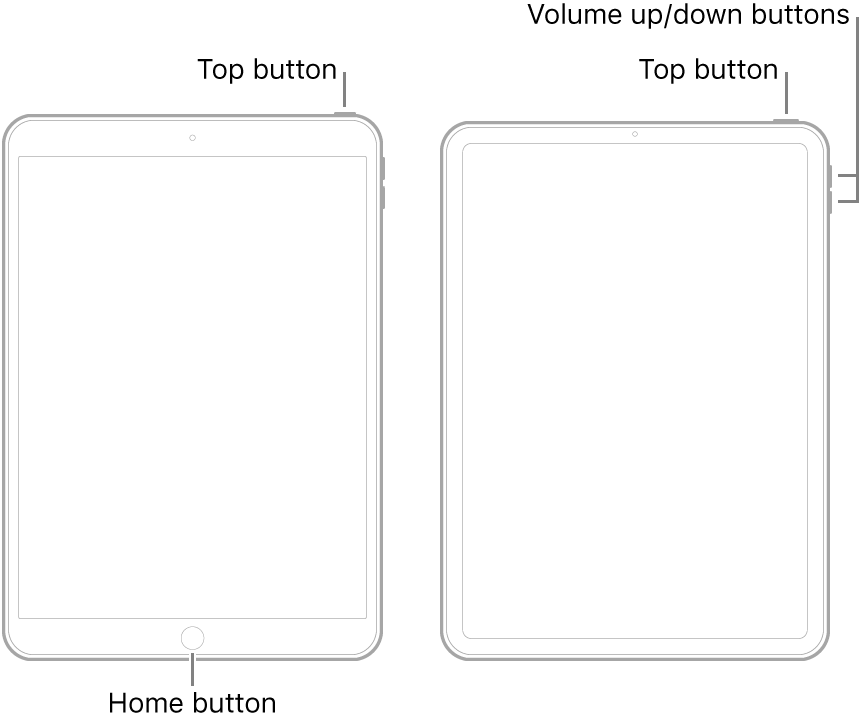
After the iPad restarts, look again for the update.
These support pages outline both the available methods by which the update can be performed - and troubleshooting should you experience difficulties:
Update your iPhone, iPad or iPod touch – Apple Support
If you can't update or restore your iPhone, iPad or iPod touch – Apple Support
If your iPhone, iPad or iPod touch won’t update - Apple Support
iOS update and restore errors – Apple Support
Be aware that in some circumstances you will likely need to use a computer to perform the update. To do so you will need access to either a Windows PC (with iTunes for Windows installed) or a Mac (with iTunes or Finder - as appropriate for the installed version of MacOS). Ensure that your installed version of iTunes has been updated to the most recent version; the essential device drivers are included.
Download and use iTunes for Windows – Apple Support
Update to the latest version of iTunes – Apple Support
Update software on iPhone, iPad or iPod touch in iTunes on PC - Apple Support
You should note that for your iPad to install an available update, its battery must be charged to at least 50% capacity - and/or be connected to its Power Adapter. Similarly, the iPad can only be updated over a standard WiFi connection - or be updated by a PC or Mac using iTunes or Finder - over a USB connection.
If you have a beta profile installed, ensure this has been removed from your iPad - as, otherwise, installation of production software updates may be inhibited. This support page provides the necessary information to remove the beta from your iPad:
How to uninstall iOS beta software - Apple Support
If the iPadOS 16.1 update still doesn’t appear, perform a forced-restart of your iPad:
After the iPad restarts, look again for the update.
These support pages outline both the available methods by which the update can be performed - and troubleshooting should you experience difficulties:
Update your iPhone, iPad or iPod touch – Apple Support
If you can't update or restore your iPhone, iPad or iPod touch – Apple Support
If your iPhone, iPad or iPod touch won’t update - Apple Support
iOS update and restore errors – Apple Support
Be aware that in some circumstances you will likely need to use a computer to perform the update. To do so you will need access to either a Windows PC (with iTunes for Windows installed) or a Mac (with iTunes or Finder - as appropriate for the installed version of MacOS). Ensure that your installed version of iTunes has been updated to the most recent version; the essential device drivers are included.
Download and use iTunes for Windows – Apple Support
Update to the latest version of iTunes – Apple Support
Update software on iPhone, iPad or iPod touch in iTunes on PC - Apple Support
You should note that for your iPad to install an available update, its battery must be charged to at least 50% capacity - and/or be connected to its Power Adapter. Similarly, the iPad can only be updated over a standard WiFi connection - or be updated by a PC or Mac using iTunes or Finder - over a USB connection.
iPad Air 3rd generation was introduced in 2019.
You purchased an older iPad Air 1st gen.
Mr. Hoffman is correct.
You own a 2013, iPad Air 1st gemeration that CANNOT be upgraded beyond iOS 12.5.6.
All you have to do to is to confirm this by supplying us with the A” model number can be found on the aluminium back of your iPad, in very small print, right under the larger bold print “iPad” on the back of the iPad.
AND/OR
Supply the “M” model number, which can be found in the Settings app, under the General settings panel, then tap About.
All of that additional info can, also, be found in the Settings app, General settings panel, About.
Sorry, but your only option to get an upgraded/updated iPad is to purchase a new or “newer” iPad model.
Sorry.
If your iPad is running iOS 12.5.6 then there is absolutely no way it is an iPad Air 3.
If its running iOS 12.5.6 then it's not compatible with anything newer.
See here to correctly identify it: Link-> Identify your iPad model - Apple Support
MrHoffman is correct.
If you actually have a 2019 iPad Air 3, your iPad Air 3 is waaaay too far behind in iOS/iPadOS upgrades/updates.
If you have access to a full computer, like a Mac or Windows PC, try either using the Finder on a Mac that has the newest macOS Catalina, or later macOS, installed OR with an older Mac with an older Mac OS, download and install the latest iTunes version ( or latest iTunes for Windows PC ), make sure the Mac or Windows PC is connected to the Internet, connect your iPad by the USB charge cable to the computer and let the iTunes application upgrade/update that iPad model, using the iTunes Software Update feature, to its current, maximum OS of iOS 12.5.6/iPadOS 15.7.
At this late stage, use of a Mac or Windows PC is, now, unavoidable.
Make sure your iPad is, at least, charged to 50% or greater to attempt this.
Also, make sure your iPad has, at least, between 6-8 GBs of free internal data storage space for downloading and installing a major iOS/iPadOS upgrade.
Make sure your desktop/laptop computer has plenty of internal drive storage space, also.
Also, make sure to do a backup of your iPad's data, prior to upgrading/updating.
Backup to Apple iCloud and/or a full Mac or Windows PC using the same iTunes app OR, if a newer Mac running macOS Catalina, or later, making a backup using the macOS Finder app.
Tap the Apple support link below.
How to back up your iPhone, iPad, and iPod touch - Apple Support
If NO access to a Mac or Windows computer, you will have to seek help from a good friend or family member, with a full Mac or Windows PC, to help you out
OR
Search online to locate and call contact your nearest, “local” Apple Store location to try/attempt to make an appointment to get your Apple iPad upgraded/updated to its latest iPadOS 15 version.
OR, alternatively, use the “Get Support” link, at the upper right hand corner of every Apple Support Community Webpage to attempt to schedule an appointment with your nearest Apple Store location.
Apple Store employees will be glad to help/assist you.
Best of Luck to You!
xiao214 wrote:
It is strange, it says my iPad is up to date at at version 12.5.6, with no other choice, using automatic update does not change it.
There’s no way to get to iOS 12.5.6, except on an iPad that doesn’t support iPadOS 13.
Which means that’s not an iPad Air 3rd.
The three models with iOS 12.5.6 are iPad Air 1st, iPad mini 2nd, and iPad mini 3rd.
xiao214 wrote:
The current system cannot download any new updates for my current 3rd generation,
Why not? What happens when you go to Settings->General->Software Update on your iPad?
What iPadOS version is your iPad currently running?
Link-> Update your iPhone or iPad - Apple Support
A 3rd Generation iPad Air is fully compatible with iOS 16 as shown in the support document you posted from.
iPad Air 3rd is the oldest iPad Air that can get to iPadOS 16; yes, it can be upgraded.
Update your iPhone or iPad - Apple Support
xiao214 Said:
"I have iPad Air 3rd generation. How can I update latest iOS?: The current system cannot download any new updates for my current 3rd generation, is there a way to update my system, or will I have to buy a new iPad?"
-------
Updating an iPad:
Use a Computer --Do so by using a compatible device, and reliable connection. My User Tip: Making Use of a Computer for Updating an iOS Device - User Tip
MichelPM wrote:
The 2019 iPad Air 3 originslly shipped with a version of iOS 12.
True. It did. But iOS 12.5 shipped after iOS 13, and 12.5.6 shipped after iPadOS 15. You can’t get to iOS 12.5.6 on anything that will run iOS 13 or newer. The update (upgrade) request from a not-topped-out device running an early iOS 12 would get iOS 15 or newer, and not iOS 12.5.6. Anything running 12.5 to 12.5.6 is a topped-out device.
What is the rated, internal data storage space/capacity of your iPad model and how much of this free, internal data storage capacity is left inside of your iPad model?
All of that additional info can, also, be found in the Settings app, General settings panel, About.
If you decide to go down the path of purchasing used, secondhand Apple devices, from individual Apple device sellers, here is how to avoid purchasing an Apple iOS/iPadOS device with user activation lock, in the future.
If you purchase any iPad, or any Apple iOS device, for that matter, used/second hand, online, or even in-person, make sure this iPad does NOT have user activation lock and has been properly reset for sale.
A properly reset for sale iPad should initially power up to an animated, multi-language “Welcome” screen.
DO NOT take the iPad seller's word that this iPad is user activation lock free!
We have seen plenty of used iOS device purchasers get scammed.
User Activation Lock can never be bypasss, circumvented or worked around IF there is no correct previous/original user information to be able to do so.
Apple doesn't get involved with ANY user activation locked, used/second-hand sold devices, either.
So, buyer beware!
If purchasing a used device in-person, power the iPad ON
If the iPad DOES NOT display the initial animated, multi-language “Welcome” screen, then pass on purchasing this iPad.
If the iPad powers up to any other screen, then forget purchasing this iPad.
You cannot trust that the seller actually has the correct needed info to properly reset the iPad back to factory settings right then and there before the actual purchase and exchange of money for the iPad, in question.
Pass on the device!
If you are purchasing this used iPad online ask the seller to provide multiple images, either online or be sent to you via email, showing this animated, multi-language “Welcome” screen of the interested in purchasing iPad model.
Even better, ask for a short video be sent to you showing this animated, multi-language “Welcome” screen, in action and in its entirety, posted to the online ad or emailed to you.
If the online iPad seller refuses any of these requests, pass on the iPad. DO NOT buy!
Good Luck to You!
Thank you everyone for your help. I think I bought this iPad in 2014 or 2015. I think I may be wrong and it is older than 3rd generation. I’ll ask my son to use his pc to try the itunes solution, and if it doesn’t work, I will consider something new.
It is strange, it says my iPad is up to date at at version 12.5.6, with no other choice, using automatic update does not change it.
The 2019 iPad Air 3 originslly shipped with a version of iOS 12.
Okay,
That makes sense.
I have iPad Air 3rd generation. How can I update latest iOS?