Iphone 7 text messaging not working and so far, not fixable?

After having this phone (Iphone 7) for a few years now, messages just stopped working yesterday. Was working fine in the morning but now screen is white.

Have tried everything I found online and still doesn't work. Restarted phone several times, updated to the latest version 15.7.1 I think it was. Tried resetting the phone to original settings. Tried restoring from the cloud.

Another thing I'm have trouble with is settings/messenger button seems stuck most of the time. I press that and the screen just freezes. Has worked a couple times and I tried turning it off in there with Also turning off Facetime and that button in settings also freezes. But after finally managing to turn them off in settings, I restarted the phone and still same problem.

iPhone 7, iOS 15

Posted on Nov 1, 2022 12:30 PM

Reply
Question marked as Top-ranking reply

Posted on Nov 3, 2022 9:39 AM

Hello RichK87,


Thank you for reaching out in Apple Support Communities. You've done an excellent job with the steps that were performed. There's one additional step we recommend to do and that is to connect your iPhone to a computer. You'll want to place your iPhone in recovery mode and reinstall the iOS software. This will keep the data on your iPhone intact and will not be removed. Here's how to perform this step:


1. Connect your iPhone to a computer. On a Mac with macOS Catalina, open the Finder. On a Mac with
macOS Mojave or earlier, or on a PC, open iTunes. Find out which macOS your Mac is using.

2. Select your iPhone on your computer.

3. While your iPhone is connected, follow these steps:

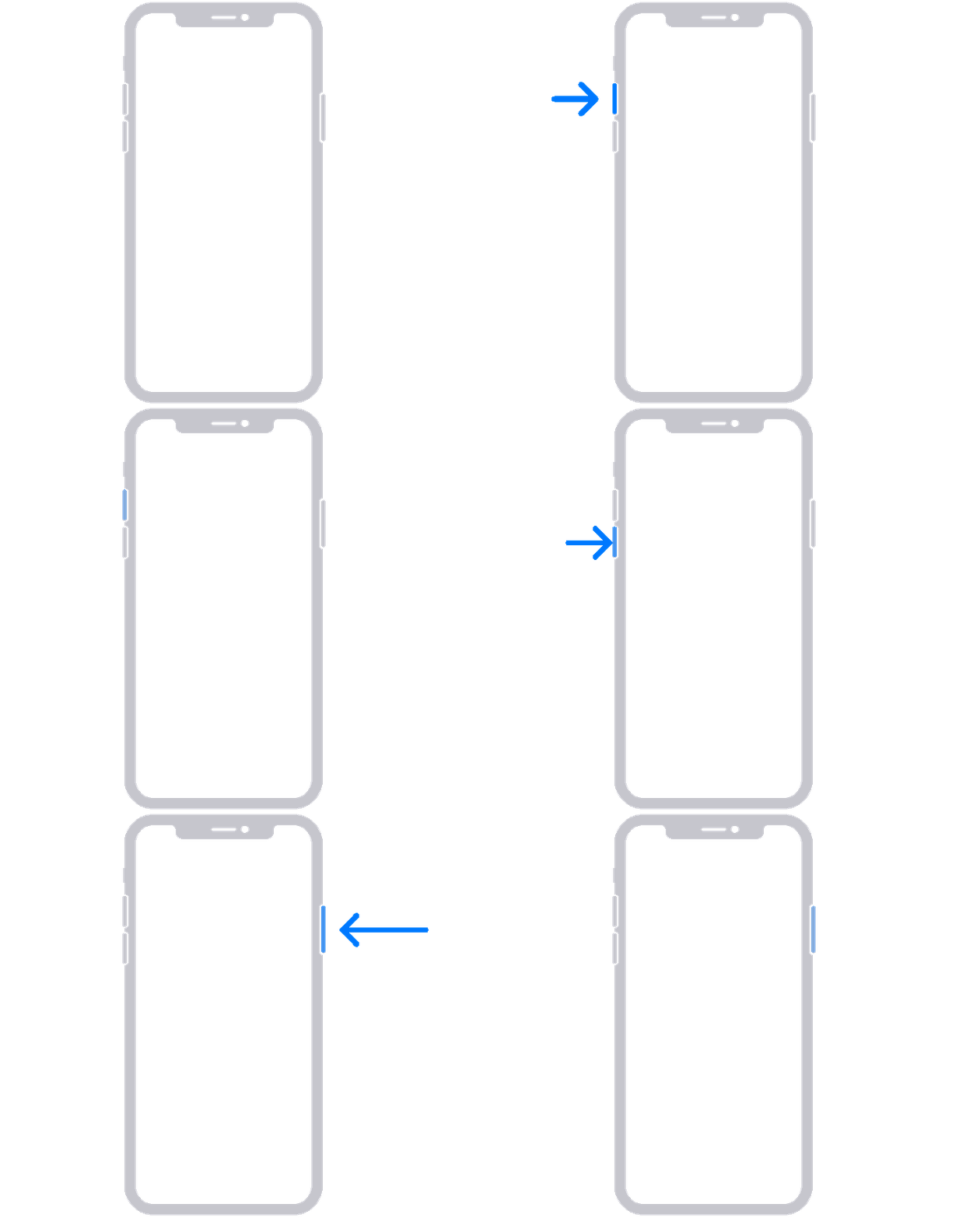
- On your iPhone 8 or later, including iPhone SE (2nd and 3rd generation): Press and quickly release
the volume up button. Press and quickly release the volume down button. Then press and hold the 
side button.

An animation of an iPhone with arrows pointing to the volume up button, then to the volume down button, and then to the side button.
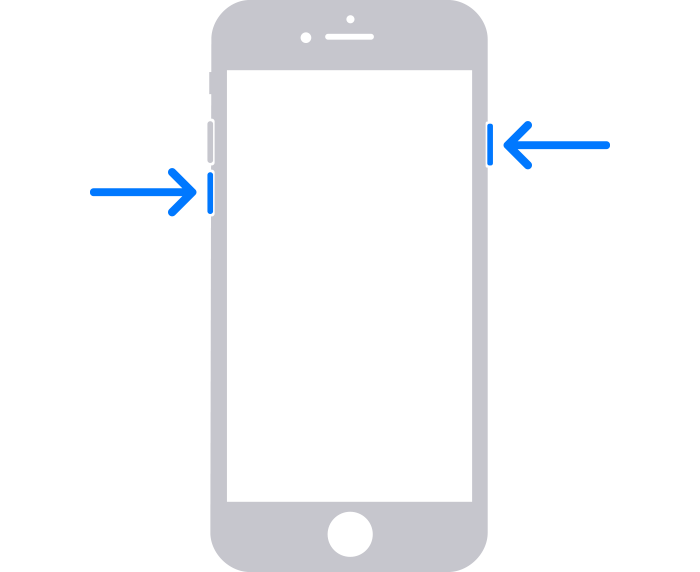
- On your iPhone 7 or iPhone 7 Plus: Press and hold the side button and volume down button at the
same time.
An iPhone with arrows pointing to the volume down button and the side button.

- On your iPhone 6s or earlier, including iPhone SE (1st generation): Press and hold both the Home
button and the side button or the top button at the same time.

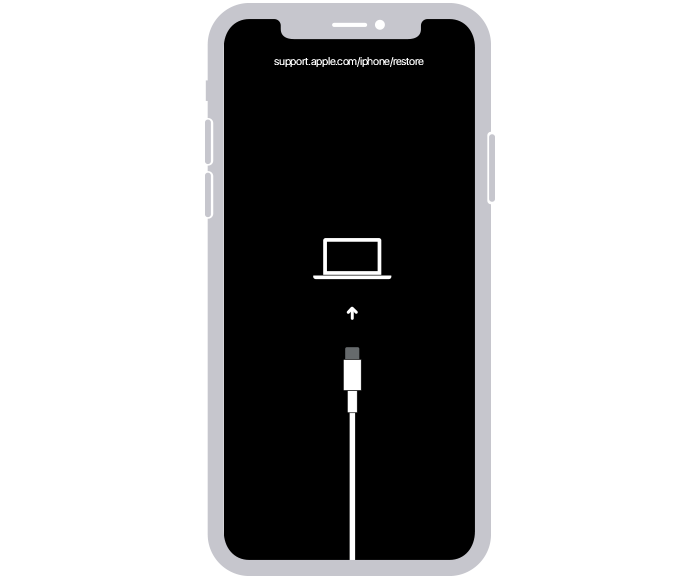
4. Keep holding the buttons until you see the recovery mode screen.
An iPhone showing the recovery mode screen.

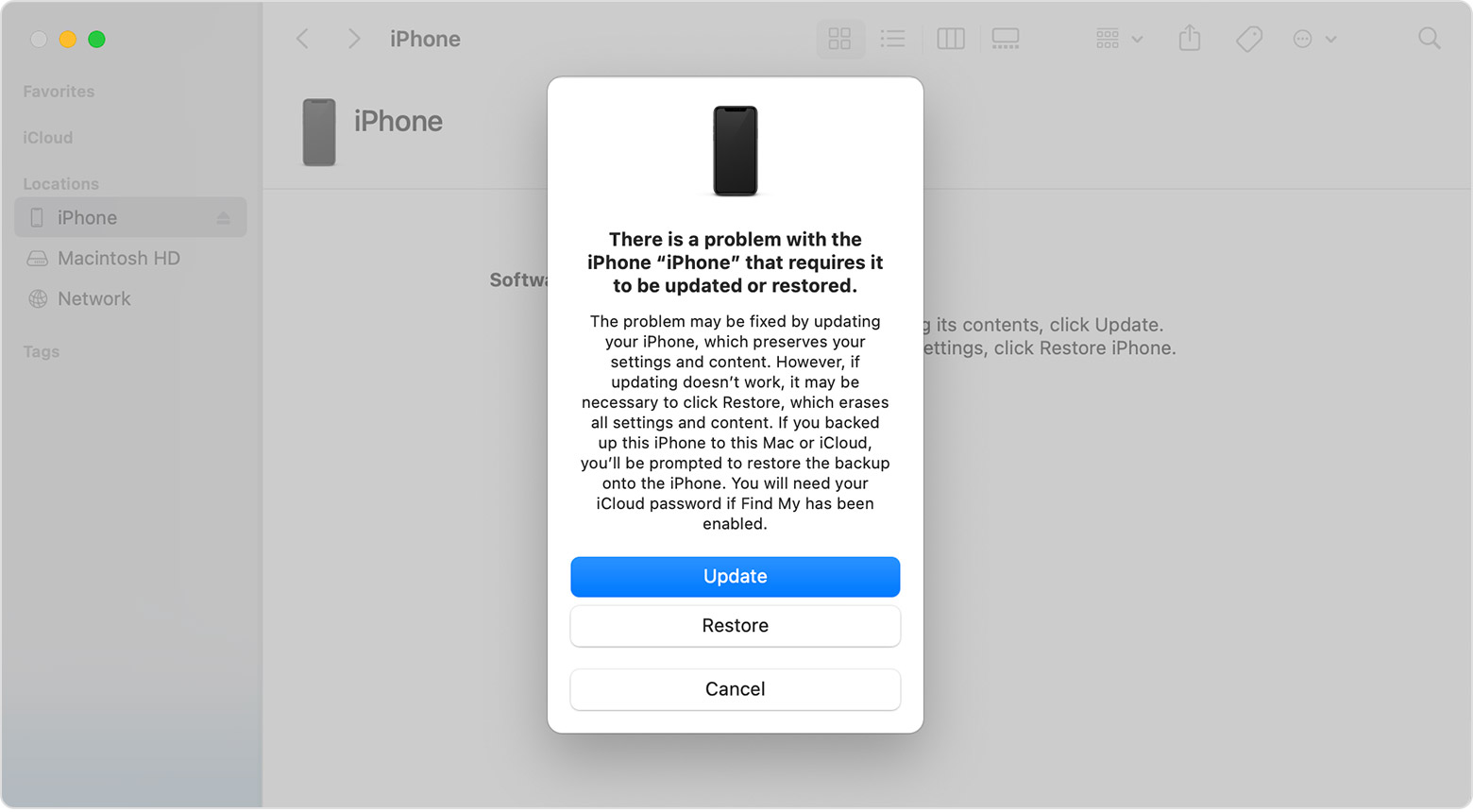
5. When you get the option to restore or update, choose Update.
A Finder window showing a prompt with the choice to update or restore your iPhone. Update is selected.

Your computer will download the software for your device. If it takes more than 15 minutes, your device will exit recovery mode. Repeat steps 2-4.

This information is outlined here for you to reference and may help: If your iPhone won't turn on or is frozen - Apple Support


Kind regards.

1 reply
Question marked as Top-ranking reply

Nov 3, 2022 9:39 AM in response to RichK87

Hello RichK87,


Thank you for reaching out in Apple Support Communities. You've done an excellent job with the steps that were performed. There's one additional step we recommend to do and that is to connect your iPhone to a computer. You'll want to place your iPhone in recovery mode and reinstall the iOS software. This will keep the data on your iPhone intact and will not be removed. Here's how to perform this step:


1. Connect your iPhone to a computer. On a Mac with macOS Catalina, open the Finder. On a Mac with
macOS Mojave or earlier, or on a PC, open iTunes. Find out which macOS your Mac is using.

2. Select your iPhone on your computer.

3. While your iPhone is connected, follow these steps:

- On your iPhone 8 or later, including iPhone SE (2nd and 3rd generation): Press and quickly release
the volume up button. Press and quickly release the volume down button. Then press and hold the 
side button.

An animation of an iPhone with arrows pointing to the volume up button, then to the volume down button, and then to the side button.
- On your iPhone 7 or iPhone 7 Plus: Press and hold the side button and volume down button at the
same time.
An iPhone with arrows pointing to the volume down button and the side button.

- On your iPhone 6s or earlier, including iPhone SE (1st generation): Press and hold both the Home
button and the side button or the top button at the same time.

4. Keep holding the buttons until you see the recovery mode screen.
An iPhone showing the recovery mode screen.

5. When you get the option to restore or update, choose Update.
A Finder window showing a prompt with the choice to update or restore your iPhone. Update is selected.

Your computer will download the software for your device. If it takes more than 15 minutes, your device will exit recovery mode. Repeat steps 2-4.

This information is outlined here for you to reference and may help: If your iPhone won't turn on or is frozen - Apple Support


Kind regards.

This thread has been closed by the system or the community team. You may vote for any posts you find helpful, or search the Community for additional answers.

Iphone 7 text messaging not working and so far, not fixable?

Welcome to Apple Support Community
A forum where Apple customers help each other with their products. Get started with your Apple Account.