iphone not connecting to itunes
My iphone is in disabled state.. but I am not able to connect to itunes to enable it
iPhone 6 Plus, iOS 12
My iphone is in disabled state.. but I am not able to connect to itunes to enable it
iPhone 6 Plus, iOS 12
Hello ManishChakraborty,
Welcome to Apple Support Communities. If your iPhone is disable, you'll need to put it in recovery mode, and then restore it. Here's how:
Step 3: Put your iPhone in recovery mode
1- Get ready by finding the button on your iPhone that you'll need to hold in the next step:
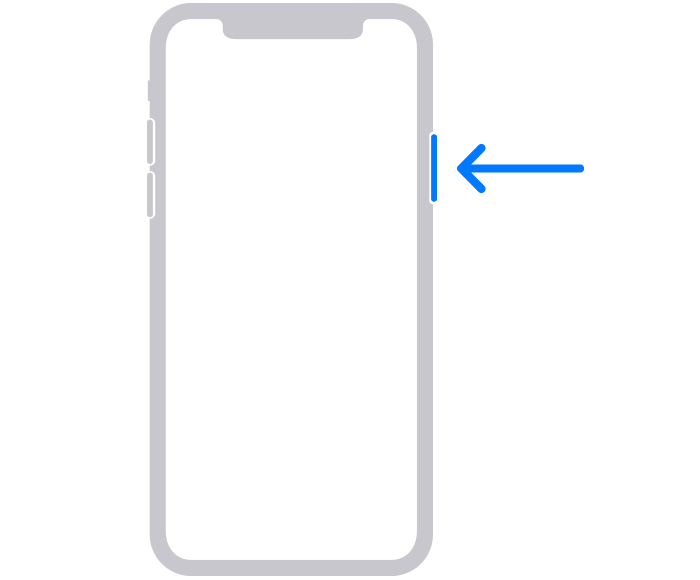
iPhone 8, iPhone 8 Plus, iPhone X and later, including iPhone SE (2nd and 3rd generation) use the side button.
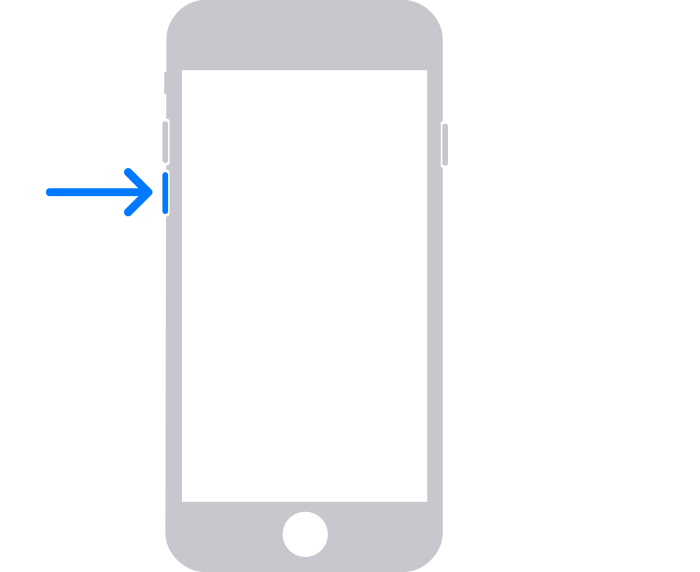
- iPhone 7 and iPhone 7 Plus use the Volume down button.
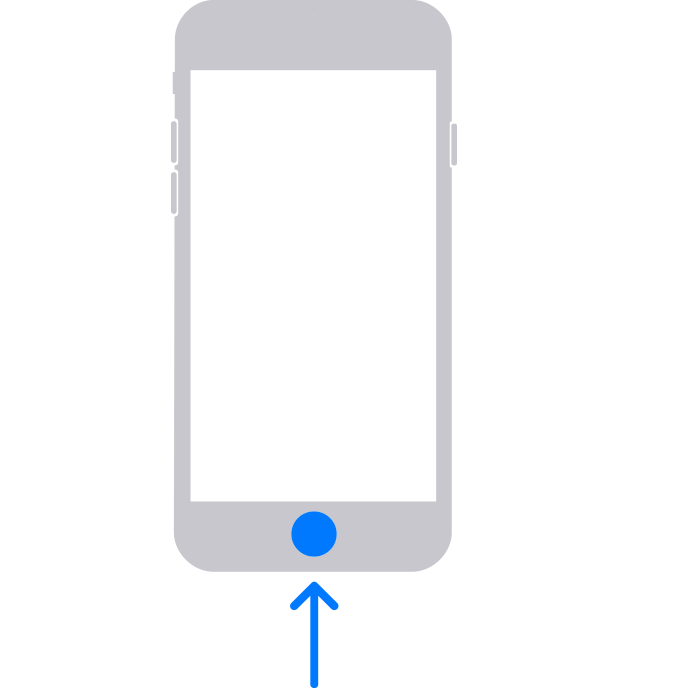
- iPhone SE (1st generation), and iPhone 6s and earlier use the Home button.
2- Press and hold the correct button for your iPhone while immediately connecting your iPhone to the computer. Don't let go of the button.
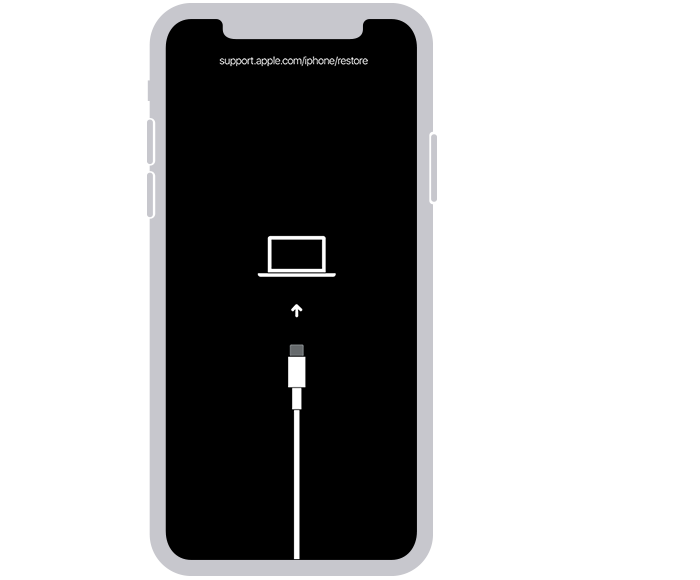
3- Keep holding the button until you see the recovery mode screen on your iPhone, then let go.
If you see the passcode screen, you need to turn off your iPhone and start again.
If you can’t get your iPhone to show the recovery mode screen and you need help, contact Apple Support.
Step 4: Restore your iPhone
1- Locate your iPhone in the Finder or in iTunes on the computer that it’s connected to. (Learn how to find your connected iPhone.)
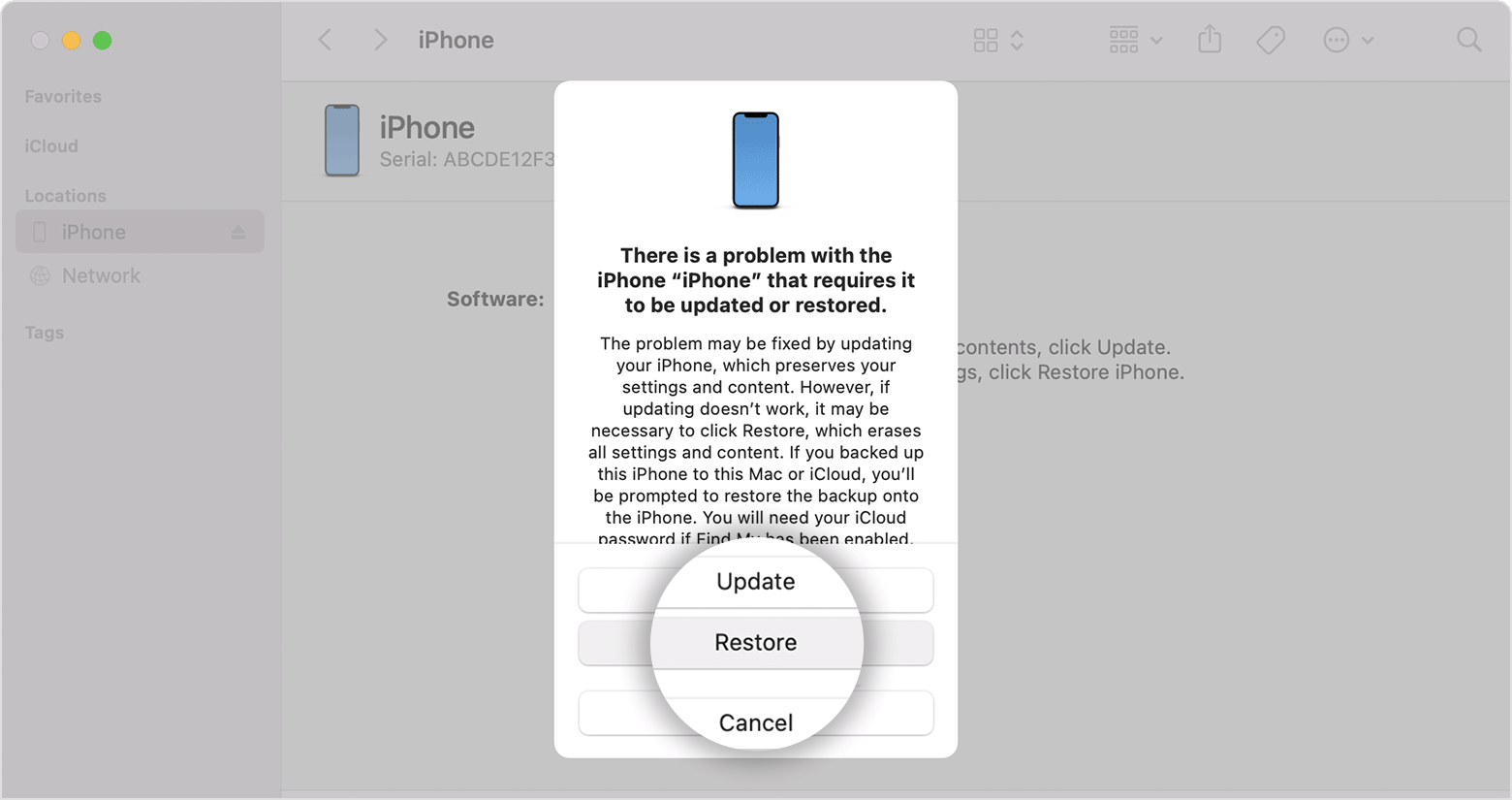
2- Choose Restore when you see the option to Restore or Update. Your computer downloads software for your iPhone and begins the restore process. If the download takes more than 15 minutes and your device exits the recovery mode screen, let the download finish, then turn off your iPhone and start again.
3- Wait for the process to finish.
4- Disconnect your iPhone from the computer, then set up and use your iPhone.
If you forgot your iPhone passcode - Apple Support
We hope this information is useful. Kind regards.
Hello ManishChakraborty,
Welcome to Apple Support Communities. If your iPhone is disable, you'll need to put it in recovery mode, and then restore it. Here's how:
Step 3: Put your iPhone in recovery mode
1- Get ready by finding the button on your iPhone that you'll need to hold in the next step:
iPhone 8, iPhone 8 Plus, iPhone X and later, including iPhone SE (2nd and 3rd generation) use the side button.
- iPhone 7 and iPhone 7 Plus use the Volume down button.
- iPhone SE (1st generation), and iPhone 6s and earlier use the Home button.
2- Press and hold the correct button for your iPhone while immediately connecting your iPhone to the computer. Don't let go of the button.
3- Keep holding the button until you see the recovery mode screen on your iPhone, then let go.
If you see the passcode screen, you need to turn off your iPhone and start again.
If you can’t get your iPhone to show the recovery mode screen and you need help, contact Apple Support.
Step 4: Restore your iPhone
1- Locate your iPhone in the Finder or in iTunes on the computer that it’s connected to. (Learn how to find your connected iPhone.)
2- Choose Restore when you see the option to Restore or Update. Your computer downloads software for your iPhone and begins the restore process. If the download takes more than 15 minutes and your device exits the recovery mode screen, let the download finish, then turn off your iPhone and start again.
3- Wait for the process to finish.
4- Disconnect your iPhone from the computer, then set up and use your iPhone.
If you forgot your iPhone passcode - Apple Support
We hope this information is useful. Kind regards.
iphone not connecting to itunes