How to recover data from iCloud?

I lost my iPhone 6s while riding my motorcycle. I replaced it with an iPhone 11. I signed into my Apple ID and was recognized but have not been able to recover the items that were on my other phone. I pay for storage in the iCloud every month and I am now getting messages saying my iCloud is full at 5g. I pay for 50g. Can someone please help me recover my iCloud?


[Re-Titled by Moderator]

Posted on Nov 6, 2022 7:26 AM

Reply
Question marked as Top-ranking reply

Posted on Nov 9, 2022 7:32 AM

Hi Ironharry,


When you set up your new device, did you attempt to restore an iCloud backup? You can look in your iCloud settings to see if you have a backup available using these instructions under the heading "Find and manage backups stored in iCloud":


"On your iPhone, iPad, or iPod touch:

  1. Go to Settings > [your name] > iCloud.
  2. Tap Manage Account Storage, then tap Backups.
  3. Tap a backup to see more details about it, choose which information to back up, or delete the backup."


Locate backups of your iPhone, iPad, and iPod touch


If you do have a backup showing there, you can restore it to your iPhone to retrieve the data. Be aware that this requires erasing everything that is currently stored on the iPhone:


"Restore your device from an iCloud backup

  1. Turn on your device. You should see a Hello screen. If you already set up your device, you need to erase all of its content before you can use these steps to restore from your backup.
  2. Follow the onscreen setup steps until you reach the Apps & Data screen, then tap Restore from iCloud Backup. 
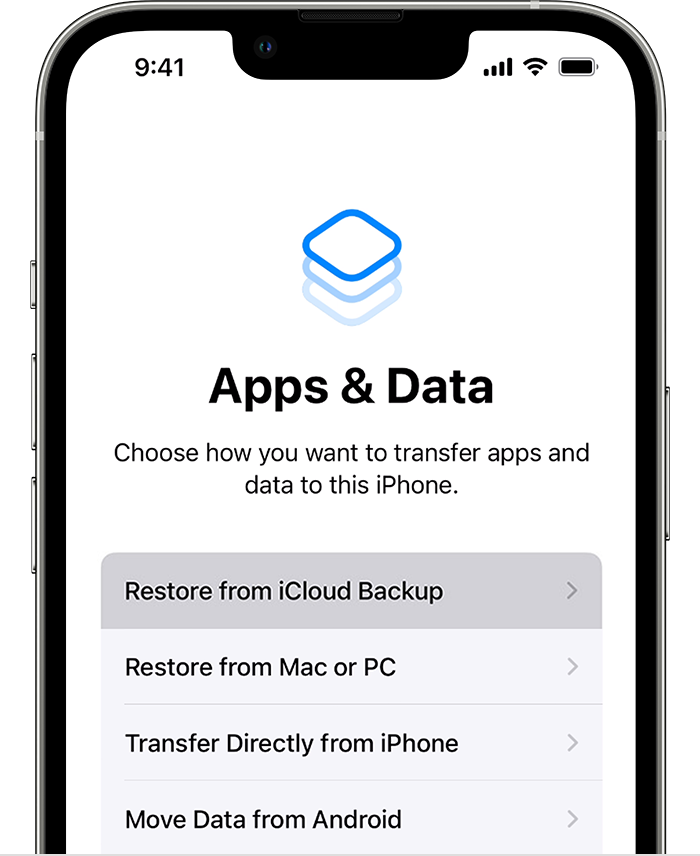
  3. An iPhone showing the Apps & Data screen with the first option, Restore from an iCloud Backup, selected.

  4. Sign in to iCloud with your Apple ID.
  5. Choose a backup. Look at the date and size of each and pick the most relevant. After you choose a backup, the transfer starts. If a message says that a newer version of software is required, follow the onscreen steps to update. If you don't see onscreen steps to help you update, learn what to do.
  6. When asked, sign in with your Apple ID to restore your apps and purchases. If you've purchased iTunes or App Store content using multiple Apple IDs, you'll be asked to sign in to each. If you can't remember your password, you can tap Skip this Step and sign in later. You won't be able to use the apps until you sign in with your Apple ID.
  7. Stay connected to Wi-Fi and wait for a progress bar to appear and complete. Depending on the size of the backup and the network speed, the progress bar might need a few minutes to an hour to complete. If you disconnect from Wi-Fi too soon, the progress will pause until you reconnect.
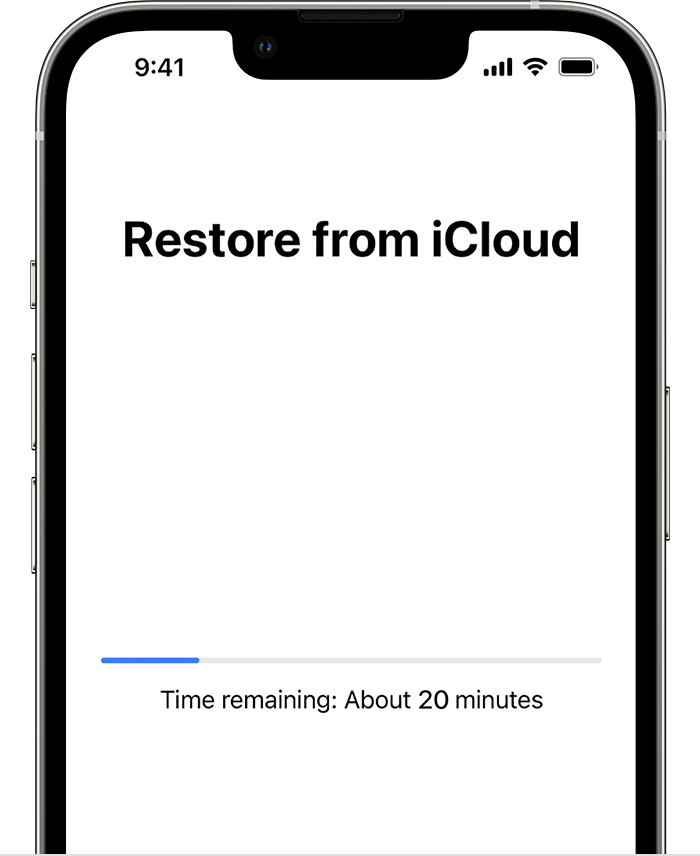
  8. An iPhone showing the Restore from iCloud screen with a progress bar. It says the time remaining is about 20 minutes.

  9. Now you can finish setup and enjoy your device. Content like your apps, photos, music, and other information will continue to restore in the background for the next several hours or days, depending on the amount of information there is. Try to connect often to Wi-Fi and power to let the process complete.

Get help with restoring from your iCloud backup."


Restore your iPhone, iPad, or iPod touch from a backup


Finally, regarding the discrepancy with your iCloud storage not showing the correct amount, you may need to contact Apple Support to investigate this further:


Contact - Official Apple Support


Cheers!

1 reply
Question marked as Top-ranking reply

Nov 9, 2022 7:32 AM in response to Ironharry

Hi Ironharry,


When you set up your new device, did you attempt to restore an iCloud backup? You can look in your iCloud settings to see if you have a backup available using these instructions under the heading "Find and manage backups stored in iCloud":


"On your iPhone, iPad, or iPod touch:

  1. Go to Settings > [your name] > iCloud.
  2. Tap Manage Account Storage, then tap Backups.
  3. Tap a backup to see more details about it, choose which information to back up, or delete the backup."


Locate backups of your iPhone, iPad, and iPod touch


If you do have a backup showing there, you can restore it to your iPhone to retrieve the data. Be aware that this requires erasing everything that is currently stored on the iPhone:


"Restore your device from an iCloud backup

  1. Turn on your device. You should see a Hello screen. If you already set up your device, you need to erase all of its content before you can use these steps to restore from your backup.
  2. Follow the onscreen setup steps until you reach the Apps & Data screen, then tap Restore from iCloud Backup. 
  3. An iPhone showing the Apps & Data screen with the first option, Restore from an iCloud Backup, selected.

  4. Sign in to iCloud with your Apple ID.
  5. Choose a backup. Look at the date and size of each and pick the most relevant. After you choose a backup, the transfer starts. If a message says that a newer version of software is required, follow the onscreen steps to update. If you don't see onscreen steps to help you update, learn what to do.
  6. When asked, sign in with your Apple ID to restore your apps and purchases. If you've purchased iTunes or App Store content using multiple Apple IDs, you'll be asked to sign in to each. If you can't remember your password, you can tap Skip this Step and sign in later. You won't be able to use the apps until you sign in with your Apple ID.
  7. Stay connected to Wi-Fi and wait for a progress bar to appear and complete. Depending on the size of the backup and the network speed, the progress bar might need a few minutes to an hour to complete. If you disconnect from Wi-Fi too soon, the progress will pause until you reconnect.
  8. An iPhone showing the Restore from iCloud screen with a progress bar. It says the time remaining is about 20 minutes.

  9. Now you can finish setup and enjoy your device. Content like your apps, photos, music, and other information will continue to restore in the background for the next several hours or days, depending on the amount of information there is. Try to connect often to Wi-Fi and power to let the process complete.

Get help with restoring from your iCloud backup."


Restore your iPhone, iPad, or iPod touch from a backup


Finally, regarding the discrepancy with your iCloud storage not showing the correct amount, you may need to contact Apple Support to investigate this further:


Contact - Official Apple Support


Cheers!

This thread has been closed by the system or the community team. You may vote for any posts you find helpful, or search the Community for additional answers.

How to recover data from iCloud?

Welcome to Apple Support Community
A forum where Apple customers help each other with their products. Get started with your Apple Account.