iCloud purchasing

I want to purchase iCloud storage but it’s not allowing it because of the payment issue I tried to change the region so many times to United Arab Emirates which is where I reside but it won’t change from the United States can you please help me to purchase more iCloud storage

MacBook Air 13″, macOS 13.0

Posted on Nov 12, 2022 8:37 AM

Reply
Question marked as Top-ranking reply

Posted on Nov 14, 2022 10:03 AM

Hello Firas2000,


Thanks for choosing the Apple Support Communities. It sounds like the first thing we should address is getting your region set correctly. This is likely the reason you cannot make purchases. Let's try following these steps.


Change your Apple ID country or region - Apple Support


"What to do before you change your country or region


Use your iPhone or iPad to change your region

  1. Open the Settings app. 
  2. Tap your name, then tap Media & Purchases.
  3. Tap View Account. You might be asked to sign in.
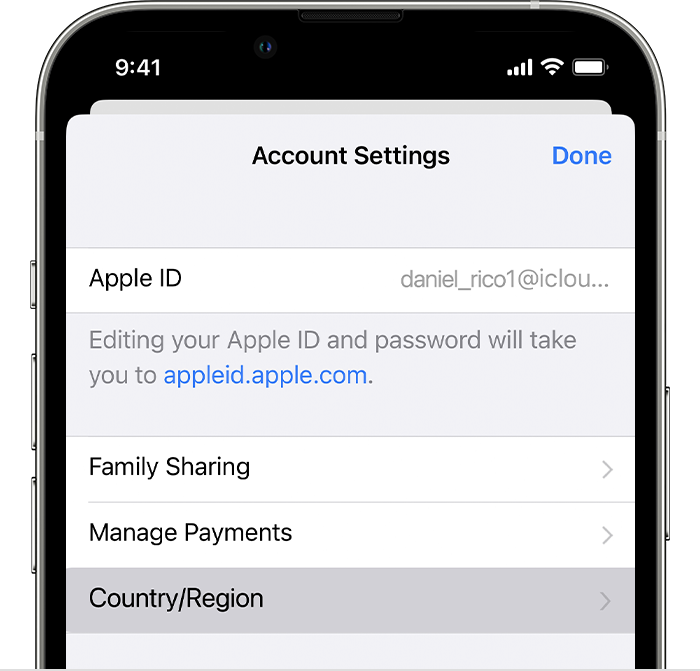
  4. Tap Country/Region.
  5. iPhone showing Country/Region in Account Settings.

  6. Tap Change Country or Region.
  7. Tap your new country or region, then review the Terms & Conditions.
  8. Tap Agree in the upper-right corner, then tap Agree again to confirm.
  9. Select a payment method and enter your new payment information and billing address, then tap Next. You must enter a valid payment method for your new country or region.*


Use your computer to change your region

  1. Open the Music app or iTunes.
  2. In the menu bar at the top of the screen or the top of the iTunes window, click Account, then click View My Account or Account Settings.
  3. Sign in with your Apple ID.
  4. On the Account Information page, click Change Country or Region.
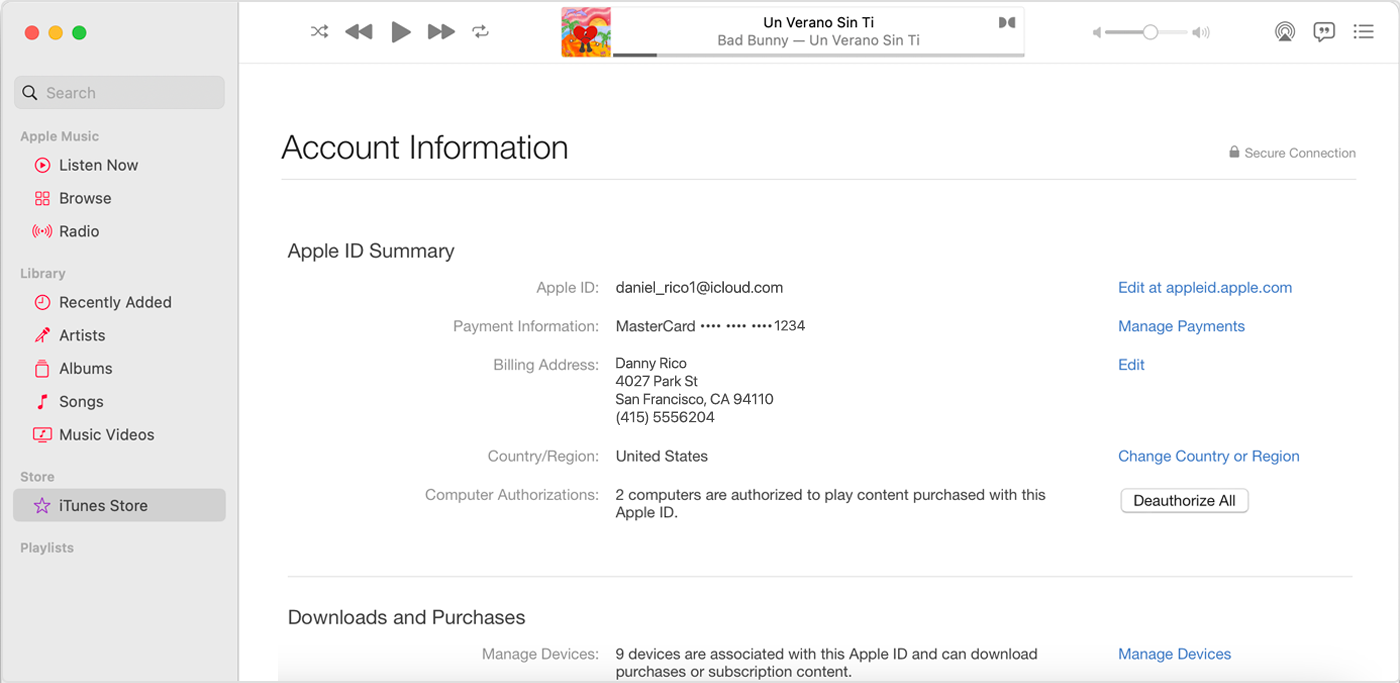
  5. The Account Information page includes the Change Country or Region button.

  6. Select your new country or region.
  7. Review the Terms & Conditions, then click Agree. Click Agree again to confirm.
  8. Enter your new payment information* and billing address, then click Continue.


Change your region online

  1. Sign in to appleid.apple.com.
  2. Tap or click Personal Information.
  3. Tap or click Country/Region.
  4. Follow the onscreen instructions. You must enter a valid payment method for your new country or region.*


If you can't change your country or region


We hope this helps.


Cheers!


1 reply
Question marked as Top-ranking reply

Nov 14, 2022 10:03 AM in response to Firas2000

Hello Firas2000,


Thanks for choosing the Apple Support Communities. It sounds like the first thing we should address is getting your region set correctly. This is likely the reason you cannot make purchases. Let's try following these steps.


Change your Apple ID country or region - Apple Support


"What to do before you change your country or region


Use your iPhone or iPad to change your region

  1. Open the Settings app. 
  2. Tap your name, then tap Media & Purchases.
  3. Tap View Account. You might be asked to sign in.
  4. Tap Country/Region.
  5. iPhone showing Country/Region in Account Settings.

  6. Tap Change Country or Region.
  7. Tap your new country or region, then review the Terms & Conditions.
  8. Tap Agree in the upper-right corner, then tap Agree again to confirm.
  9. Select a payment method and enter your new payment information and billing address, then tap Next. You must enter a valid payment method for your new country or region.*


Use your computer to change your region

  1. Open the Music app or iTunes.
  2. In the menu bar at the top of the screen or the top of the iTunes window, click Account, then click View My Account or Account Settings.
  3. Sign in with your Apple ID.
  4. On the Account Information page, click Change Country or Region.
  5. The Account Information page includes the Change Country or Region button.

  6. Select your new country or region.
  7. Review the Terms & Conditions, then click Agree. Click Agree again to confirm.
  8. Enter your new payment information* and billing address, then click Continue.


Change your region online

  1. Sign in to appleid.apple.com.
  2. Tap or click Personal Information.
  3. Tap or click Country/Region.
  4. Follow the onscreen instructions. You must enter a valid payment method for your new country or region.*


If you can't change your country or region


We hope this helps.


Cheers!


This thread has been closed by the system or the community team. You may vote for any posts you find helpful, or search the Community for additional answers.

iCloud purchasing

Welcome to Apple Support Community
A forum where Apple customers help each other with their products. Get started with your Apple Account.