Hello 1218l,
You can download iCloud Photos to your Mac, then print them from Photos.
1. Please check out this link, which will guide you through the process to download iCloud Photos: Download iCloud photos and videos
On your Mac or PC
1. On iCloud.com, click Photos and select a photo or video. Hold the command key on your Mac or control key on your PC to select multiple photos or videos.
2. Click and hold the download button  in the upper corner of the window. If you want to download your photo or video as it was originally captured or imported, choose Unmodified Original. For JPEG or H.264 format — including edits, and even if it was originally in HEIF or HEVC format — choose Most Compatible.*
3. Click Download.
If your photos download as a ZIP archive, learn how to uncompress the folder on your Mac or your PC.
2. For the process to print photos in Photos on your Mac, please check out this link, which has information that may help: Print your own photos in Photos on Mac
Print your own photos in Photos on Mac
You can print photos in several standard sizes, or select a custom size. You can also print more than one photo per page using a contact sheet print format. You can print photos in black and white or in color, depending on your printer’s capabilities.
1. In the Photos app  on your Mac, click Library in the sidebar, then select one or more photos.
Tip: To print multiple copies of the same photo on a single page, create as many duplicates of your photo as you need, then select them all before choosing File > Print. See Duplicate a photo.
2. Choose File > Print.
3. In the print options, select a format from the list on the right.
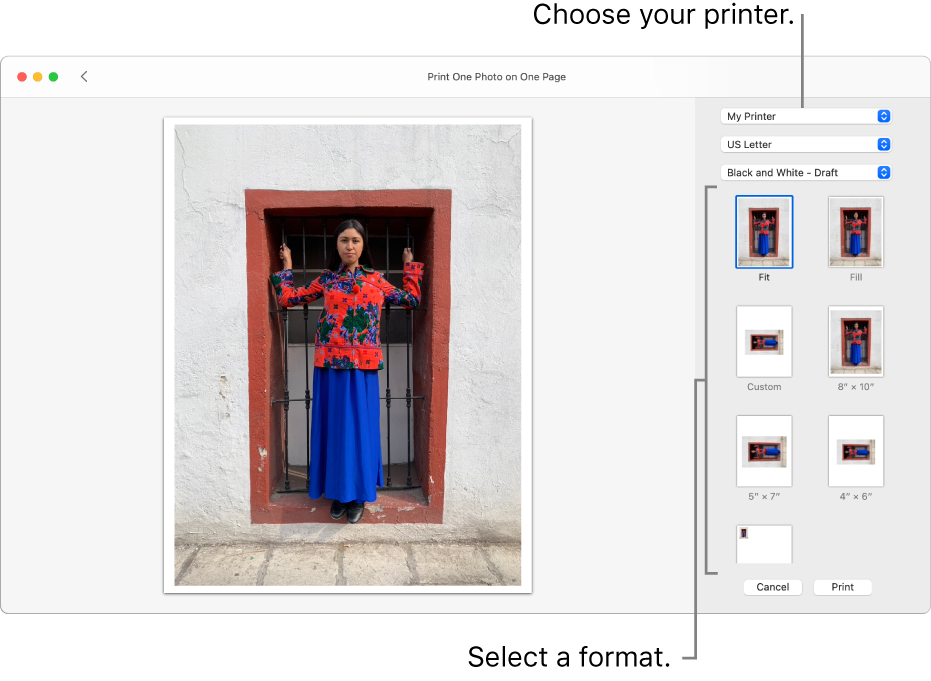
The preview area on the left shows the look of your printed photos.
With some formats, such as Custom and Contact Sheet, you can resize the printed photos. Other options, such as for repositioning photos, choosing an aspect ratio, or setting margins, appear depending on the format you select.
4. Choose a printer and select any necessary printer settings.
5. Click Print.
6. Specify print options in the Print dialog, then click Print.
You can also find details on printing documents from Mac here, which may help: Print documents from your Mac
Thanks!


