Accessing music from another device
Is there a way to access the music I have stored on my iPad from a different device?
iPad, iPadOS 15
Is there a way to access the music I have stored on my iPad from a different device?
iPad, iPadOS 15
Hi musicteacherlv,
Welcome to Apple Support Communities. You can access music across your devices as a subscriber to Apple Music with the feature called "Sync Library." Here's more information:
How to turn on Sync Library on your Mac
1. Open the Apple Music app.
2. In the menu bar, choose Account and make sure that you're signed in with the same Apple ID that
you use with your Apple Music subscription.
3. Choose File > Library > Organize Library. Then select Consolidate files.
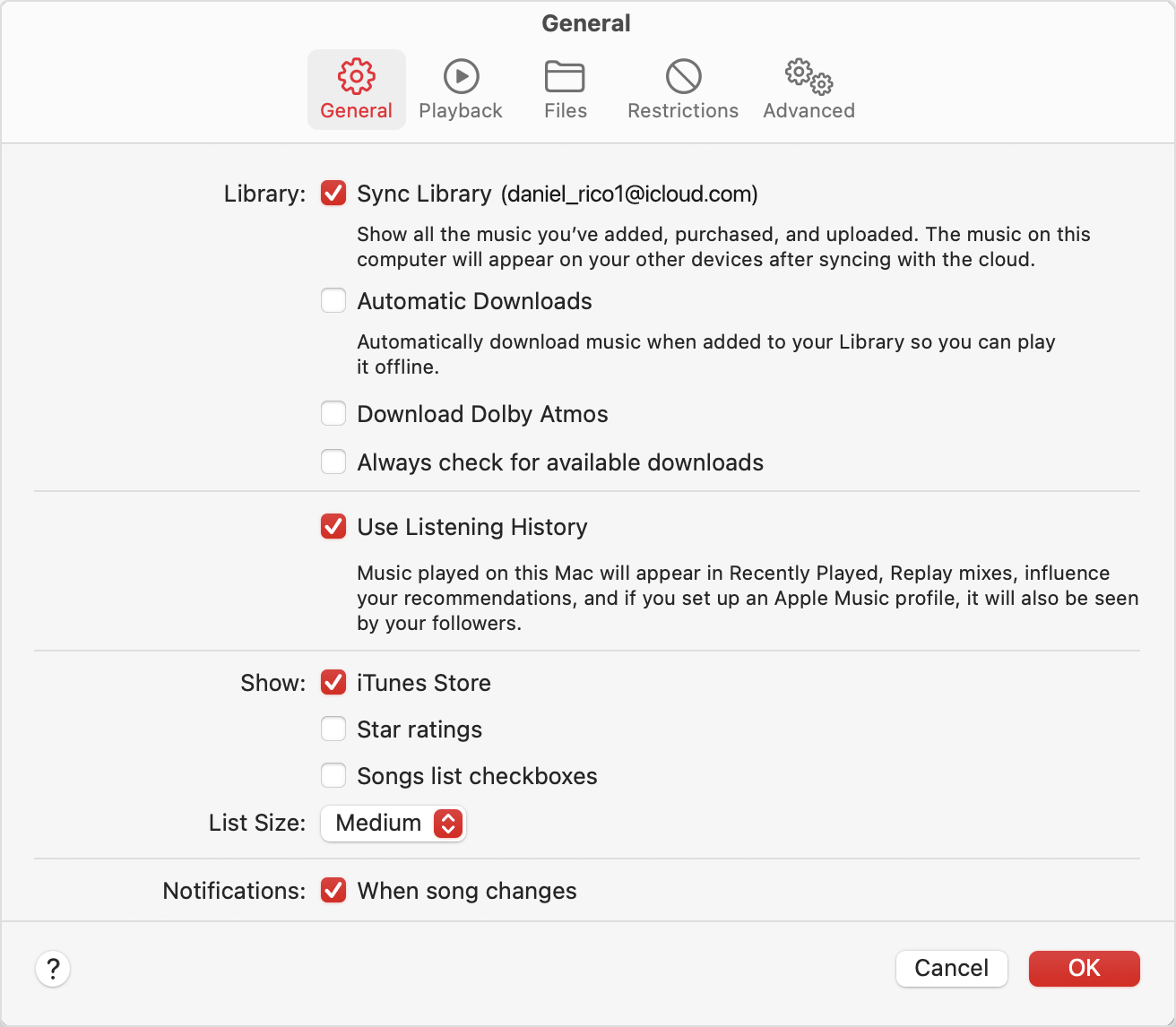
4. Choose Music > Settings or Music > Preferences.
5. Click the General tab.
6. Select Sync Library.
7. Click Ok.
8. Wait for your music library to sync. To check the status, go to the bottom of the sidebar and click
Updating Cloud Library.
9. Turn on Sync Library on your other devices.
How to turn on Sync Library on your PC
In iTunes for Windows, Sync Library is called iCloud Music Library. Learn how to turn on iCloud Music Library in iTunes for Windows.
How to turn on Sync Library on your iPhone or iPad
1. Make sure that your iPhone or iPad is signed in with the same Apple ID that you use with your Apple
Music subscription.
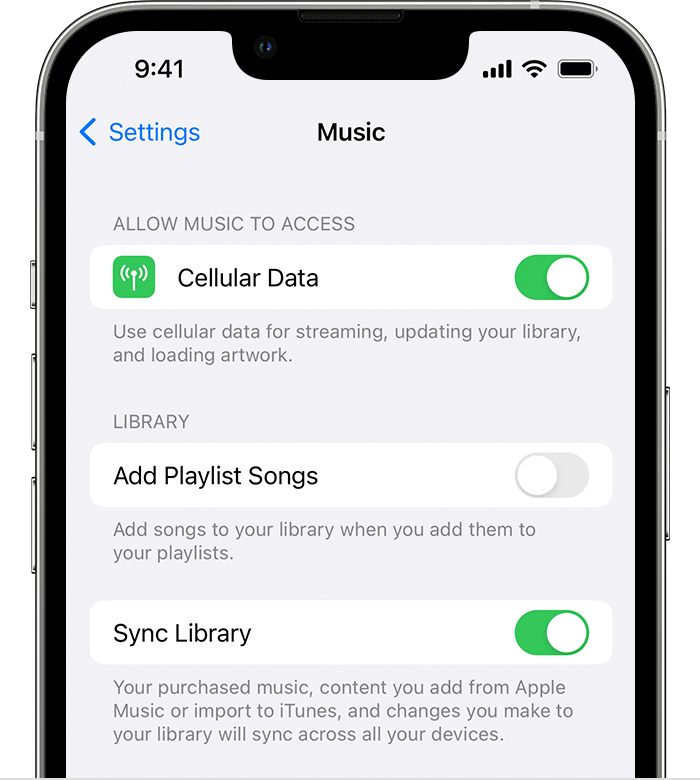
2. Go to Settings.
3. Tap Music.
4. Turn on Sync Library.
5. Turn on Sync Library on your other devices.
Access your music library on other devices
After you turn on Sync Library on your Mac, PC, iPhone, or iPad, you can access your music library on any device that has the Apple Music app. Just make sure that your device is signed in with the same Apple ID that you use with your Apple Music subscription. You can also access your music library on music.apple.com.
These steps will help access your music across your devices and is outlined here: Use Sync Library to access your music library across your devices - Apple Support
Best regards.
Hi musicteacherlv,
Welcome to Apple Support Communities. You can access music across your devices as a subscriber to Apple Music with the feature called "Sync Library." Here's more information:
How to turn on Sync Library on your Mac
1. Open the Apple Music app.
2. In the menu bar, choose Account and make sure that you're signed in with the same Apple ID that
you use with your Apple Music subscription.
3. Choose File > Library > Organize Library. Then select Consolidate files.
4. Choose Music > Settings or Music > Preferences.
5. Click the General tab.
6. Select Sync Library.
7. Click Ok.
8. Wait for your music library to sync. To check the status, go to the bottom of the sidebar and click
Updating Cloud Library.
9. Turn on Sync Library on your other devices.
How to turn on Sync Library on your PC
In iTunes for Windows, Sync Library is called iCloud Music Library. Learn how to turn on iCloud Music Library in iTunes for Windows.
How to turn on Sync Library on your iPhone or iPad
1. Make sure that your iPhone or iPad is signed in with the same Apple ID that you use with your Apple
Music subscription.
2. Go to Settings.
3. Tap Music.
4. Turn on Sync Library.
5. Turn on Sync Library on your other devices.
Access your music library on other devices
After you turn on Sync Library on your Mac, PC, iPhone, or iPad, you can access your music library on any device that has the Apple Music app. Just make sure that your device is signed in with the same Apple ID that you use with your Apple Music subscription. You can also access your music library on music.apple.com.
These steps will help access your music across your devices and is outlined here: Use Sync Library to access your music library across your devices - Apple Support
Best regards.
Accessing music from another device