iPhone will not connec to mobile data or wifi

Cellular Issue: Your iPhone is currently unable to access cellular data or make and receive calls or messages. The blue hyperlink to "learn more" obviously will not load because I also cannot connect to wifi.


iOS Verison: 16.1.1

iPhone 11 Pro Max


My son updated his phone yesterday after it was randomly turning off. We thought that fixed the issue until the last time it cut off, it would not reconnect to mobile data or wifi.

I did a network reset and it did connect to my wifi and mobile data, messages started to come in. However, the phone immediately shut off. This is what it did before I was unable to connect to wifi or mobile data; it would just randomly turn off.


I tried to erase everything but once it asks for my apple ID, the buttons to "Turn off" or "cancel" are grayed out.


This is my son's iPhone -- I can't verify his icloud login because it wants to send a text to his phone.... which I can't get.


Any ideas on what we can do??

iPhone 11 Pro Max

Posted on Nov 26, 2022 6:47 AM

Reply
Question marked as Top-ranking reply

Posted on Nov 27, 2022 6:11 PM

Hey _suhbrenuh,


First, we'd recommend reviewing the information in this article as it provides steps to take to help resolve Wi-Fi issues on iPhone: If your iPhone or iPad won't connect to a Wi-Fi network - Apple Support


  1. "Make sure that your router is on and that you're within range
  2. If you're too far from your Wi-Fi router, you can't get a signal, so make sure that you're within range.
  3. Make sure that Wi-Fi is on and that you can see your network
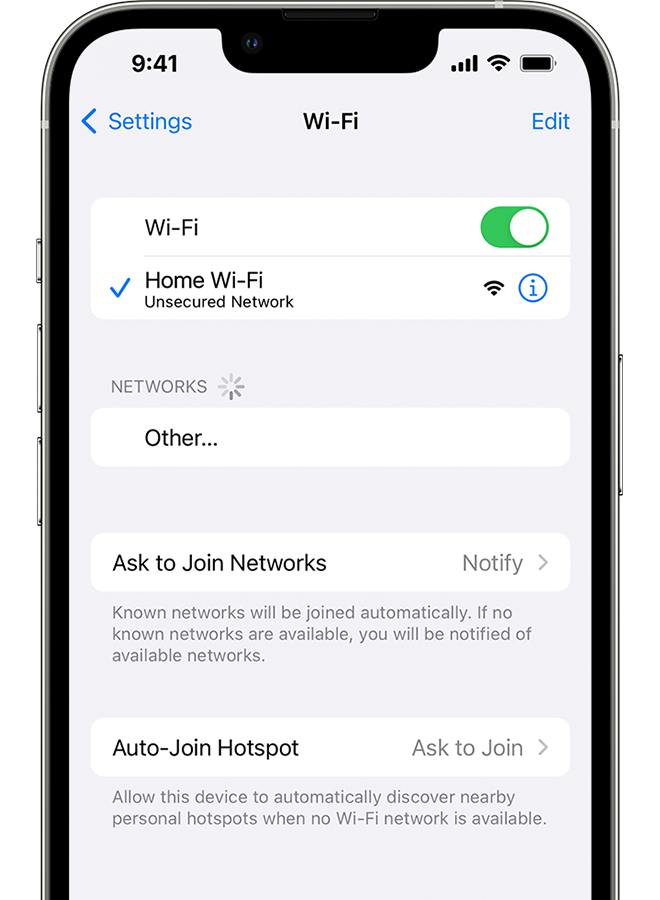
  4. Go to Settings > Wi-Fi and make sure that Wi-Fi is on. Tap the name of your Wi-Fi network to join. A blue checkmark beside a network name means that you're connected.
  5. If you see Auto Join disabled under Settings > Wi-Fi > [Your Network], tap the More Info button and then tap Auto-Join.
  6. An iPhone showing the Wi-Fi screen. There's a blue a checkmark next to the Wi-Fi network's name.
  7. If asked, enter your Wi-Fi password
  8. If asked, enter the password for your Wi-Fi network. Get help if you don't know your password.
  9. Even if you enter the correct password, you might see an "unable to join the network" message or an "incorrect password" message. Restart all of your devices, then try to enter your password again.
  10. Check for issues with your Wi-Fi network
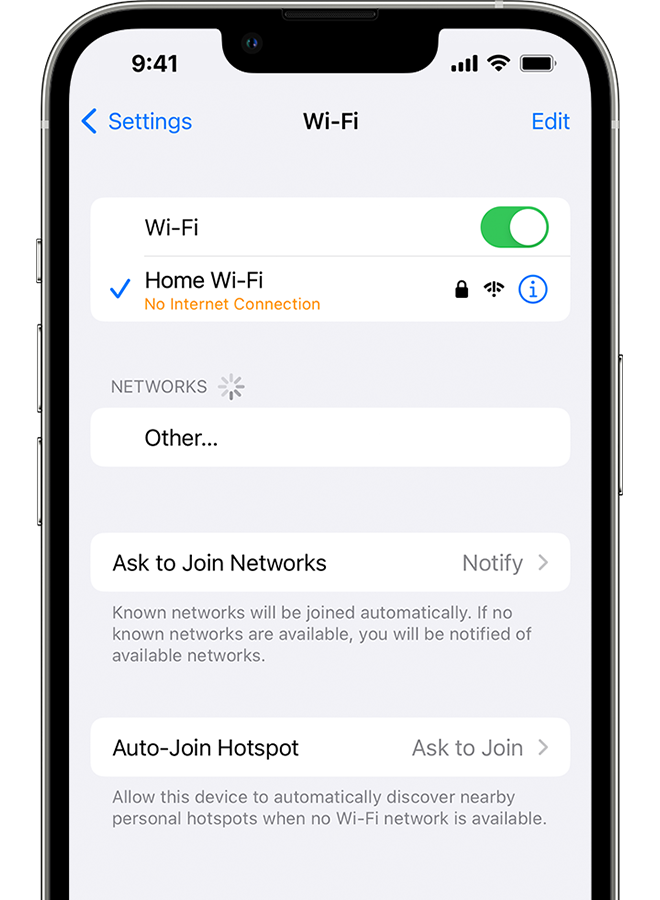
  11. If iOS or iPadOS detects an issue with your Wi-Fi connection, you might see a Wi-Fi recommendation under the name of the Wi-Fi network that you're connected to. For example, you might see the alert "No Internet Connection." To get more information, tap the Wi-Fi network.
  12.  
  13. An iPhone showing the Wi-Fi screen. There's an alert message under the Wi-Fi network's name.
  14. Check your cables and connections
  15. If you still can't connect to your network or get online, make sure that your router is connected to the modem and turned on.
  16. Restart
  17. Restart your iOS or iPadOS device.
  18. Restart your router and cable or DSL modem by unplugging the device and then plugging it back in.
  19. After you restart each device, see if you fixed the issue.
  20. Reset your network settings
  21. If you're using iOS or iPadOS 15 or later, tap Settings > General > Transfer or Reset [Device] > Reset > Reset Network Settings.
  22. If you're using iOS or iPadOS 14 or earlier, tap Settings > General > Reset > Reset Network Settings.
  23. This also resets Wi-Fi networks and passwords, cellular settings, and VPN and APN settings that you've used before."


We'd also suggest checking out this resource as it provides help for cellular data issues: If you see No Service, Searching, or SOS on your iPhone or iPad - Apple Support


For the unexpected restarts, the steps in this link may help: If your iOS or iPadOS device restarts or displays the Apple logo or a spinning gear unexpectedly - Apple Support


As these issues are all occurring simultaneously, that may indicate a hardware issue with the device. If you need further assistance, we'd recommend contacting Apple Support here: Apple Support


Thanks!

Similar questions

1 reply
Question marked as Top-ranking reply

Nov 27, 2022 6:11 PM in response to _suhbrenuh

Hey _suhbrenuh,


First, we'd recommend reviewing the information in this article as it provides steps to take to help resolve Wi-Fi issues on iPhone: If your iPhone or iPad won't connect to a Wi-Fi network - Apple Support


  1. "Make sure that your router is on and that you're within range
  2. If you're too far from your Wi-Fi router, you can't get a signal, so make sure that you're within range.
  3. Make sure that Wi-Fi is on and that you can see your network
  4. Go to Settings > Wi-Fi and make sure that Wi-Fi is on. Tap the name of your Wi-Fi network to join. A blue checkmark beside a network name means that you're connected.
  5. If you see Auto Join disabled under Settings > Wi-Fi > [Your Network], tap the More Info button and then tap Auto-Join.
  6. An iPhone showing the Wi-Fi screen. There's a blue a checkmark next to the Wi-Fi network's name.
  7. If asked, enter your Wi-Fi password
  8. If asked, enter the password for your Wi-Fi network. Get help if you don't know your password.
  9. Even if you enter the correct password, you might see an "unable to join the network" message or an "incorrect password" message. Restart all of your devices, then try to enter your password again.
  10. Check for issues with your Wi-Fi network
  11. If iOS or iPadOS detects an issue with your Wi-Fi connection, you might see a Wi-Fi recommendation under the name of the Wi-Fi network that you're connected to. For example, you might see the alert "No Internet Connection." To get more information, tap the Wi-Fi network.
  12.  
  13. An iPhone showing the Wi-Fi screen. There's an alert message under the Wi-Fi network's name.
  14. Check your cables and connections
  15. If you still can't connect to your network or get online, make sure that your router is connected to the modem and turned on.
  16. Restart
  17. Restart your iOS or iPadOS device.
  18. Restart your router and cable or DSL modem by unplugging the device and then plugging it back in.
  19. After you restart each device, see if you fixed the issue.
  20. Reset your network settings
  21. If you're using iOS or iPadOS 15 or later, tap Settings > General > Transfer or Reset [Device] > Reset > Reset Network Settings.
  22. If you're using iOS or iPadOS 14 or earlier, tap Settings > General > Reset > Reset Network Settings.
  23. This also resets Wi-Fi networks and passwords, cellular settings, and VPN and APN settings that you've used before."


We'd also suggest checking out this resource as it provides help for cellular data issues: If you see No Service, Searching, or SOS on your iPhone or iPad - Apple Support


For the unexpected restarts, the steps in this link may help: If your iOS or iPadOS device restarts or displays the Apple logo or a spinning gear unexpectedly - Apple Support


As these issues are all occurring simultaneously, that may indicate a hardware issue with the device. If you need further assistance, we'd recommend contacting Apple Support here: Apple Support


Thanks!

This thread has been closed by the system or the community team. You may vote for any posts you find helpful, or search the Community for additional answers.

iPhone will not connec to mobile data or wifi

Welcome to Apple Support Community
A forum where Apple customers help each other with their products. Get started with your Apple Account.