
adding contacts
cant add new contacts to a group
MacBook Air, macOS 12.5
cant add new contacts to a group
MacBook Air, macOS 12.5
Hello MimiBanks77,
Thanks for choosing the Apple Support Communities. If you're experiencing issues adding contacts to groups or lists on your Mac, we have a user guide that will help you through getting this resolved. Try following the steps below.
Create and change lists in Contacts on Mac - Apple Support
"Create and change lists in Contacts on Mac
You can organize your contacts into lists to work with them more easily. For example, if you regularly email people in a school list or on your cycling team, you can create a list and address your email to the list instead of each person.
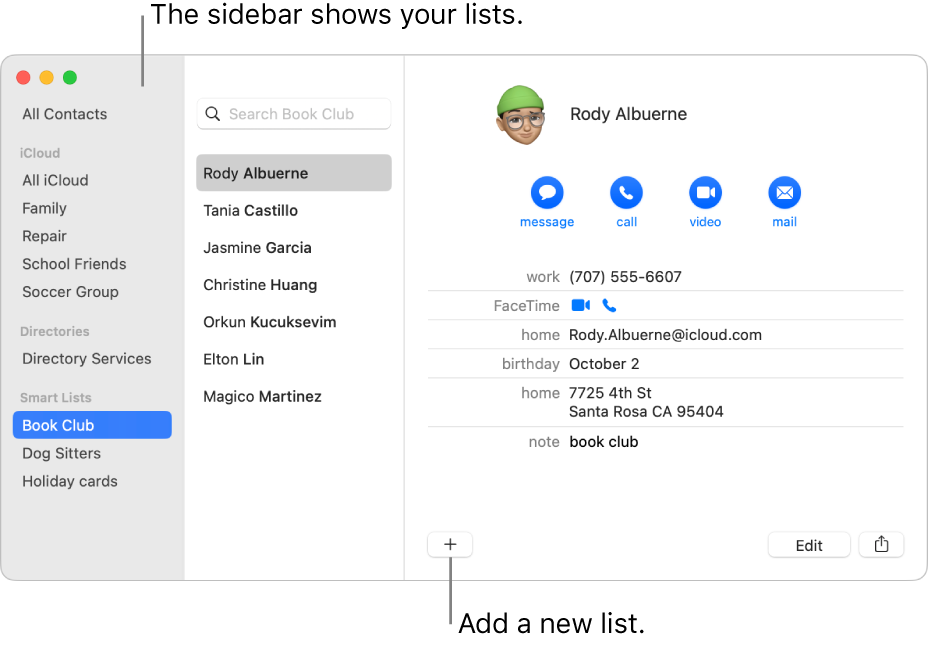
Create a list
 on your Mac, click the Add button
  near the bottom of the window, then choose New list.
Another way to create a list is to select one or more contacts listed in the sidebar, then choose File > New List From Selection.
If you use more than one account in Contacts, and All Contacts is selected in the sidebar when you create a list, the new list is added to the default account (as specified in Contacts General settings).
Add contacts to a list
on your Mac, select one or more contacts listed in the sidebar.If you use an Exchange account in Contacts, those contacts can belong to only one folder at a time. Any contacts that aren’t in a folder you create are in the default Exchange Contacts folder.
Remove contacts from a list
on your Mac, select the list in the sidebar.Create or delete a sublist
You can include a list within a list, to help streamline emailing the lists or printing their contact information.
In the Contacts app on your Mac, do one of the following:
Rename a list
on your Mac, select the list in the sidebar.To see which lists a contact belongs to, make sure the sidebar is shown, select a contact, then press and hold the Option key. Lists that include the contact are highlighted in blue in the sidebar.
You can create a Smart List that automatically includes or excludes contacts based on criteria you specify. See Create and change Smart Lists.
See also
Delete lists and Smart Lists in Contacts on Mac
Edit the distribution list for lists and Smart Lists in Contacts on Mac
Email a list or Smart List in Contacts on Mac
Delete contacts in Contacts on Mac"
We hope this helps.
Cheers!
Hello MimiBanks77,
Thanks for choosing the Apple Support Communities. If you're experiencing issues adding contacts to groups or lists on your Mac, we have a user guide that will help you through getting this resolved. Try following the steps below.
Create and change lists in Contacts on Mac - Apple Support
"Create and change lists in Contacts on Mac
You can organize your contacts into lists to work with them more easily. For example, if you regularly email people in a school list or on your cycling team, you can create a list and address your email to the list instead of each person.
Create a list
on your Mac, click the Add button near the bottom of the window, then choose New list.Another way to create a list is to select one or more contacts listed in the sidebar, then choose File > New List From Selection.
If you use more than one account in Contacts, and All Contacts is selected in the sidebar when you create a list, the new list is added to the default account (as specified in Contacts General settings).
Add contacts to a list
on your Mac, select one or more contacts listed in the sidebar.If you use an Exchange account in Contacts, those contacts can belong to only one folder at a time. Any contacts that aren’t in a folder you create are in the default Exchange Contacts folder.
Remove contacts from a list
on your Mac, select the list in the sidebar.Create or delete a sublist
You can include a list within a list, to help streamline emailing the lists or printing their contact information.
In the Contacts app on your Mac, do one of the following:
Rename a list
on your Mac, select the list in the sidebar.To see which lists a contact belongs to, make sure the sidebar is shown, select a contact, then press and hold the Option key. Lists that include the contact are highlighted in blue in the sidebar.
You can create a Smart List that automatically includes or excludes contacts based on criteria you specify. See Create and change Smart Lists.
See also
Delete lists and Smart Lists in Contacts on Mac
Edit the distribution list for lists and Smart Lists in Contacts on Mac
Email a list or Smart List in Contacts on Mac
Delete contacts in Contacts on Mac"
We hope this helps.
Cheers!
adding contacts

