Hello Danktuft,
Thank you for reaching out to Apple Support Communities, and we'll be happy to help in any way we can. We understand you're having issues with your iPad storage. We recommend follwoiong the steps here including connecting to a computer to see if the storage reads the same: https://support.apple.com/en-us/HT201656
"iOS and iPadOS monitor the storage on your device by analyzing how much space each app uses. You can also check the storage on your device in Settings, iTunes, or the Finder on your computer.
How iOS and iPadOS optimize storage
If your device is low on storage, it automatically frees up space while installing an app, updating iOS or iPadOS, downloading music, recording videos, and more.
To make more storage available, your device can remove some of your items, like streamed music and videos, files in iCloud Drive, and parts of apps that aren't needed. It also removes temporary files and clears the cache on your device. But your device only removes items that can be downloaded again or that aren't needed anymore.

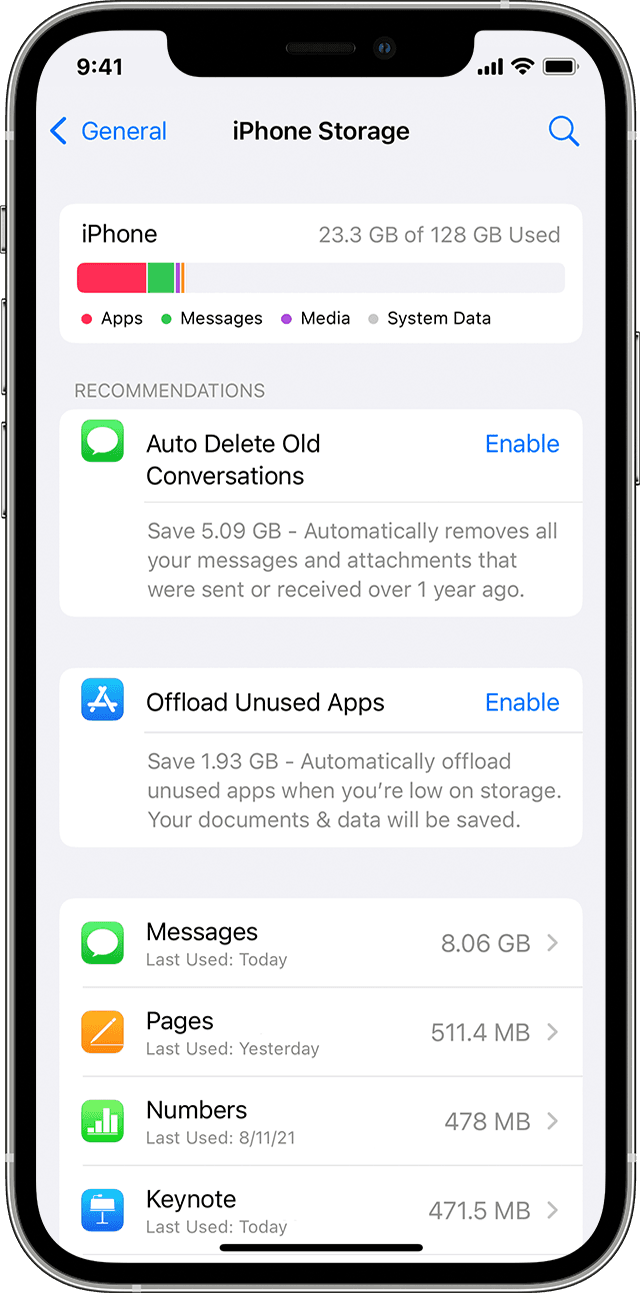
Use your device to check its storage
- Go to Settings > General > [Device] Storage. You might see a list of recommendations for optimizing your device's storage, followed by a list of installed apps and the amount of storage each one uses.
- Tap an app's name for more information about its storage. Cached data and temporary data might not be counted as usage.
In the detailed view you can:
- Offload the app, which frees up storage used by the app, but keeps its documents and data.
- Delete the app, which removes the app and its related data.
- Depending on the app, you might be able to delete some of its documents and data.
If your device is almost full and can't free up space, you might get a Storage Almost Full alert. If you see this alert, you should check the storage recommendations or you need to offload some less-used content like videos and apps.
Content categories
The used content on your device is divided in these categories:
- Apps: Installed apps and their content, and content stored in "On My iPhone/iPad/iPod touch" directory in the Files app, and Safari downloads
- Photos: Photos and videos stored in the Photos app
- Media: Music, videos, podcasts, ringtones, artwork, and Voice Memos
- Mail: Emails and their attachments
- Apple Books: Books and PDFs in the Books app
- Messages: Messages and their attachments
- iCloud Drive: iCloud Drive content that has been downloaded locally to your device. This content can't be automatically deleted.
- Other: Non-removable mobile assets, like Siri voices, fonts, dictionaries, non-removable logs and caches, Spotlight index, and system data, such as Keychain and CloudKit Database. Cached files can't be deleted by the system.
- System: Space taken by the operating system. This can vary based on your device and model.
Use recommendations to optimize storage
In the Storage section of Settings, your device might offer recommendations for optimizing your storage. To optimize your storage:
- Tap Show All to see all the recommendations for your device.
- Read the description of each recommendation, then tap Enable to turn it on or tap the recommendation to review the contents you can delete.
Use the Finder or iTunes to check the storage on your iOS device
- On a Mac with macOS Catalina 10.15 or later, open the Finder. On a Mac with macOS Mojave 10.14 or earlier, or on a PC, open iTunes.
- Connect your device to your computer.
- Select your device in the Finder or in iTunes. You'll see a bar that shows how much storage your content uses, divided by content type.
- Move your mouse over the bar to see how much storage each content type is using.
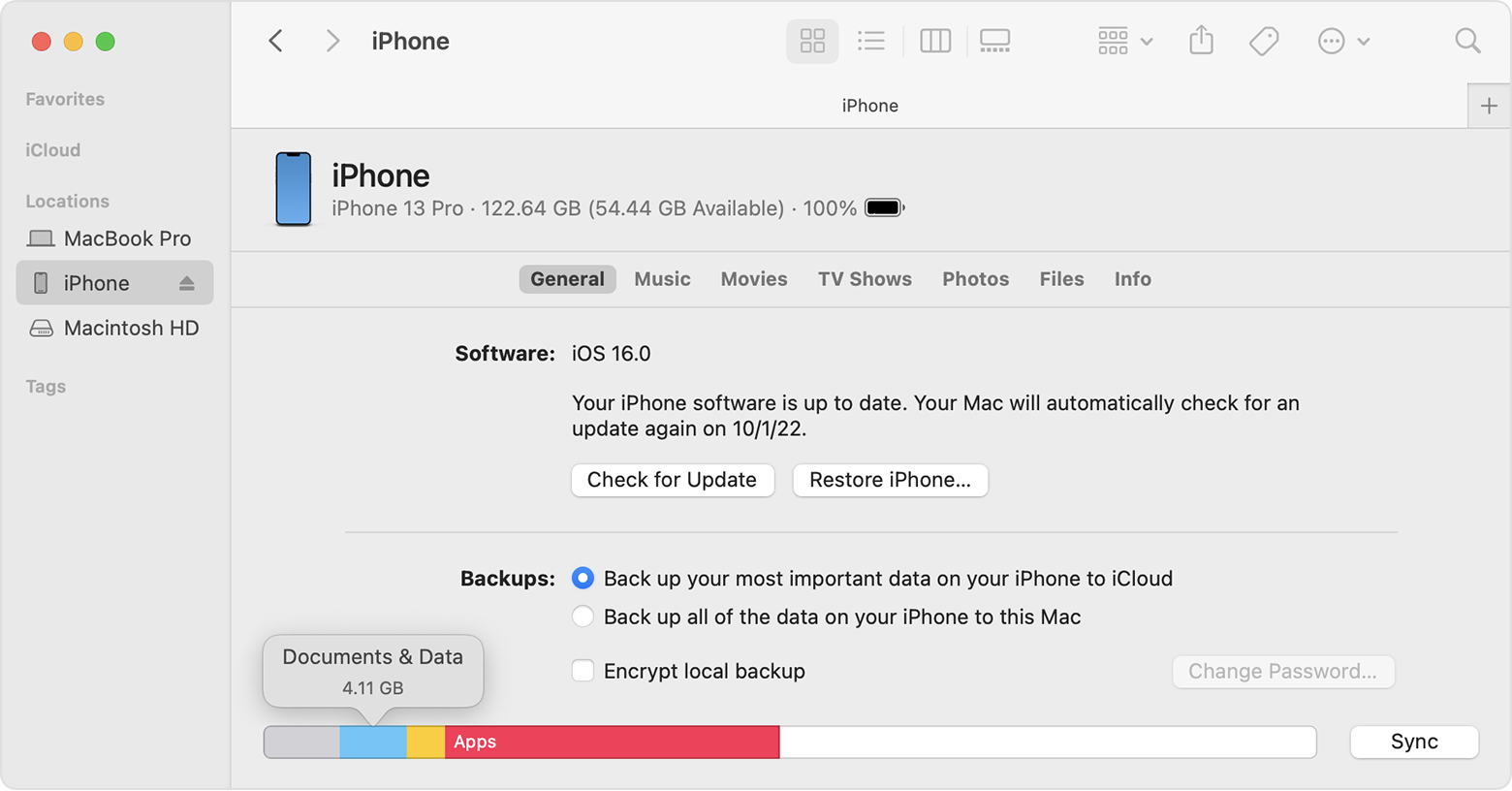
Here's a list of the types of content on your device, and what each type includes:
- Audio: Songs, audio podcasts, audiobooks, voice memos, and ringtones.
- Video: Movies, music videos, and TV shows.
- Photos: Content in your Photo Library, Camera Roll, and Photo Stream.
- Apps: Installed apps. The content of the apps is listed under Documents & Data.
- Books: iBooks books, audio books, and PDF files.
- Documents & Data: Safari Offline Reading List, files stored within installed apps, and app content like contacts, calendars, messages, and emails (and their attachments).
- Other: Settings, Siri voices, system data, and cached files.
About cached files in "Other"
The Finder and iTunes categorize cached music, videos, and photos as Other instead of actual songs, videos, or photos. Cached files are created when you stream or view content like music, videos, and photos. When you stream music or video, that content is stored as cached files on your device so you can quickly access it again.
Your device automatically removes cached files and temporary files when your device needs more space.
If storage on your device differs from what you see in the Finder or iTunes
Since the Finder and iTunes categorize cached files as Other, reported usage for Music or Videos might differ. To view usage on your device, go to Settings > General > [Device] Storage.
If you want to delete the cached files from your device
Your device automatically deletes cached files and temporary files when it needs more space. You don't need to delete them yourself."
We hope this helps.
Cheers!


