Passcodes sent to iPhone no longer appear above iPad on-screen keyboard

In order to correct an issue, Apple had me erase all data and reinstall everything from fresh. Since doing that, the security passcodes that are sent to my iPhone no long appear above the iPad’s on-screen keyboard so I can easily fill in the security code. I’m sure it’s just a setting on either my iPhone or iPad; but I don’t know which device and where the setting resides.

iPad Pro, 16

Posted on Dec 6, 2022 9:23 AM

Reply
Question marked as Top-ranking reply

Posted on Dec 8, 2022 1:22 PM

Hey TeresaUsa,


It sounds like you need to set up the Continuity features between your devices again: Automatically fill in SMS passcodes on iPhone - Apple Support


Just in case, here's an overview of the various Continuity features with links for the correct settings. This way you can be sure to set up all the features you want: Use Continuity to connect your Mac, iPhone, iPad, and Apple Watch - Apple Support


For this specific setting of autofilling the code, you'll want to set up "Text Message Forwarding", and here's how: Forward SMS/MMS text messages from your iPhone to your Mac or iPad - Apple Support


Set up text message forwarding

Make sure that you're signed in to iMessage with the same Apple ID on each device:

• iPhone or iPad: Check the Apple ID shown in Settings > Messages > Send & Receive.
• Mac: Open Messages, choose Messages > Settings (or Preferences), then click iMessage. Check the Apple ID shown.

On your iPhone, go to Settings > Messages > Text Message Forwarding.* Then choose which devices can send and receive text messages from your iPhone. If you're not using two-factor authentication for your Apple ID, a verification code appears on each of your other devices: enter that code on your iPhone.
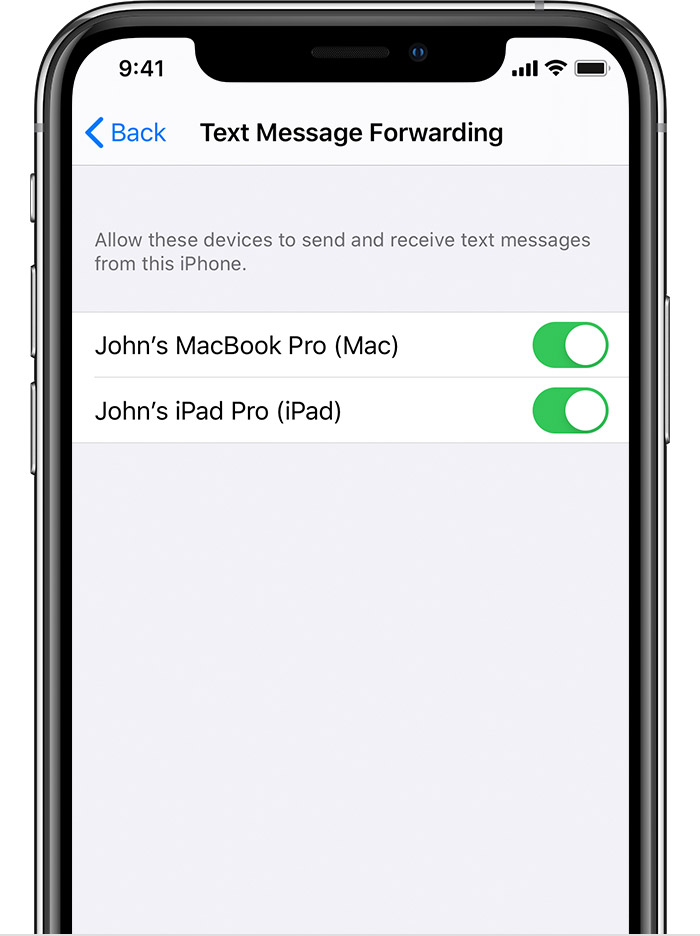
As long as your iPhone is turned on and connected to Wi-Fi or a cellular network, new SMS/MMS texts can be sent and received on the devices that you added.


Thanks for participating in Apple Support Communities.


Take care!

1 reply
Question marked as Top-ranking reply

Dec 8, 2022 1:22 PM in response to TeresaUsa

Hey TeresaUsa,


It sounds like you need to set up the Continuity features between your devices again: Automatically fill in SMS passcodes on iPhone - Apple Support


Just in case, here's an overview of the various Continuity features with links for the correct settings. This way you can be sure to set up all the features you want: Use Continuity to connect your Mac, iPhone, iPad, and Apple Watch - Apple Support


For this specific setting of autofilling the code, you'll want to set up "Text Message Forwarding", and here's how: Forward SMS/MMS text messages from your iPhone to your Mac or iPad - Apple Support


Set up text message forwarding

Make sure that you're signed in to iMessage with the same Apple ID on each device:

• iPhone or iPad: Check the Apple ID shown in Settings > Messages > Send & Receive.
• Mac: Open Messages, choose Messages > Settings (or Preferences), then click iMessage. Check the Apple ID shown.

On your iPhone, go to Settings > Messages > Text Message Forwarding.* Then choose which devices can send and receive text messages from your iPhone. If you're not using two-factor authentication for your Apple ID, a verification code appears on each of your other devices: enter that code on your iPhone.

As long as your iPhone is turned on and connected to Wi-Fi or a cellular network, new SMS/MMS texts can be sent and received on the devices that you added.


Thanks for participating in Apple Support Communities.


Take care!

This thread has been closed by the system or the community team. You may vote for any posts you find helpful, or search the Community for additional answers.

Passcodes sent to iPhone no longer appear above iPad on-screen keyboard

Welcome to Apple Support Community
A forum where Apple customers help each other with their products. Get started with your Apple Account.