
My I phone camera isn’t working
My phone torch, camera , SIM card network isn’t working
My phone torch, camera , SIM card network isn’t working
Hello Javierperes,
Thanks for choosing the Apple Support Communities. We see your camera and flash aren't working, and you are not able to get a cellular signal. We have a few steps that can help. Please follow them below.
If the camera or flash on your iPhone, iPad, or iPod touch isn't working - Apple Support
"If the camera or flash on your iPhone, iPad, or iPod touch isn't working
If your photos are blurry or the camera screen is black, here's what to do.
Remove case, accessory, or film and test
 .
.If the flash works only sometimes, open the Camera app and tap the flash button  to choose a different setting.
Contact Apple Support
If the camera or flash still isn't working properly, contact Apple Support to discuss service options.
If you want to try more steps on your own
If you prefer, here are some more steps you can try on your own if the camera isn't working. You might still need to contact Apple Support after following these steps.
 ."
."There are a few different scenarios that could be occurring based on your description of your SIM card not working. Let's explore each.
If you see No Service, Searching, or SOS on your iPhone or iPad - Apple Support
"If you see No Service or Searching in the status bar on your iPhone or iPad (Wi-Fi + Cellular), your device isn't connected to a cellular network. If you see SOS or "SOS only" in the status bar, your device can still make emergency calls.
Check your coverage area
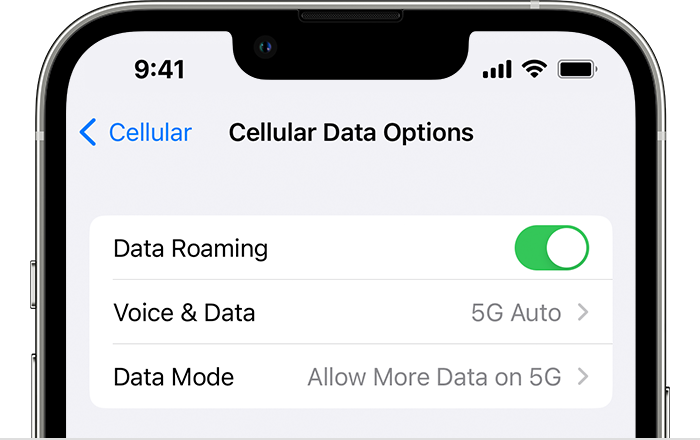

If you see SOS or SOS only
If you see SOS or "SOS only" in the status bar, your device isn't connected to a network, but you can still make emergency calls. This feature is available in Australia, Canada, and the United States.
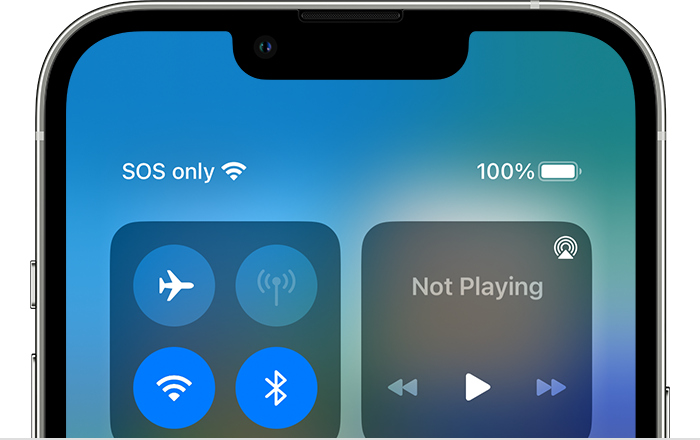
If you're on AT&T's 3G network
AT&T is phasing out their 3G network. If you see No Service in the status bar of your device and you have an iPhone 5s, iPhone 5c, or earlier or an iPad 2 Wi-Fi + Cellular or earlier, contact your carrier to discuss your options. If you have an iPhone 6 or later or an iPad (3rd generation) or later, follow these steps:
If you still see No Service after following these steps, contact your carrier.
iPhone and iPad devices that support 5G networks are not affected by the phasing out of 3G networks.
Restart your iPhone or iPad
Restart your device. If you're not sure how to do this, follow these steps to restart your iPhone or restart your iPad.
Check for a Carrier Settings update
To manually check for and install a carrier settings update:
If you insert a new SIM card into your iPhone or iPad, you need to download the carrier settings for your new carrier.
Turn your cellular line off and back on
Go to Settings > Cellular and check to see if your cellular line is turned on. If your cellular line is off, turn it back on. Then check to see if you have service.
If you don't see your cellular line in Settings > Cellular, you should set up an eSIM or insert a physical SIM card. If you're using a physical SIM card, remove the SIM card and put it back in.
If your SIM card is damaged, doesn't fit in the SIM tray, or you transferred your physical SIM card from another device, ask your carrier for a new SIM card.
Learn more about removing your iPhone SIM card or iPad SIM card.
Reset your Network Settings
Go to Settings > General > Transfer or Reset [Device] > Reset > Reset Network Settings. This also resets Wi-Fi networks and passwords, cellular settings, and VPN and APN settings that you've used before.
Update your iPhone or iPad
Update your iPhone or iPad to the latest version of iOS or iPadOS.
Contact your carrier
Issues with your carrier or account might affect your service. Contact your carrier to:
Only your wireless carrier can access and manage details about your account:
Get more help
If your carrier confirms that there's no issue with your account or network, but you still can't connect to a cellular network, contact Apple Support.
If you see an alert next to No Service, learn what you can do."
If you see 'invalid SIM' or 'no SIM' on your iPhone or iPad - Apple Support
"If you see 'invalid SIM' or 'no SIM' on your iPhone or iPad
If you get an alert that says Invalid SIM or No SIM Card installed, follow these steps.
If you still see an alert about your SIM card, contact Apple support.
Learn what to do if you see a SIM not supported alert."
We hope this helps.
Cheers!
Hello Javierperes,
Thanks for choosing the Apple Support Communities. We see your camera and flash aren't working, and you are not able to get a cellular signal. We have a few steps that can help. Please follow them below.
If the camera or flash on your iPhone, iPad, or iPod touch isn't working - Apple Support
"If the camera or flash on your iPhone, iPad, or iPod touch isn't working
If your photos are blurry or the camera screen is black, here's what to do.
Remove case, accessory, or film and test
.If the flash works only sometimes, open the Camera app and tap the flash button to choose a different setting.
Contact Apple Support
If the camera or flash still isn't working properly, contact Apple Support to discuss service options.
If you want to try more steps on your own
If you prefer, here are some more steps you can try on your own if the camera isn't working. You might still need to contact Apple Support after following these steps.
."There are a few different scenarios that could be occurring based on your description of your SIM card not working. Let's explore each.
If you see No Service, Searching, or SOS on your iPhone or iPad - Apple Support
"If you see No Service or Searching in the status bar on your iPhone or iPad (Wi-Fi + Cellular), your device isn't connected to a cellular network. If you see SOS or "SOS only" in the status bar, your device can still make emergency calls.
Check your coverage area
If you see SOS or SOS only
If you see SOS or "SOS only" in the status bar, your device isn't connected to a network, but you can still make emergency calls. This feature is available in Australia, Canada, and the United States.
If you're on AT&T's 3G network
AT&T is phasing out their 3G network. If you see No Service in the status bar of your device and you have an iPhone 5s, iPhone 5c, or earlier or an iPad 2 Wi-Fi + Cellular or earlier, contact your carrier to discuss your options. If you have an iPhone 6 or later or an iPad (3rd generation) or later, follow these steps:
If you still see No Service after following these steps, contact your carrier.
iPhone and iPad devices that support 5G networks are not affected by the phasing out of 3G networks.
Restart your iPhone or iPad
Restart your device. If you're not sure how to do this, follow these steps to restart your iPhone or restart your iPad.
Check for a Carrier Settings update
To manually check for and install a carrier settings update:
If you insert a new SIM card into your iPhone or iPad, you need to download the carrier settings for your new carrier.
Turn your cellular line off and back on
Go to Settings > Cellular and check to see if your cellular line is turned on. If your cellular line is off, turn it back on. Then check to see if you have service.
If you don't see your cellular line in Settings > Cellular, you should set up an eSIM or insert a physical SIM card. If you're using a physical SIM card, remove the SIM card and put it back in.
If your SIM card is damaged, doesn't fit in the SIM tray, or you transferred your physical SIM card from another device, ask your carrier for a new SIM card.
Learn more about removing your iPhone SIM card or iPad SIM card.
Reset your Network Settings
Go to Settings > General > Transfer or Reset [Device] > Reset > Reset Network Settings. This also resets Wi-Fi networks and passwords, cellular settings, and VPN and APN settings that you've used before.
Update your iPhone or iPad
Update your iPhone or iPad to the latest version of iOS or iPadOS.
Contact your carrier
Issues with your carrier or account might affect your service. Contact your carrier to:
Only your wireless carrier can access and manage details about your account:
Get more help
If your carrier confirms that there's no issue with your account or network, but you still can't connect to a cellular network, contact Apple Support.
If you see an alert next to No Service, learn what you can do."
If you see 'invalid SIM' or 'no SIM' on your iPhone or iPad - Apple Support
"If you see 'invalid SIM' or 'no SIM' on your iPhone or iPad
If you get an alert that says Invalid SIM or No SIM Card installed, follow these steps.
If you still see an alert about your SIM card, contact Apple support.
Learn what to do if you see a SIM not supported alert."
We hope this helps.
Cheers!
My I phone camera isn’t working

