Air Pod Pro keeps dropping phone calls to my iPhone XS MAX - how to fix this?

Air Pod Pro keeps dropping phone calls to my iPhone XS MAX - how to fix this?

iPhone XS Max, 16

Posted on Dec 8, 2022 1:13 PM

Reply
Question marked as Top-ranking reply

Posted on Dec 11, 2022 3:42 PM

Hi Padre_PioPrays,


We'd recommend resolving the issue by isolating to see if the issue occurs when you are not using the AirPods. If the issue still occurs when you are not using the AirPods, then please complete the steps listed here: If you can't make or receive calls on your iPhone - Apple Support that are also listed below.


"If you can't make or receive calls on your iPhone

Find out what to do if you see "No Service" or "Searching" in the status bar. If you can't make or receive calls on your iPhone, follow these steps, testing after each step:


Contact your carrier

When you contact your carrier, make sure that:

  • Your account is set up to use your iPhone.
  • There aren't any localized service outages.
  • Your account doesn't have a billing-related block.
  • Your calls don't have errors on the carrier system.


Update your software

  1. Check for a carrier settings update.
  2. Check for an iOS software update. Some updates might require a Wi-Fi connection.


Check your iPhone settings

  1. Turn Airplane Mode on and off. Go to Settings and turn on Airplane Mode, wait five seconds, then turn it off.
  2. Check Do Not Disturb. Go to Settings > Focus > Do Not Disturb and make sure it's off.
  3. Check for any blocked phone numbers. Go to Settings > Phone > Blocked Contacts.
  4. See if Call Forwarding is turned on. Go to Settings > Phone > Call Forwarding and make sure it's off.
  5. Check to see if Silence Unknown Callers is turned on. If the setting is on, a caller must be listed in your Contacts or Recents. Or they must have shared their number in Mail or sent you a message using that number in order for their call to go through. Add their number to Contacts to ensure the phone rings. Calls from some third-party apps might not go through.


Check your network settings

  1. Reset your network settings. Go to Settings > General > Transfer or Reset iPhone > Reset > Reset Network Settings. This will erase all current saved settings, including Wi-Fi passwords, preferred networks, and VPN settings.
  2. Try to make or receive calls in another location."


If the issue only occurs when using your AirPods, then we'd recommend completing the steps listed here: If your AirPods won't connect - Apple Support that are also listed below.


"If you can't connect to your iPhone, iPad, or iPod touch
  1. Make sure that your iPhone or iPod touch has the latest version of iOS or that your iPad has the latest version of iPadOS.
  2. Put both AirPods in the charging case and make sure that both AirPods are charging.
  3. To make sure that Bluetooth is on, go to Settings > Bluetooth.
  4. If your AirPods are connected, make sure that they're selected as your audio device. If your AirPods appear in the list of devices but they don't connect, go to the next step.
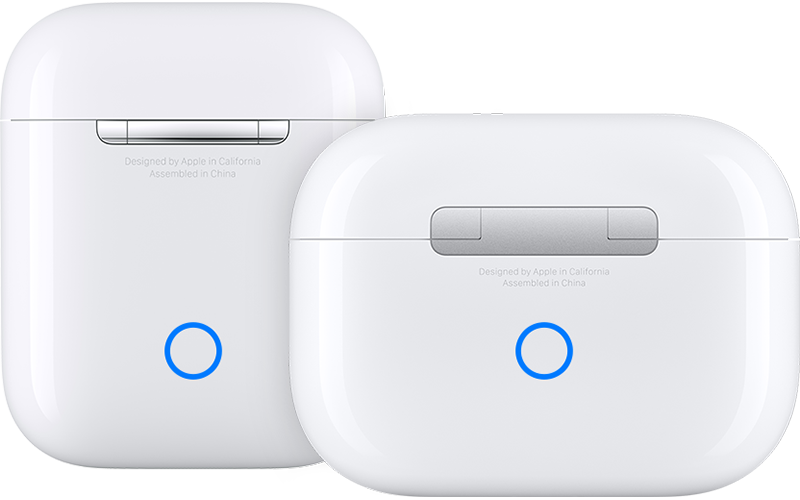
  5. Close the lid, wait 15 seconds, then open the lid. Press and hold the setup button on the back of the charging case for up to 10 seconds. The status light on the front of the charging case should flash white, which means that your AirPods are ready to connect.

AirPods charging cases

6. Hold the charging case, with your AirPods inside and the lid open, next to your iPhone, iPad, or iPod touch.

7. Follow the steps on the screen of your iPhone, iPad, or iPod touch.

8. Test your AirPods. If you still can't connect, reset your AirPods."


Best regards.


3 replies
Question marked as Top-ranking reply

Dec 11, 2022 3:42 PM in response to Padre_PioPrays

Hi Padre_PioPrays,


We'd recommend resolving the issue by isolating to see if the issue occurs when you are not using the AirPods. If the issue still occurs when you are not using the AirPods, then please complete the steps listed here: If you can't make or receive calls on your iPhone - Apple Support that are also listed below.


"If you can't make or receive calls on your iPhone

Find out what to do if you see "No Service" or "Searching" in the status bar. If you can't make or receive calls on your iPhone, follow these steps, testing after each step:


Contact your carrier

When you contact your carrier, make sure that:

  • Your account is set up to use your iPhone.
  • There aren't any localized service outages.
  • Your account doesn't have a billing-related block.
  • Your calls don't have errors on the carrier system.


Update your software

  1. Check for a carrier settings update.
  2. Check for an iOS software update. Some updates might require a Wi-Fi connection.


Check your iPhone settings

  1. Turn Airplane Mode on and off. Go to Settings and turn on Airplane Mode, wait five seconds, then turn it off.
  2. Check Do Not Disturb. Go to Settings > Focus > Do Not Disturb and make sure it's off.
  3. Check for any blocked phone numbers. Go to Settings > Phone > Blocked Contacts.
  4. See if Call Forwarding is turned on. Go to Settings > Phone > Call Forwarding and make sure it's off.
  5. Check to see if Silence Unknown Callers is turned on. If the setting is on, a caller must be listed in your Contacts or Recents. Or they must have shared their number in Mail or sent you a message using that number in order for their call to go through. Add their number to Contacts to ensure the phone rings. Calls from some third-party apps might not go through.


Check your network settings

  1. Reset your network settings. Go to Settings > General > Transfer or Reset iPhone > Reset > Reset Network Settings. This will erase all current saved settings, including Wi-Fi passwords, preferred networks, and VPN settings.
  2. Try to make or receive calls in another location."


If the issue only occurs when using your AirPods, then we'd recommend completing the steps listed here: If your AirPods won't connect - Apple Support that are also listed below.


"If you can't connect to your iPhone, iPad, or iPod touch

  1. Make sure that your iPhone or iPod touch has the latest version of iOS or that your iPad has the latest version of iPadOS.
  2. Put both AirPods in the charging case and make sure that both AirPods are charging.
  3. To make sure that Bluetooth is on, go to Settings > Bluetooth.
  4. If your AirPods are connected, make sure that they're selected as your audio device. If your AirPods appear in the list of devices but they don't connect, go to the next step.
  5. Close the lid, wait 15 seconds, then open the lid. Press and hold the setup button on the back of the charging case for up to 10 seconds. The status light on the front of the charging case should flash white, which means that your AirPods are ready to connect.

AirPods charging cases

6. Hold the charging case, with your AirPods inside and the lid open, next to your iPhone, iPad, or iPod touch.

7. Follow the steps on the screen of your iPhone, iPad, or iPod touch.

8. Test your AirPods. If you still can't connect, reset your AirPods."


Best regards.


Jan 11, 2023 2:23 AM in response to K_Wall44

I have the same issue. Received new replacement Airpods Pro 2 from the Apple store today and issue still occurs. So definitely a software or hardware issue with the iPhone XS Max and not the airpods themselves.


When the Airpods are connected and I answer an incoming call they immediately drop out and disconnect and it takes ~13 seconds into the call for them the reconnect to the phone and actually work.

This thread has been closed by the system or the community team. You may vote for any posts you find helpful, or search the Community for additional answers.

Air Pod Pro keeps dropping phone calls to my iPhone XS MAX - how to fix this?

Welcome to Apple Support Community
A forum where Apple customers help each other with their products. Get started with your Apple Account.