Macbook pro stuck after successful login screen

Hi,

I wanted to migrate from old macbook pro to a new (Intel based) mojave laptop


I took time machine backup and connected to the new laptop, and the hard disc was not detected in migration utility "From..."


So I removed SSD from old and attached directly, it complained case sensitivity issue - old was case sensitive and new mojave is NOT.


Next I attached SSD back to old (as-is) and because I opened the case I thought to add extra RAM , which I had used in the past( original was 2 x 2 GB ) and installed 2 x 4GB , as I wanted to make my old mac (2011) migrate to mojave and then may be my new mac will accept migration.


Now it is a disaster kind of. tried nvram etc etc. Not able to go to safe mode.

(Able to go via guest, but can do nothing there)

Please advice on how can I fix my laptop


Thank you


Posted on Dec 9, 2022 5:47 AM

Reply

Similar questions

6 replies

Dec 20, 2022 6:37 AM in response to KrisViks

KrisViks,


The link in the information above leads to the steps below and if needed, the article here: How to repair a Mac disk with Disk Utility


"Open Disk Utility

In general, you can just open Disk Utility from the Utilities folder of your Applications folder. However, if your Mac doesn't start up all the way, or you want to repair the disk your Mac starts up from, open Disk Utility from macOS Recovery:

  1. Determine whether you're using a Mac with Apple silicon, then follow the appropriate steps:
    • Apple silicon: Turn on your Mac and continue to press and hold the power button until you see the startup options window. Click the gear icon labeled Options, then click Continue.
    • Intel processor: Turn on your Mac, then immediately press and hold these two keys until you see an Apple logo or other image: Command (⌘) and R.

2.You may be asked to select a user you know the password for. Select the user, then click Next and enter their administrator password.

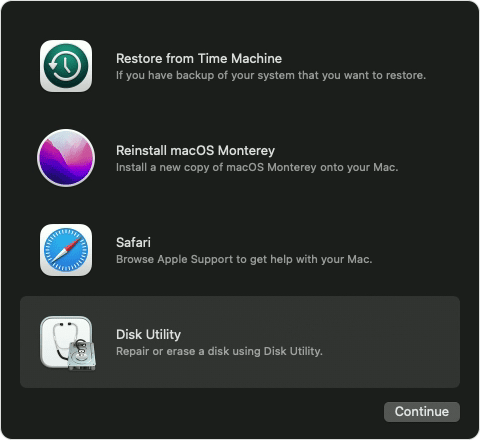
3.From the utilities window in macOS Recovery, select Disk Utility and click Continue.

macOS Recovery options with Disk Utility selected"


Cheers.


Dec 12, 2022 9:51 AM in response to KrisViks

Hi KrisViks,


Welcome to Apple Support Communities. We understand that you're having an issue with your Mac loading correctly. We'd like to help.


Sounds like you've tried some good steps so far. Since you're still experiencing this issue, let's see if these help you out:


If your Mac is stuck on this screen or keeps restarting
If startup never progresses beyond an Apple logo or progress bar:
1. Press and hold the power button on your Mac for up to 10 seconds, until your Mac turns off.. Every Mac has a power button. On laptop computers that have Touch ID, press and hold Touch ID.
2. Turn your Mac back on. 
3. If the issue persists, press and hold the power button until your Mac turns off. Then unplug all nonessential accessories from your Mac, including printers, drives, and USB hubs. You could have an issue with one or more of those devices or their cables. 
4. Turn your Mac back on.
5. If the issue persists, once again press and hold the power button until your Mac turns off. 
6. Repair your startup disk as described in How to repair a Mac disk with Disk Utility.
7. If the issue persists, reinstall macOS from macOS Recovery.


Let us know how that goes.

Take care!


This thread has been closed by the system or the community team. You may vote for any posts you find helpful, or search the Community for additional answers.

Macbook pro stuck after successful login screen

Welcome to Apple Support Community
A forum where Apple customers help each other with their products. Get started with your Apple Account.