Go back to backup
Need to recover setup from earlier backup
iPhone 12 Pro Max
Need to recover setup from earlier backup
iPhone 12 Pro Max
Hello rodneyfair,
Backups contain different data, depending on how they were created. Most settings are saved in backups. The article you came from shows you what is included in iCloud backups. You can see what the different types of backups contain here: Backup methods for iPhone, iPad, and iPod touch - Apple Support
If you need assistance locating backups, take a look here: Locate backups of your iPhone, iPad, and iPod touch - Apple Support
Once you have located the backup, you can restore a iOS iCloud backup using these steps found at Restore your iPhone, iPad, or iPod touch from a backup - Apple Support
Restore your device from an iCloud backup
1. Turn on your device. You should see a Hello screen. If you already set up your device, you need to erase all of its content before you can use these steps to restore from your backup.
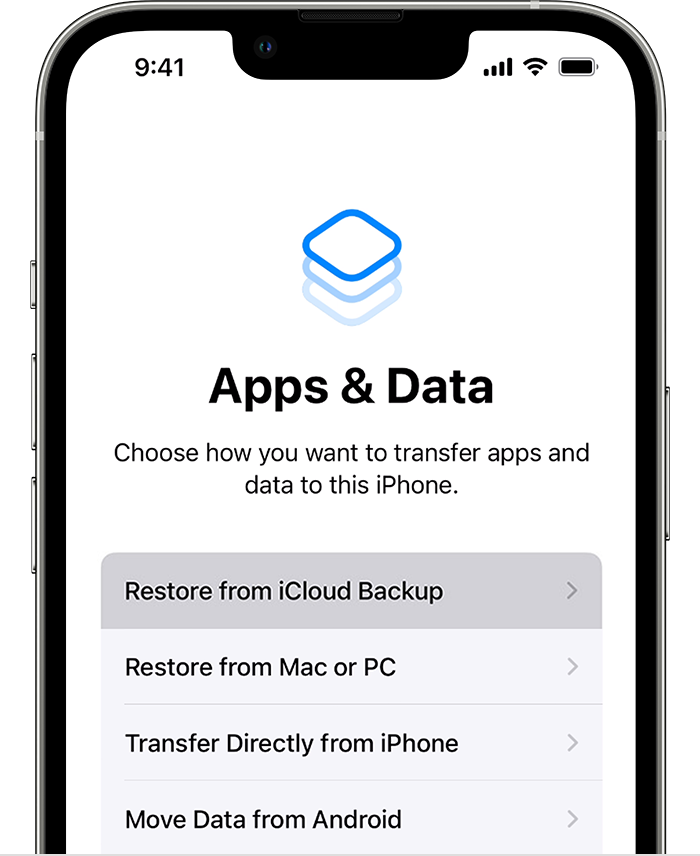
2. Follow the onscreen setup steps until you reach the Apps & Data screen, then tap Restore from iCloud Backup.
3. Sign in to iCloud with your Apple ID.
4. Choose a backup. Look at the date and size of each and pick the most relevant. After you choose a backup, the transfer starts. If a message says that a newer version of software is required, follow the onscreen steps to update. If you don't see onscreen steps to help you update, learn what to do.
5. When asked, sign in with your Apple ID to restore your apps and purchases. If you've purchased iTunes or App Store content using multiple Apple IDs, you'll be asked to sign in to each. If you can't remember your password, you can tap Skip this Step and sign in later. You won't be able to use the apps until you sign in with your Apple ID.
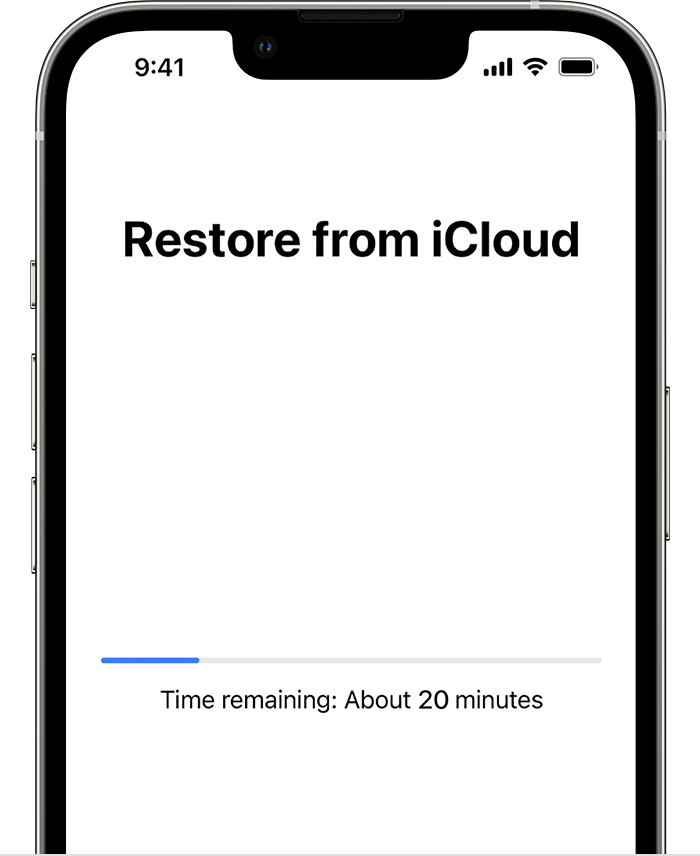
6. Stay connected to Wi-Fi and wait for a progress bar to appear and complete. Depending on the size of the backup and the network speed, the progress bar might need a few minutes to an hour to complete. If you disconnect from Wi-Fi too soon, the progress will pause until you reconnect.
7. Now you can finish setup and enjoy your device. Content like your apps, photos, music, and other information will continue to restore in the background for the next several hours or days, depending on the amount of information there is. Try to connect often to Wi-Fi and power to let the process complete.
Steps to restore a backup from a computer can be located at the same place.
Keep in mind that when you restore a backup, all the data currently on the device will be replaced by the contents of the backup you select to use.
Have a good day.
Hello rodneyfair,
Backups contain different data, depending on how they were created. Most settings are saved in backups. The article you came from shows you what is included in iCloud backups. You can see what the different types of backups contain here: Backup methods for iPhone, iPad, and iPod touch - Apple Support
If you need assistance locating backups, take a look here: Locate backups of your iPhone, iPad, and iPod touch - Apple Support
Once you have located the backup, you can restore a iOS iCloud backup using these steps found at Restore your iPhone, iPad, or iPod touch from a backup - Apple Support
Restore your device from an iCloud backup
1. Turn on your device. You should see a Hello screen. If you already set up your device, you need to erase all of its content before you can use these steps to restore from your backup.
2. Follow the onscreen setup steps until you reach the Apps & Data screen, then tap Restore from iCloud Backup.
3. Sign in to iCloud with your Apple ID.
4. Choose a backup. Look at the date and size of each and pick the most relevant. After you choose a backup, the transfer starts. If a message says that a newer version of software is required, follow the onscreen steps to update. If you don't see onscreen steps to help you update, learn what to do.
5. When asked, sign in with your Apple ID to restore your apps and purchases. If you've purchased iTunes or App Store content using multiple Apple IDs, you'll be asked to sign in to each. If you can't remember your password, you can tap Skip this Step and sign in later. You won't be able to use the apps until you sign in with your Apple ID.
6. Stay connected to Wi-Fi and wait for a progress bar to appear and complete. Depending on the size of the backup and the network speed, the progress bar might need a few minutes to an hour to complete. If you disconnect from Wi-Fi too soon, the progress will pause until you reconnect.
7. Now you can finish setup and enjoy your device. Content like your apps, photos, music, and other information will continue to restore in the background for the next several hours or days, depending on the amount of information there is. Try to connect often to Wi-Fi and power to let the process complete.
Steps to restore a backup from a computer can be located at the same place.
Keep in mind that when you restore a backup, all the data currently on the device will be replaced by the contents of the backup you select to use.
Have a good day.
Go back to backup