
Enter the passcode you use to unlock the iphone “iPhone”
I entered my password and it does not work. What the heck does this mean? —Enter the passcode you use to unlock the iphone “iPhone”—
MacBook Pro
I entered my password and it does not work. What the heck does this mean? —Enter the passcode you use to unlock the iphone “iPhone”—
MacBook Pro
Hey there, and welcome to Apple Support Communities Yujelus,
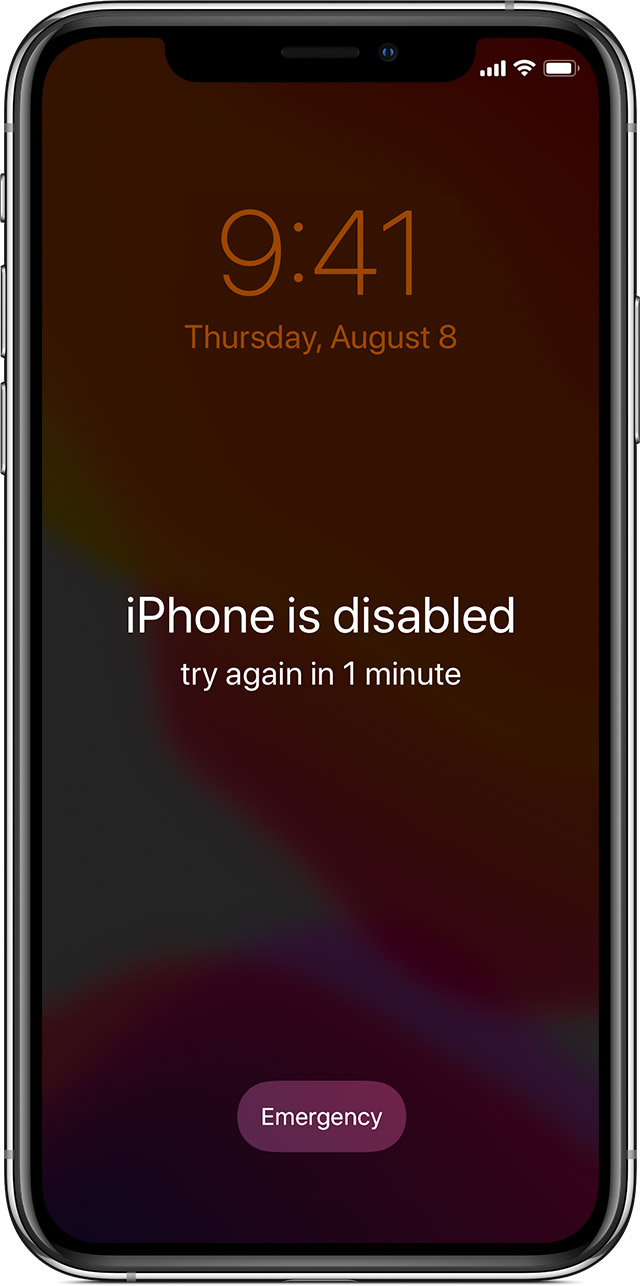
We can certainly understand your concern and see you came to us from the article Use a passcode with your iPhone, iPad, or iPod touch.
We recommend checking out these steps for more information on what to do if you forgot your devices password.
"
Step 1: Make sure that you have a computer (Mac or PC)
This process requires a Mac or PC. If you're using a PC, make sure that it has Windows 10 or later, and that iTunes is installed. You also need the cable that came with your iPhone, or another compatible cable, to connect your iPhone to the computer.
If you don't have a computer and you can't borrow one, you need to go to an Apple Retail Store or Apple Authorized Service Provider for help.

Step 2: Turn off your iPhone
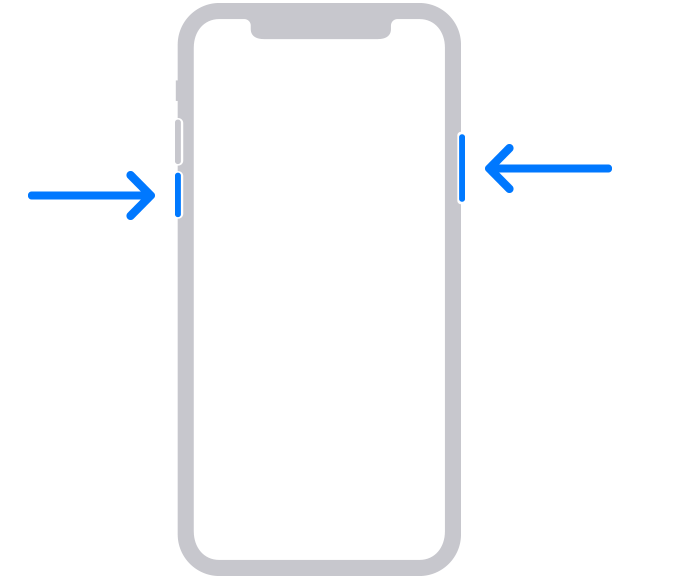
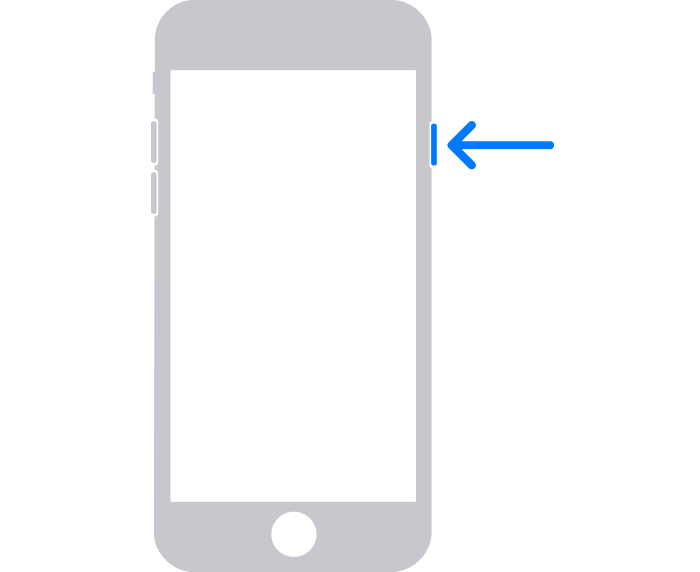
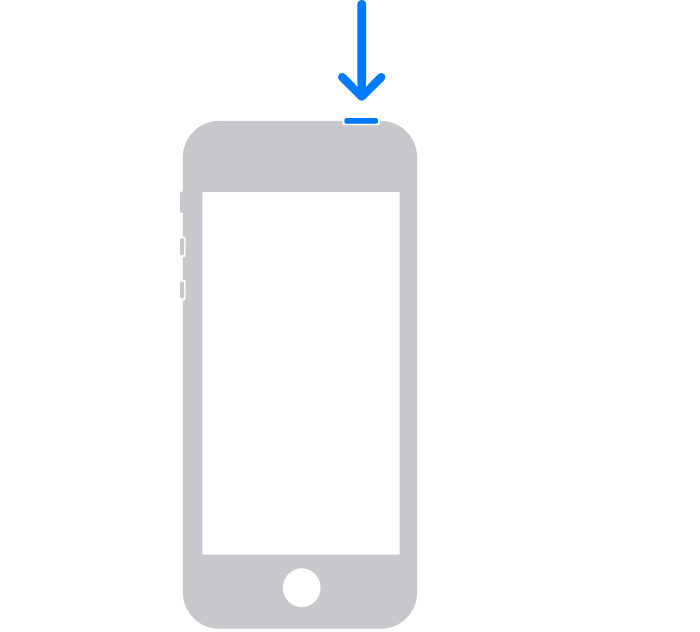
3. Drag the slider to turn off your iPhone, then wait a minute to make sure that it turns off completely.
Step 3: Put your iPhone in recovery mode
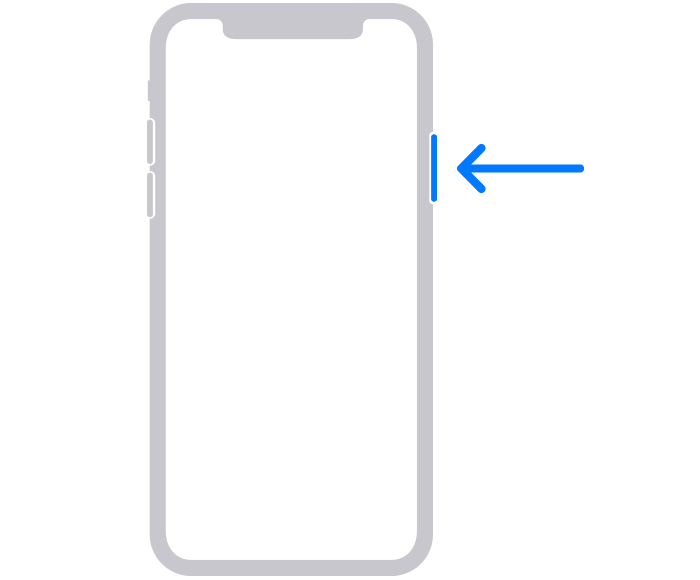
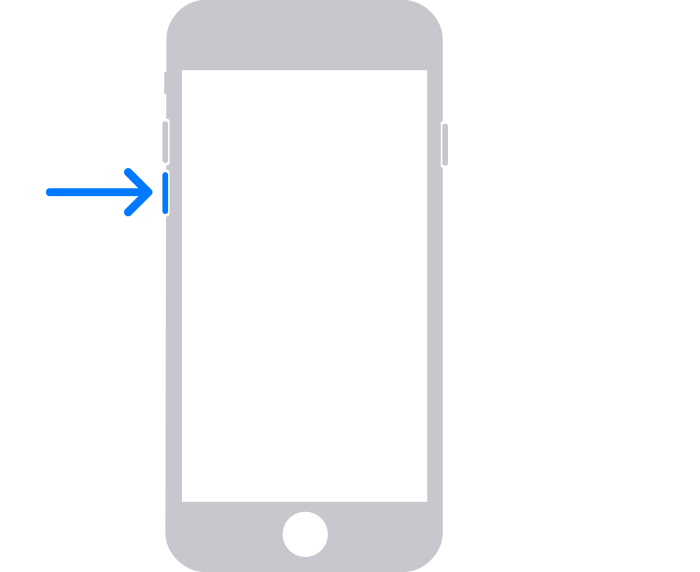
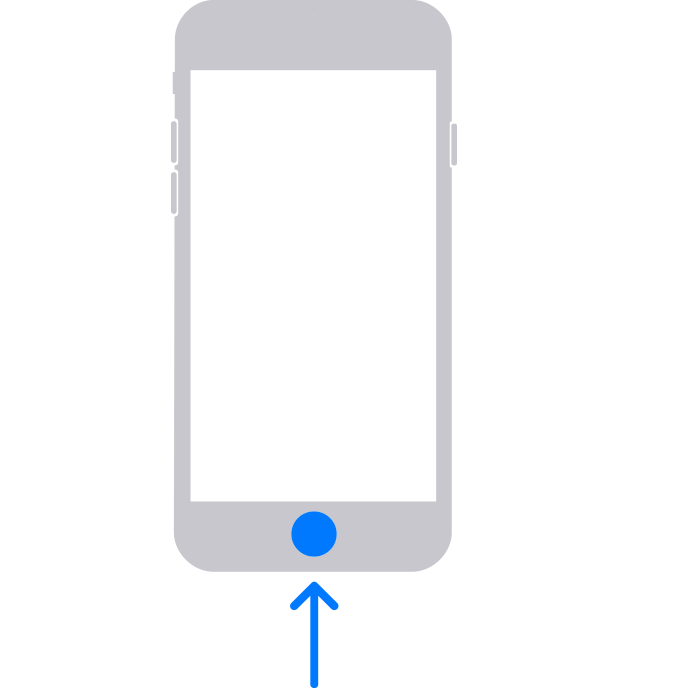
2. Press and hold the correct button for your iPhone while immediately connecting your iPhone to the computer. Don't let go of the button.
3. Keep holding the button until you see the recovery mode screen on your iPhone, then let go.
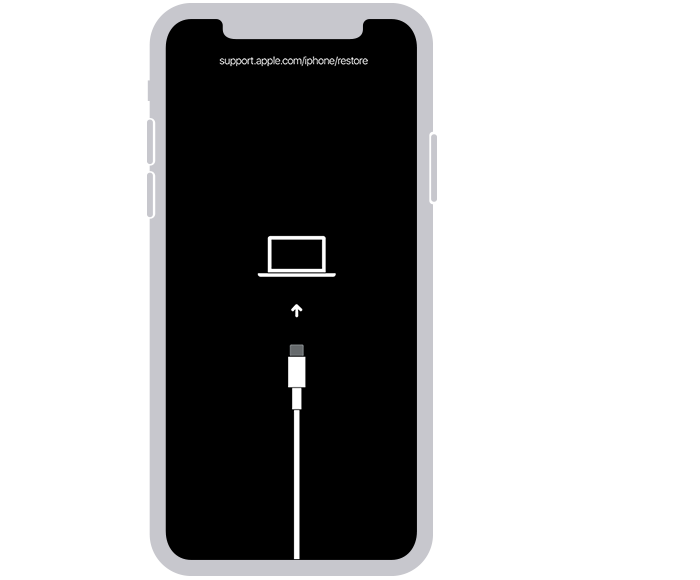
If you see the passcode screen, you need to turn off your iPhone and start again.
If you can’t get your iPhone to show the recovery mode screen and you need help, contact Apple Support.
Step 4: Restore your iPhone
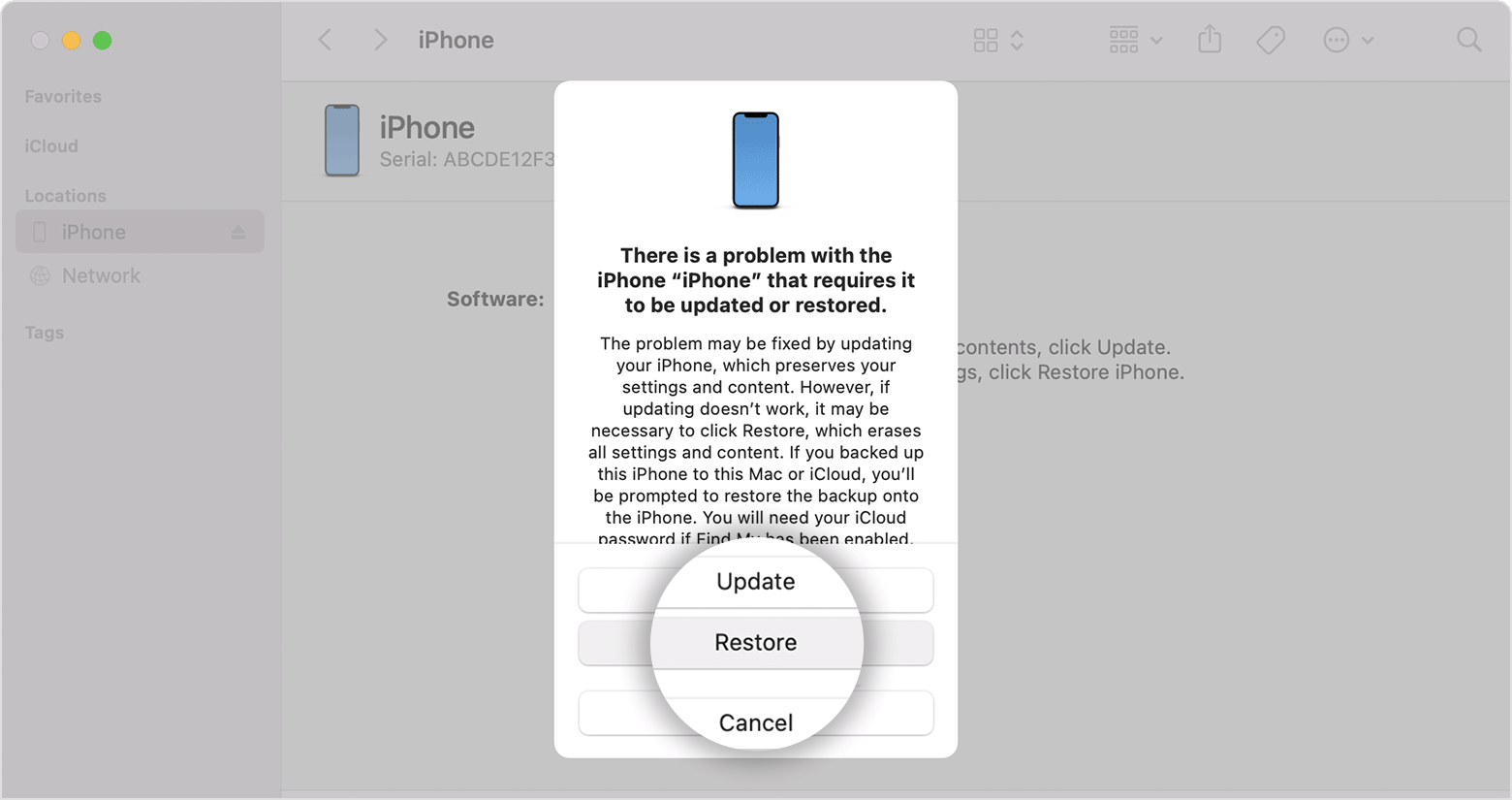
3. Wait for the process to finish.
4. Disconnect your iPhone from the computer, then set up and use your iPhone. "
For additional information, check out this link: If you forgot your iPhone passcode - Apple Support
These steps will help ensure your device is working with ease and can fix common issues like the ones you’re experiencing.
Kindest regards!
Hey there, and welcome to Apple Support Communities Yujelus,
We can certainly understand your concern and see you came to us from the article Use a passcode with your iPhone, iPad, or iPod touch.
We recommend checking out these steps for more information on what to do if you forgot your devices password.
"
Step 1: Make sure that you have a computer (Mac or PC)
This process requires a Mac or PC. If you're using a PC, make sure that it has Windows 10 or later, and that iTunes is installed. You also need the cable that came with your iPhone, or another compatible cable, to connect your iPhone to the computer.
If you don't have a computer and you can't borrow one, you need to go to an Apple Retail Store or Apple Authorized Service Provider for help.
Step 2: Turn off your iPhone
3. Drag the slider to turn off your iPhone, then wait a minute to make sure that it turns off completely.
Step 3: Put your iPhone in recovery mode
2. Press and hold the correct button for your iPhone while immediately connecting your iPhone to the computer. Don't let go of the button.
3. Keep holding the button until you see the recovery mode screen on your iPhone, then let go.
If you see the passcode screen, you need to turn off your iPhone and start again.
If you can’t get your iPhone to show the recovery mode screen and you need help, contact Apple Support.
Step 4: Restore your iPhone
3. Wait for the process to finish.
4. Disconnect your iPhone from the computer, then set up and use your iPhone. "
For additional information, check out this link: If you forgot your iPhone passcode - Apple Support
These steps will help ensure your device is working with ease and can fix common issues like the ones you’re experiencing.
Kindest regards!
Enter the passcode you use to unlock the iphone “iPhone”

