Unlock iPad to use USB accessories help

I’ve always been able to download music from iTunes on my Lenovo laptop to my iPad gen 5. I’ve been getting the message to unlock my iPad to allow USB accessories. I’ve gone into settings and turned off USB Accessories, but I’m still unable to sync music from the laptop to the iPad and still get the same message. What can I do?

iPad, iPadOS 15

Posted on Dec 10, 2022 7:36 PM

Reply
Question marked as Top-ranking reply

Posted on Dec 10, 2022 7:56 PM

You need to turn it on, not off. Tap on the button to turn it on.

Using USB accessories with iOS and iPadOS - Apple Support


Allow access to USB accessories


You can allow your iOS or iPadOS device to always access USB accessories, for example, if you use a USB assistive device to enter your passcode on your locked iPhone. Many assistive devices will automatically turn on the setting to allow USB devices the first time they’re connected.


If you don’t connect to USB accessories regularly, you might need to turn on this setting manually.

In Settings, go to Face ID & Passcode or Touch ID & Passcode, and turn on USB Accessories under Allow Access When Locked.
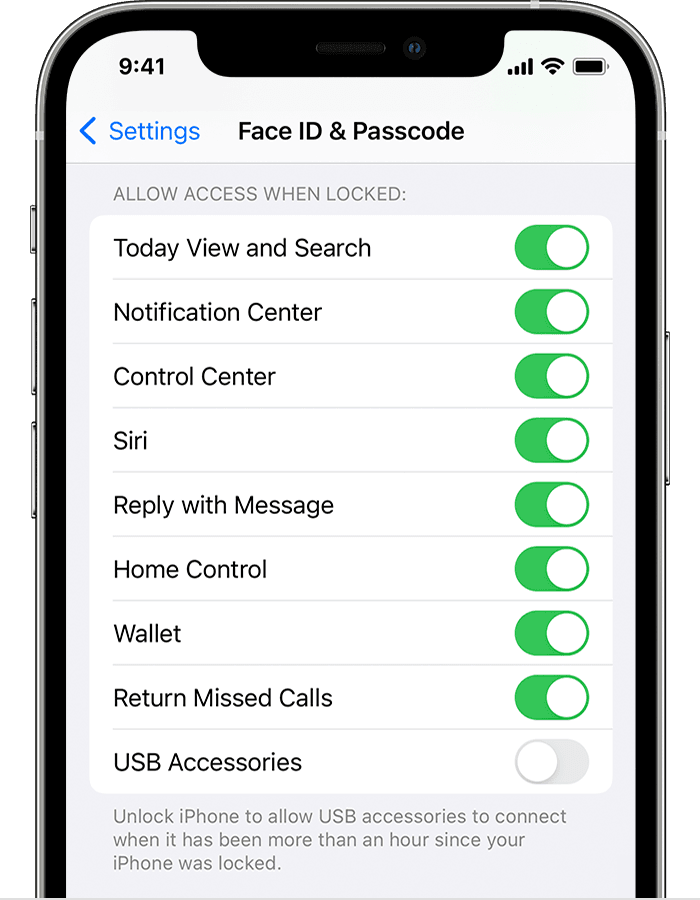


When the USB Accessories setting is off, as in the image above, you might need to unlock your iOS or iPadOS device to connect USB accessories.


Administrators can control the USB Accessories setting on supervised iOS or iPadOS devices using Apple Configurator or mobile device management.


7 replies
Question marked as Top-ranking reply

Dec 10, 2022 7:56 PM in response to dosharp

You need to turn it on, not off. Tap on the button to turn it on.

Using USB accessories with iOS and iPadOS - Apple Support


Allow access to USB accessories


You can allow your iOS or iPadOS device to always access USB accessories, for example, if you use a USB assistive device to enter your passcode on your locked iPhone. Many assistive devices will automatically turn on the setting to allow USB devices the first time they’re connected.


If you don’t connect to USB accessories regularly, you might need to turn on this setting manually.

In Settings, go to Face ID & Passcode or Touch ID & Passcode, and turn on USB Accessories under Allow Access When Locked.


When the USB Accessories setting is off, as in the image above, you might need to unlock your iOS or iPadOS device to connect USB accessories.


Administrators can control the USB Accessories setting on supervised iOS or iPadOS devices using Apple Configurator or mobile device management.


Dec 11, 2022 4:25 AM in response to dosharp

Try a forced restart and see if that fixes it. A forced restart sometimes fixes weird issues on your phone. This explains how to perform the forced restart.

Force restart iPhone - Apple Support


After the phone completely starts up, go back to the settings and sure that it is set correctly for USB accessories.


One other thought, are you sure that it isn’t asking for the phone’s passcode?

Dec 12, 2022 7:40 AM in response to dosharp

I’m sorry. I knew it was an iPad but I picked the wrong KB article and ran with it.


There is something else that you could try, but it is a PITA to clean up. You could try resetting all settings. Resetting all settings doesn’t delete any data or erase anything, but you will have to enter all of your preferred device settings again. That takes time and it is a bit of a pain having to go through the settings again.


Settings>General>Transfer or reset iPad>Reset>Reset all settings. When you reset all settings, the iPad will reboot. If you are not familiar with this, you can take a look here.

Return iPad settings to their defaults - Apple Support


Should you choose to reset your settings, it’s a good idea to back up in case you want to restore your previous settings.


This thread has been closed by the system or the community team. You may vote for any posts you find helpful, or search the Community for additional answers.

Unlock iPad to use USB accessories help

Welcome to Apple Support Community
A forum where Apple customers help each other with their products. Get started with your Apple Account.