How do I update through wired connection
My iPad is outdated and cannot update wirelessly. How do I update connected to my laptop?
iPad, iOS 8
My iPad is outdated and cannot update wirelessly. How do I update connected to my laptop?
iPad, iOS 8
Hello Gapeachy99,
If you have a Windows PC or a Mac running macOS Mojave or earlier, you can update your iPad using the steps below:
Before you update
1. Back up your device using iCloud or your computer.
2. If you have a Mac, check that your computer is running macOS Mojave or earlier. Using a Mac with macOS Catalina or later? Update your device using the Finder instead. If you're not sure which macOS you have, you can find out which macOS your Mac is using.
3. If your computer is using Personal Hotspot on the device that you're updating, connect your computer to a different Wi-Fi or Ethernet network before you update.
Update your iPhone, iPad, or iPod touch using iTunes
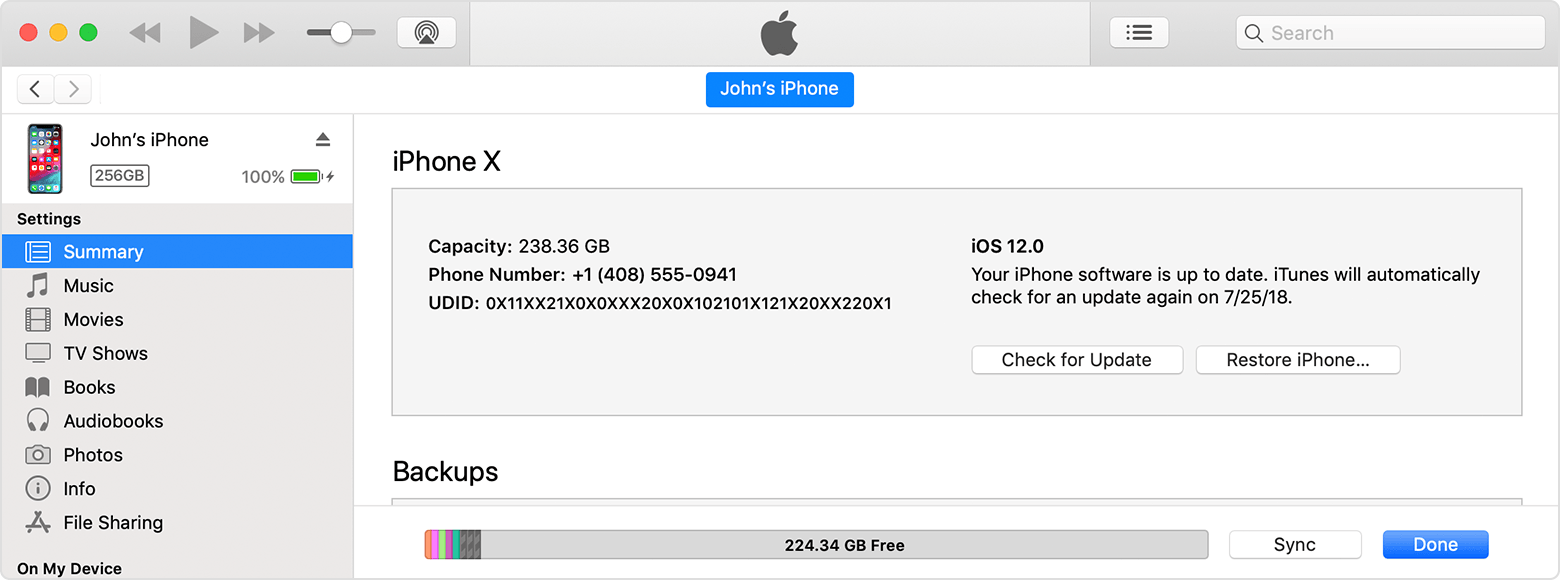
1. Open iTunes on your Mac with macOS Mojave or earlier or on your Windows PC.
2. Connect your device to your computer.
3. Click the device button in iTunes toolbar. If you don't see your device, learn what to do.
4. In the Summary tab, click Check for Update.
5. Click Download and Update. Continue by following the onscreen instructions.
If asked, enter your passcode. If you don't know your passcode, learn what to do.
You can also find those steps in this resource: Update your iPhone, iPad, or iPod touch with iTunes
If you have a Mac running macOS Catalina or later, you'll want to use the steps below: Update your iPhone, iPad, or iPod touch with the Finder
Before you update
1. Back up your device using iCloud or your computer.
2. Check that your computer is running macOS Catalina or later. Using a Mac with macOS Mojave or earlier? Update your device using iTunes instead.
3. If your computer is using Personal Hotspot on the device that you're updating, connect your computer to a different Wi-Fi or Ethernet network.
Update your iPhone, iPad, or iPod touch using your computer
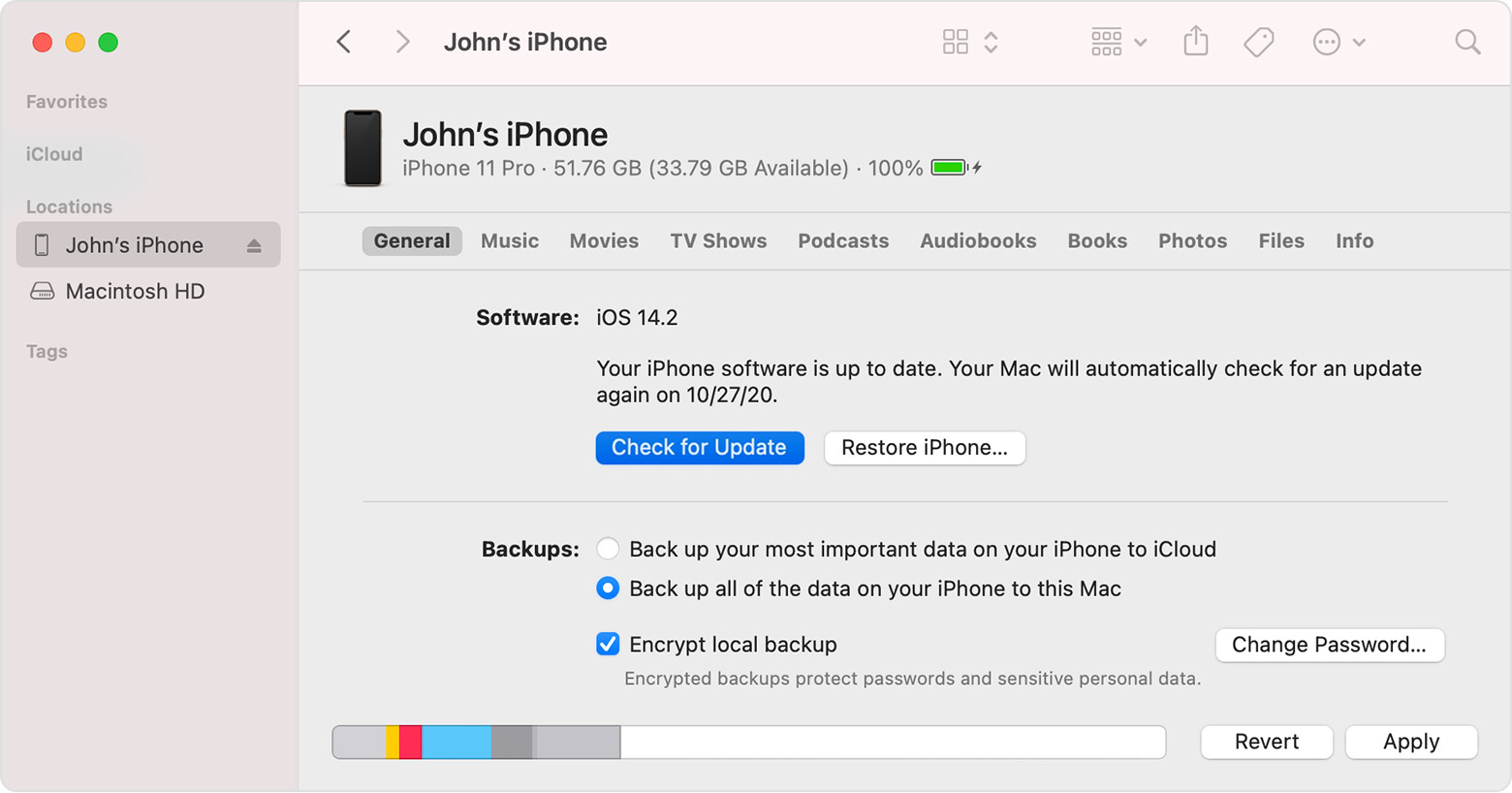
1. Open a Finder window on a Mac with macOS Catalina or later.
2. Connect your device to your computer.
3. Select your device in the left sidebar of the Finder window. Learn what to do if you don't see your device.
4. Click General, then click Check for Update.
5. Click Download and Update. Continue by following the onscreen instructions.
If asked, enter your passcode. Learn what to do if you don't know your passcode.
If you aren't able to update your iPad using those steps, just let us know if you get a particular error or code during that process.
We'll keep moving forward based on your results.
Hello Gapeachy99,
If you have a Windows PC or a Mac running macOS Mojave or earlier, you can update your iPad using the steps below:
Before you update
1. Back up your device using iCloud or your computer.
2. If you have a Mac, check that your computer is running macOS Mojave or earlier. Using a Mac with macOS Catalina or later? Update your device using the Finder instead. If you're not sure which macOS you have, you can find out which macOS your Mac is using.
3. If your computer is using Personal Hotspot on the device that you're updating, connect your computer to a different Wi-Fi or Ethernet network before you update.
Update your iPhone, iPad, or iPod touch using iTunes
1. Open iTunes on your Mac with macOS Mojave or earlier or on your Windows PC.
2. Connect your device to your computer.
3. Click the device button in iTunes toolbar. If you don't see your device, learn what to do.
4. In the Summary tab, click Check for Update.
5. Click Download and Update. Continue by following the onscreen instructions.
If asked, enter your passcode. If you don't know your passcode, learn what to do.
You can also find those steps in this resource: Update your iPhone, iPad, or iPod touch with iTunes
If you have a Mac running macOS Catalina or later, you'll want to use the steps below: Update your iPhone, iPad, or iPod touch with the Finder
Before you update
1. Back up your device using iCloud or your computer.
2. Check that your computer is running macOS Catalina or later. Using a Mac with macOS Mojave or earlier? Update your device using iTunes instead.
3. If your computer is using Personal Hotspot on the device that you're updating, connect your computer to a different Wi-Fi or Ethernet network.
Update your iPhone, iPad, or iPod touch using your computer
1. Open a Finder window on a Mac with macOS Catalina or later.
2. Connect your device to your computer.
3. Select your device in the left sidebar of the Finder window. Learn what to do if you don't see your device.
4. Click General, then click Check for Update.
5. Click Download and Update. Continue by following the onscreen instructions.
If asked, enter your passcode. Learn what to do if you don't know your passcode.
If you aren't able to update your iPad using those steps, just let us know if you get a particular error or code during that process.
We'll keep moving forward based on your results.
How do I update through wired connection