Remove recent sites start page from Safari on iPhone
I don't want rot have iPhone history on my Safari start up page. How do I remove this feature?
[Re-Titled by Moderator]
I don't want rot have iPhone history on my Safari start up page. How do I remove this feature?
[Re-Titled by Moderator]
Hello KLP77,
Thanks for posting in the Apple Support Communities. We're happy to look into this with you. We understand that you're wanting to change up the information displayed on your Safari start page. You do have lots of options for customizing this, depending on the iOS version you're using. The information provided in Customize your Safari settings on iPhone, may be helpful.
Customize your start page
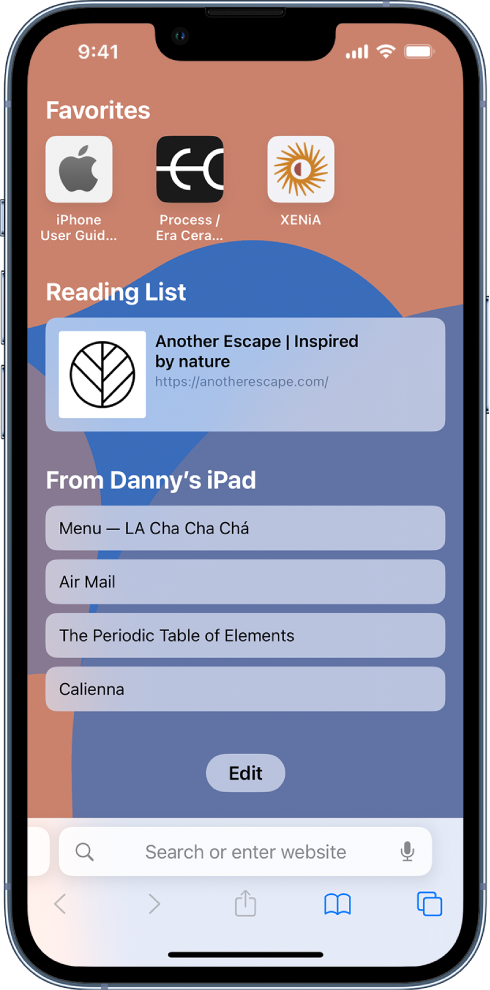
When you open a new tab, you begin on your start page. You can customize your start page with new background images and options.
1. Tap, then tap
.
2. Scroll to the bottom of the page, then tap Edit.
3. Choose the options you want to appear on your start page:
- Use Start Page on All Devices: Keep your settings and preferences updated across all Apple devices where you’re signed in with your Apple ID.
- Tab Group Favorites: Quickly see and open tabs you’ve marked as favorites.
- Recently Closed Tabs: Go back to tabs you previously closed.
- Favorites: Display shortcuts to your favorite bookmarked websites. See Bookmark a favorite website.
- Siri Suggestions: As you search, allow websites shared in Calendar and other apps to appear.
- Shared with You: See links shared with you in Messages, Mail, and more. See Find links shared with you in Safari on iPhone.
- Frequently Visited: Go straight to the websites you visit most.
- Privacy Report: Stay updated on how many trackers and websites Safari blocked from tracking you. See View the Privacy Report.
- Reading List: Show webpages currently in your Reading List. See Add the current webpage to your Reading List.
- iCloud Tabs: Show open tabs from other Apple devices where you’re signed in with the same Apple ID and Safari is turned on in iCloud settings or preferences. See Organize your tabs with Tab Groups in Safari on iPhone.
- Background Image: Choose the image you want to appear in the background each time you open a new start page in this Tab Group.
Note: Your custom start page settings are updated on all your Apple devices where you have Use Start Page on All Devices turned on, and you’re signed in with the same Apple ID using two-factor authentication.
Best regards.
Hello KLP77,
Thanks for posting in the Apple Support Communities. We're happy to look into this with you. We understand that you're wanting to change up the information displayed on your Safari start page. You do have lots of options for customizing this, depending on the iOS version you're using. The information provided in Customize your Safari settings on iPhone, may be helpful.
Customize your start page
When you open a new tab, you begin on your start page. You can customize your start page with new background images and options.
1. Tap
2. Scroll to the bottom of the page, then tap Edit.
3. Choose the options you want to appear on your start page:
- Use Start Page on All Devices: Keep your settings and preferences updated across all Apple devices where you’re signed in with your Apple ID.
- Tab Group Favorites: Quickly see and open tabs you’ve marked as favorites.
- Recently Closed Tabs: Go back to tabs you previously closed.
- Favorites: Display shortcuts to your favorite bookmarked websites. See Bookmark a favorite website.
- Siri Suggestions: As you search, allow websites shared in Calendar and other apps to appear.
- Shared with You: See links shared with you in Messages, Mail, and more. See Find links shared with you in Safari on iPhone.
- Frequently Visited: Go straight to the websites you visit most.
- Privacy Report: Stay updated on how many trackers and websites Safari blocked from tracking you. See View the Privacy Report.
- Reading List: Show webpages currently in your Reading List. See Add the current webpage to your Reading List.
- iCloud Tabs: Show open tabs from other Apple devices where you’re signed in with the same Apple ID and Safari is turned on in iCloud settings or preferences. See Organize your tabs with Tab Groups in Safari on iPhone.
- Background Image: Choose the image you want to appear in the background each time you open a new start page in this Tab Group.
Note: Your custom start page settings are updated on all your Apple devices where you have Use Start Page on All Devices turned on, and you’re signed in with the same Apple ID using two-factor authentication.
Best regards.
Remove recent sites start page from Safari on iPhone