Turing on Private Relay prevents me from seeing my Apple ID settings
I turned on Private Relay. After doing that, I can no longer view my Apple ID settings (name, email, ID). And, I no longer have access to turn it off!
MacBook Pro 15″, OS X 10.11
I turned on Private Relay. After doing that, I can no longer view my Apple ID settings (name, email, ID). And, I no longer have access to turn it off!
MacBook Pro 15″, OS X 10.11
Hello ajdossa,
Welcome to Apple Support Communities. What happens when you try to view your Apple ID information, and turn off Private Relay feature? Are you getting any errors? If so, please specify.
Does the issue persists after restarting your Mac normally? Restarting is a simple step that can resolve many unexpected behaviors.
Do you have an iPad or iPhone? If so, have you tried to access your Apple ID information, and turn Private Relay off using your iPhone, or iPad?
Please check this out for information about how to turn it off on your iPhone, iPad or Mac:
Turn on Private Relay on your iPhone or iPad
1- Open the Settings app, then tap your name.
2- Tap iCloud, then select Private Relay.
3- To turn Private Relay on or off, tap Private Relay.
4- To choose a setting for your IP address, tap IP Address Location.
•To let sites show you localized content in Safari while your IP address stays hidden, tap Maintain general location.
•To use a broader location for your IP address, still within your country and time zone, tap Use country and time zone.
You can turn off Private Relay temporarily by tapping Turn Off Until Tomorrow. When you do, Private Relay turns back on automatically within 24 hours.
Turn on Private Relay on your Mac
In macOS Ventura or later:
1- Choose Apple menu > System Settings.
2- Click your name, then select iCloud.
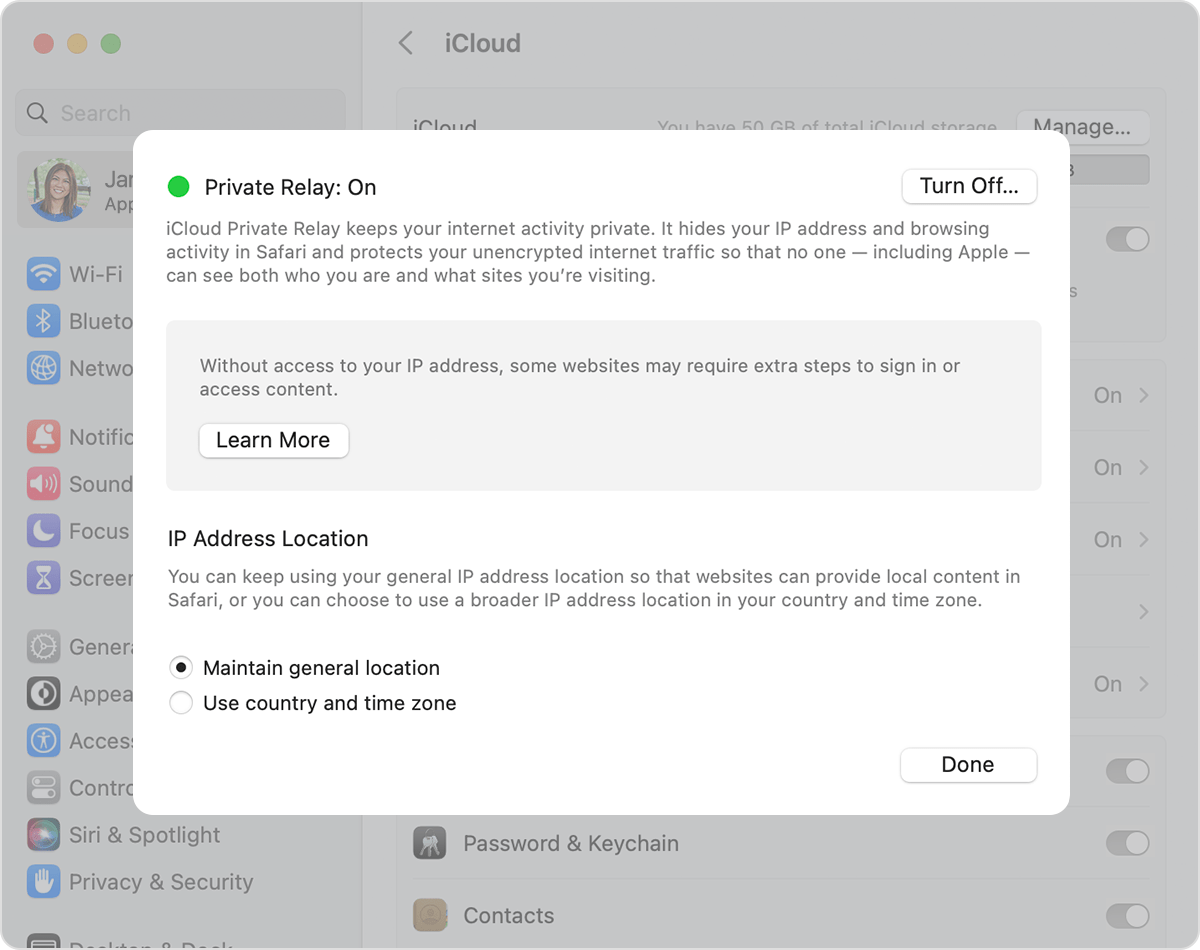
3- Click Private Relay.
4- To turn on or off Private Relay, click the Turn On or Turn Off button.
5- Choose a setting for your IP address:
•To let sites show you localized content in Safari while your IP address stays hidden, click Maintain General Location.
•To use a broader location for your IP address, still within your country and time zone, click Use Country and Time Zone.
You can turn off Private Relay temporarily by clicking Turn Off Until Tomorrow. When you do, Private Relay turns back on automatically within 24 hours.
In macOS Monterey:
1- Choose Apple menu > System Preferences.
2- Click Apple ID, then select iCloud.
3- To turn on or off Private Relay, click the checkmark next to Private Relay.
4- To choose a setting for your IP address, click Options:
• To let sites show you localized content in Safari while your IP address stays hidden, click Maintain general location.
• To use a broader location for your IP address, still within your country and time zone, click Use country and time zone.
We hope this information is useful. Kind regards.
Turing on Private Relay prevents me from seeing my Apple ID settings