Combining photo libraries

I have a 40k Icloud photo library which I am currently restoring to my new M2 macbook air.

I also have 30k photos stored on the internal HD of my iphone14 including 00's of photos taken on my new phone which are not in the macbook library.

What is the best way of combining both libaries without duplicates?

MacBook Air

Posted on Dec 23, 2022 11:27 AM

Reply
Question marked as Top-ranking reply

Posted on Dec 26, 2022 12:02 PM

Hi jhughes44,


Welcome to Apple Support Communities. We understand that you'd like to make sure all your photos are appearing on your new MacBook Air. We'd like to help.


Are you using iCloud Photos to share your photos between devices? If you are, you can enable that on your devices to get those libraries to merge.


Follow these steps to make sure it's enabled on all devices:


Turn on iCloud Photos
Make sure that you set up iCloud and sign in to iCloud with the same Apple ID on all of your devices. If you have a PC, you need Windows 7 or later and iCloud for Windows.

On your iPhone, iPad, or iPod touch
1. Go to Settings > [your name].
2. Tap iCloud.
3. Tap Photos, then turn on iCloud Photos.

On your Mac
1. Choose Apple menu  > System Settings or choose Apple menu  > System Preferences.
2. Click Apple ID. 
3. Click iCloud in the sidebar, then select Photos. 

On Apple TV 4K and Apple TV HD
1. Go to Settings > Users and Accounts.
2. Select iCloud.
3. Turn on iCloud Photos.

On your Windows PC
Learn how to set up and use iCloud Photos on your PC


If you do run into issue with duplicates after doing this, these steps can help:


Remove duplicate photos in Photos on Mac

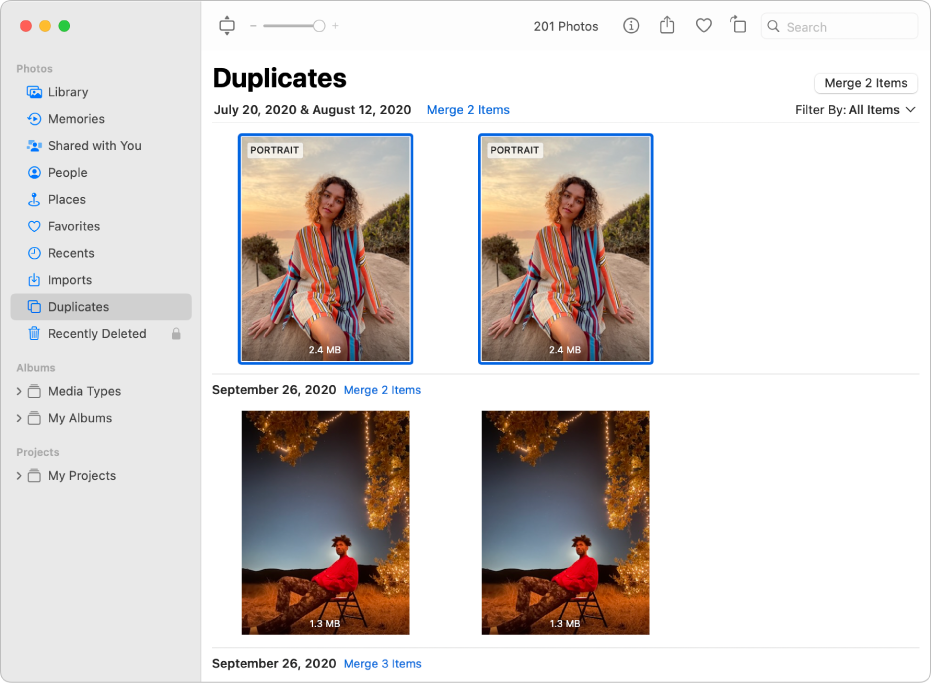
You can easily remove duplicate photos and videos from your library. Duplicates appear automatically in the Duplicates album in the sidebar. (Depending on the size of your library, duplicates may take some time to appear as Photos analyzes your photos.)
1. In the Photos app  on your Mac, click Duplicates in the sidebar.
2. Select the duplicates you want to merge.

You can select individual items in a single row and merge them or select multiple rows of duplicates and merge them all at once. A single original photo or video is kept from the selection in a row and other duplicates are deleted.
The Photos window showing Duplicates selected in the sidebar and duplicate photos side by side on the right.
3. Click Merge [number] Duplicates. 

One original photo or video appears where the selected duplicates were located in your library. Deleted duplicates appear in the Recently Deleted album where you can recover or permanently delete them.


Let us know how that goes.


Take care!


11 replies
Question marked as Top-ranking reply

Dec 26, 2022 12:02 PM in response to jhughes44

Hi jhughes44,


Welcome to Apple Support Communities. We understand that you'd like to make sure all your photos are appearing on your new MacBook Air. We'd like to help.


Are you using iCloud Photos to share your photos between devices? If you are, you can enable that on your devices to get those libraries to merge.


Follow these steps to make sure it's enabled on all devices:


Turn on iCloud Photos
Make sure that you set up iCloud and sign in to iCloud with the same Apple ID on all of your devices. If you have a PC, you need Windows 7 or later and iCloud for Windows.

On your iPhone, iPad, or iPod touch
1. Go to Settings > [your name].
2. Tap iCloud.
3. Tap Photos, then turn on iCloud Photos.

On your Mac
1. Choose Apple menu  > System Settings or choose Apple menu  > System Preferences.
2. Click Apple ID. 
3. Click iCloud in the sidebar, then select Photos. 

On Apple TV 4K and Apple TV HD
1. Go to Settings > Users and Accounts.
2. Select iCloud.
3. Turn on iCloud Photos.

On your Windows PC
Learn how to set up and use iCloud Photos on your PC


If you do run into issue with duplicates after doing this, these steps can help:


Remove duplicate photos in Photos on Mac

You can easily remove duplicate photos and videos from your library. Duplicates appear automatically in the Duplicates album in the sidebar. (Depending on the size of your library, duplicates may take some time to appear as Photos analyzes your photos.)
1. In the Photos app  on your Mac, click Duplicates in the sidebar.
2. Select the duplicates you want to merge.

You can select individual items in a single row and merge them or select multiple rows of duplicates and merge them all at once. A single original photo or video is kept from the selection in a row and other duplicates are deleted.
The Photos window showing Duplicates selected in the sidebar and duplicate photos side by side on the right.
3. Click Merge [number] Duplicates. 

One original photo or video appears where the selected duplicates were located in your library. Deleted duplicates appear in the Recently Deleted album where you can recover or permanently delete them.


Let us know how that goes.


Take care!


Jan 17, 2023 10:33 AM in response to jhughes44

iCloud will do all that for you.


You have iCloud enabled on your Mac Photos System Library, right? So all your Mac pictures are also in the iCloud Photos Library. You can see them on your Mac and at iCloud.com.


If you turn on iCloud on your iPhone, then its pictures will combine with the ones already on iCloud. And iCloud will cause both hour Mac and your iPhone to have all those pictures on both.


If storage space is a problem for your phone, turn on "Optimize iPhone Storage" in Settings>Photos. If storage space is a problem on your Mac, turn on "Optimize Storage" in Photos Preferences.

Jan 18, 2023 7:25 AM in response to jhughes44

jhughes44 wrote:

Thanks for all advice.
It sounds like the best solution would be for me to export all photos taken on my iPhone to my Mac - then delete all photos stored on iPhone internal storage - then somehow sync my iPhone to the Mac - is that correct?

That is not the best option, unless you have not added any adjustments or captions on your iPhone or have created any albums. When you download the photos from your iPhone, you will only download the photos, but not save any work you have invested into the photos on the iPhone.

The approach outlined by Richard is much better. When you enable iCloud Photos on the iPhone, the photos will be merged into your existing iCloud Photos Library, with all metadata and adjustments, the faces, the assigned locations, any captions, any albums. iCloud will resolve conflicts between duplicates, while the photos will be merged into your iCloud Photos Library. The merged library will sync back to your Mac and your iPhone.


This should work well, unless the photos currently on your iPhone have been synced to the iPhone with iTunes or from the Finder. If your photos on the iPhone are synced Photos, you will lose them, when you enable iCloud Photos on the iPhone, because you cannot use manual syncing and iCloud Photos at the same time. In that case you will first have to save the synced photos somewhere, before turning on iCloud Photos.

Dec 27, 2022 10:34 AM in response to jhughes44

Hi jhughes44,


Thanks for following up with us. We'd like to provide some additional information, which may help.


If you enable iCloud Photos on all of your devices, it automatically keeps all of your photos and videos in iCloud, so you can access your library from any of your devices. The "How iCloud Photos works" part of this link has more information about how iCloud Photos works, and maybe helpful: Set up and use iCloud Photos


How iCloud Photos works

iCloud Photos automatically keeps every photo and video you take in iCloud, so you can access your library from any device, anytime you want. Any changes you make to your collection on one device change on your other devices too. Your photos and videos are organized into Years, Months, Days, and All Photos.And all of your Memories and People are updated everywhere. That way you can quickly find the moment, family member, or friend you're looking for.

Your photos and videos are stored in iCloud in their original formats at full resolution. This includes HEIF, JPEG, RAW, PNG, GIF, TIFF, HEVC, and MP4 as well as special formats you capture with your iPhone or iPad, like slo-mo, time-lapse, 4K videos, and Live Photos. The photos and videos you capture with these devices are in HEIF and HEVC format. Depending on your internet speed, the time it takes for you to see your photos and videos on all of your devices and iCloud.com might vary.


Thanks!

Jan 1, 2023 2:52 PM in response to jhughes44

I think I understand that you have iCloud enabled on your Mac Photos System Library. Soon, your Mac Library will have on its internal drive all the pictures that are in the iCloud Library. You have another set of pictures on you iPhone, but iCloud is not turned on for Photos there. Is that right?


If so, then when you turn on iCloud on Photos on your iPhone, all the pictures on the phone will be added to the pictures already in iCloud Photos in a process that will likely take a few days. You will then have 70,000 pictures in the iCloud Photos Library, and there might be duplicates. You will also have 70,000 pictures in you System Library on your Mac, and 70,000 pictures on your phone. iCloud synchronizes the Libraries so that they all, phone, mac, iCloud.com, have the same pictures.


Since the pictures will be stored in iCloud, you will not need to have full resolution images stored on your phone. Once you turn on iCloud on your phone, you can go to Settings>Photos and turn on "Optimize iPhone Storage." This will keep pictures on the phone that look great on the small screen, but don't take up so much storage. The full-resolution images will always be available at iCloud.com.


If you want to delete your pictures on your iPhone, you will need to disconnect iPhone Photos from iCloud, or all those new images will be deleted at iCloud.com and on your Mac, also. iCloud is about synchronization-- whatever you do on one device happens to all of them.

This thread has been closed by the system or the community team. You may vote for any posts you find helpful, or search the Community for additional answers.

Combining photo libraries

Welcome to Apple Support Community
A forum where Apple customers help each other with their products. Get started with your Apple Account.